Console Tour
Step through the OpenRun management console, in two parts. Deploy an app creates a database service with its connection url stored as a secret, binds an app to it, deploys a containerized app from a git repo and visits the operational pages. Role based access control configures RBAC from the console and works with team-scoped grants. Every screen is a real screenshot in the light and dark themes.
Deploy an app
Overview
System at a glance
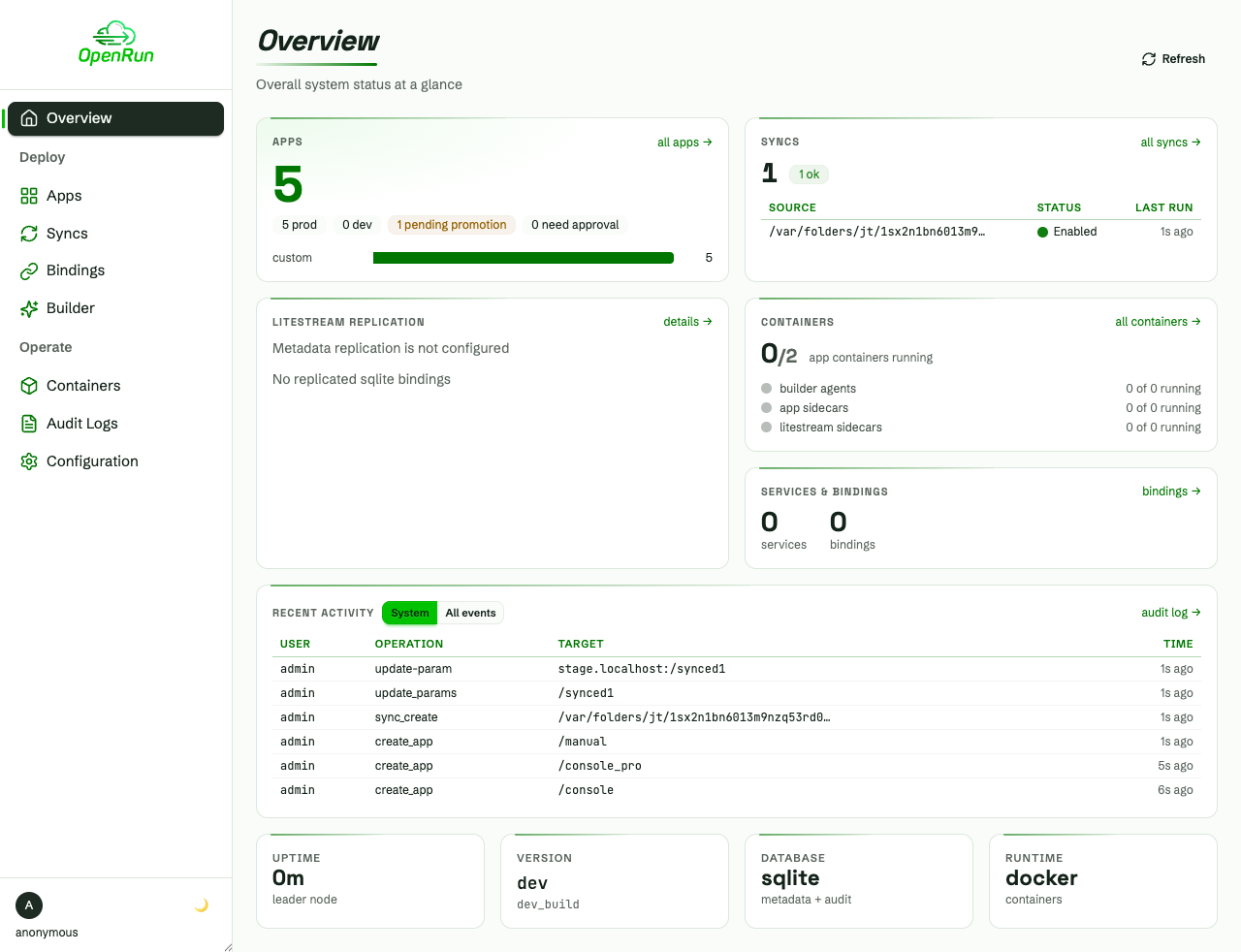
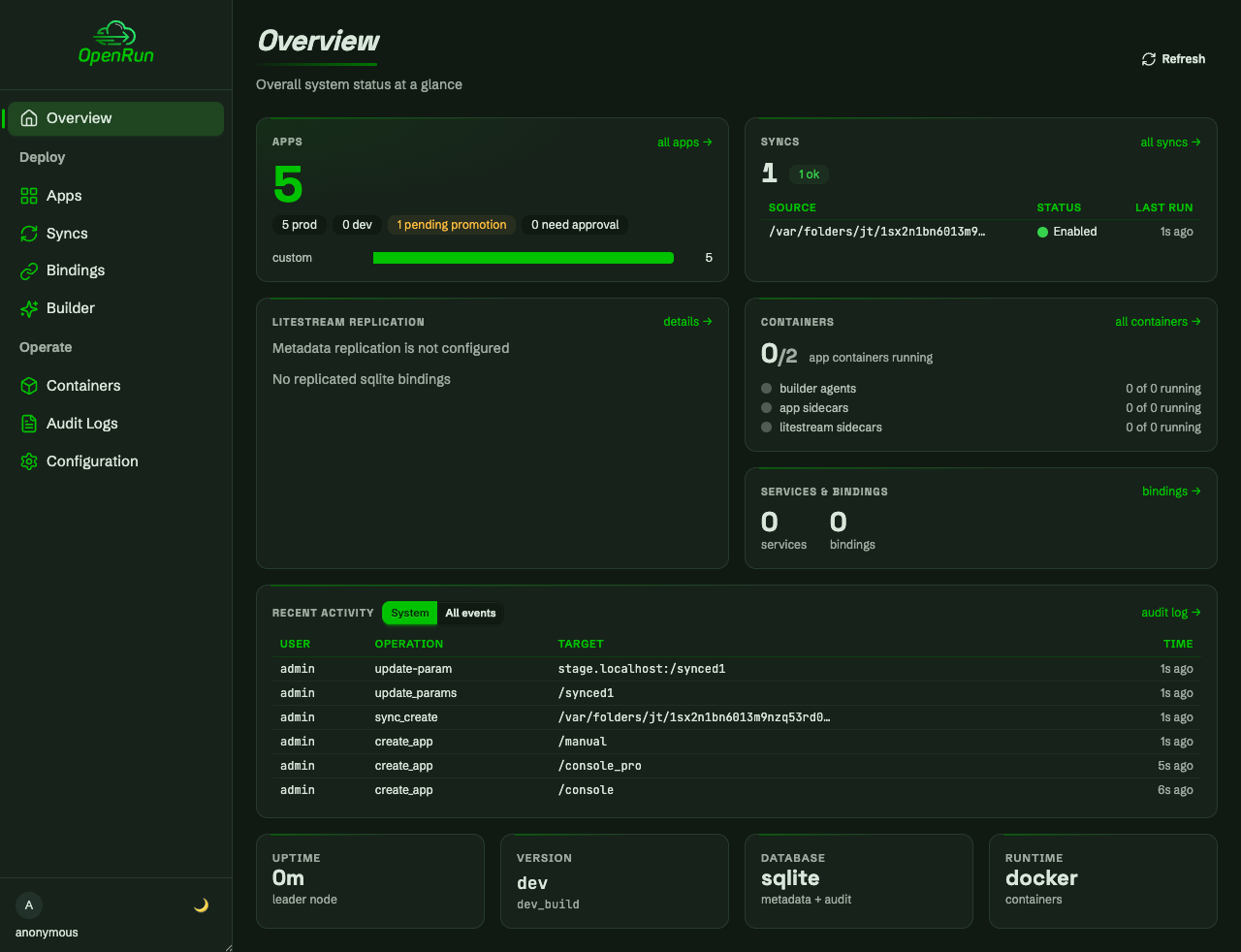
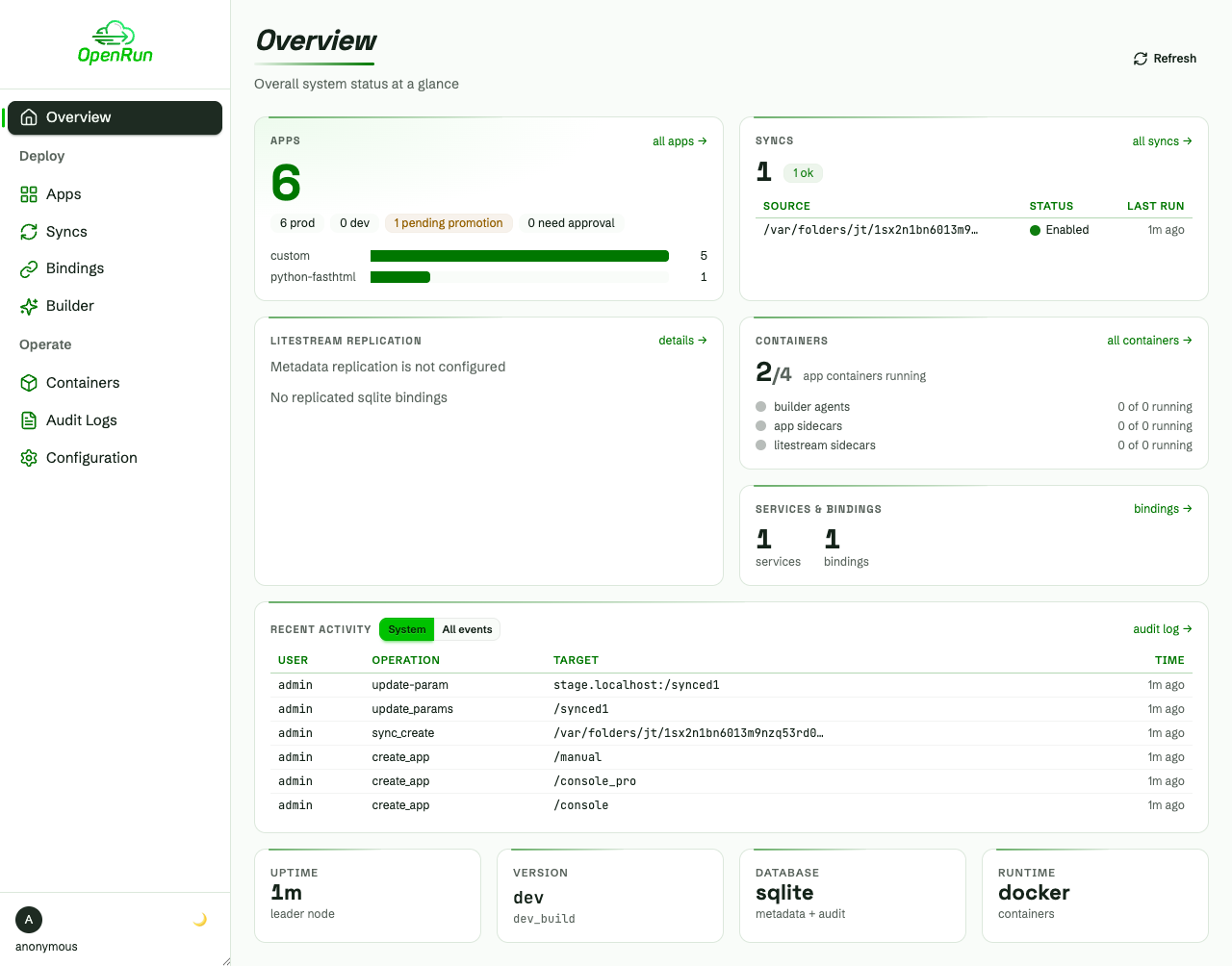
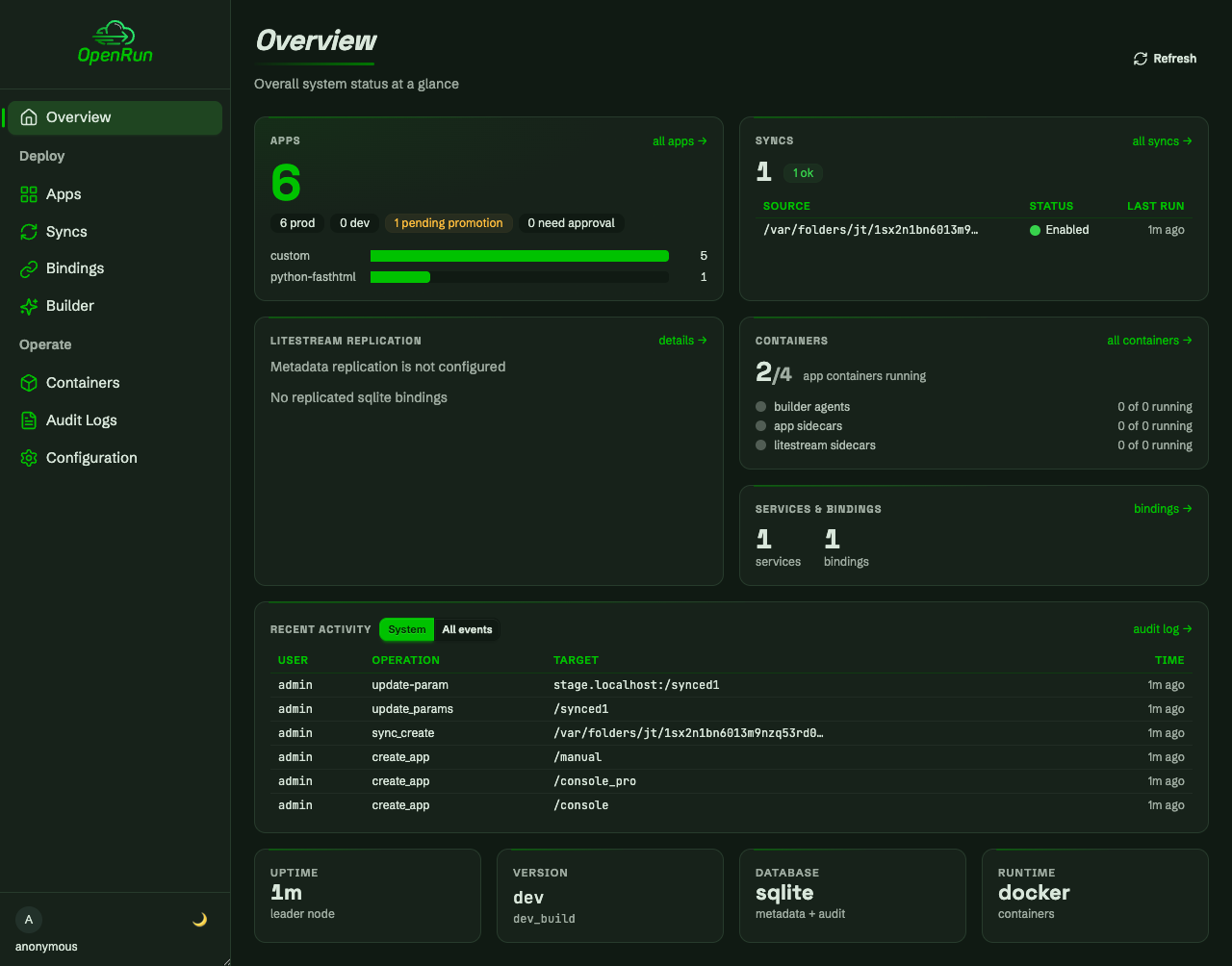
The console home page shows the system at a glance: apps, syncs, containers, services and recent activity. Every tile links into its area page.
Create a service
Add a database service
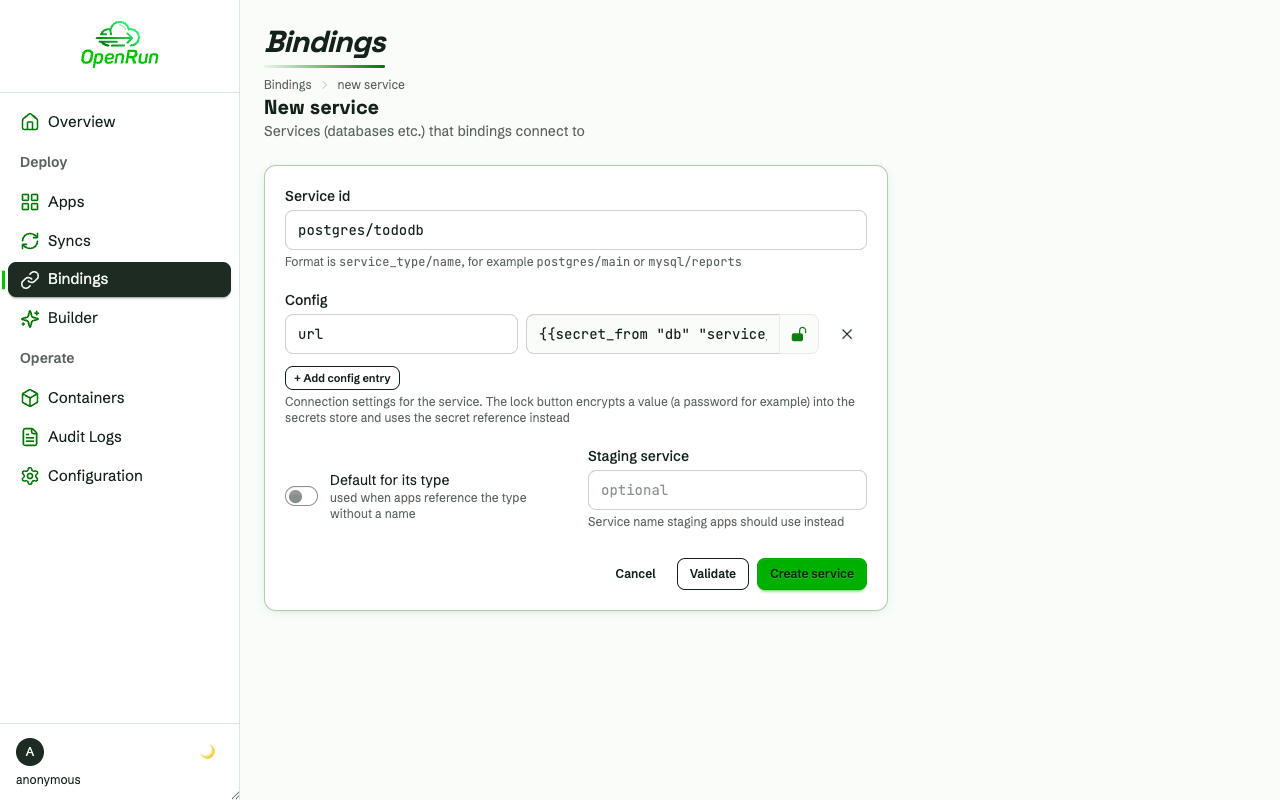
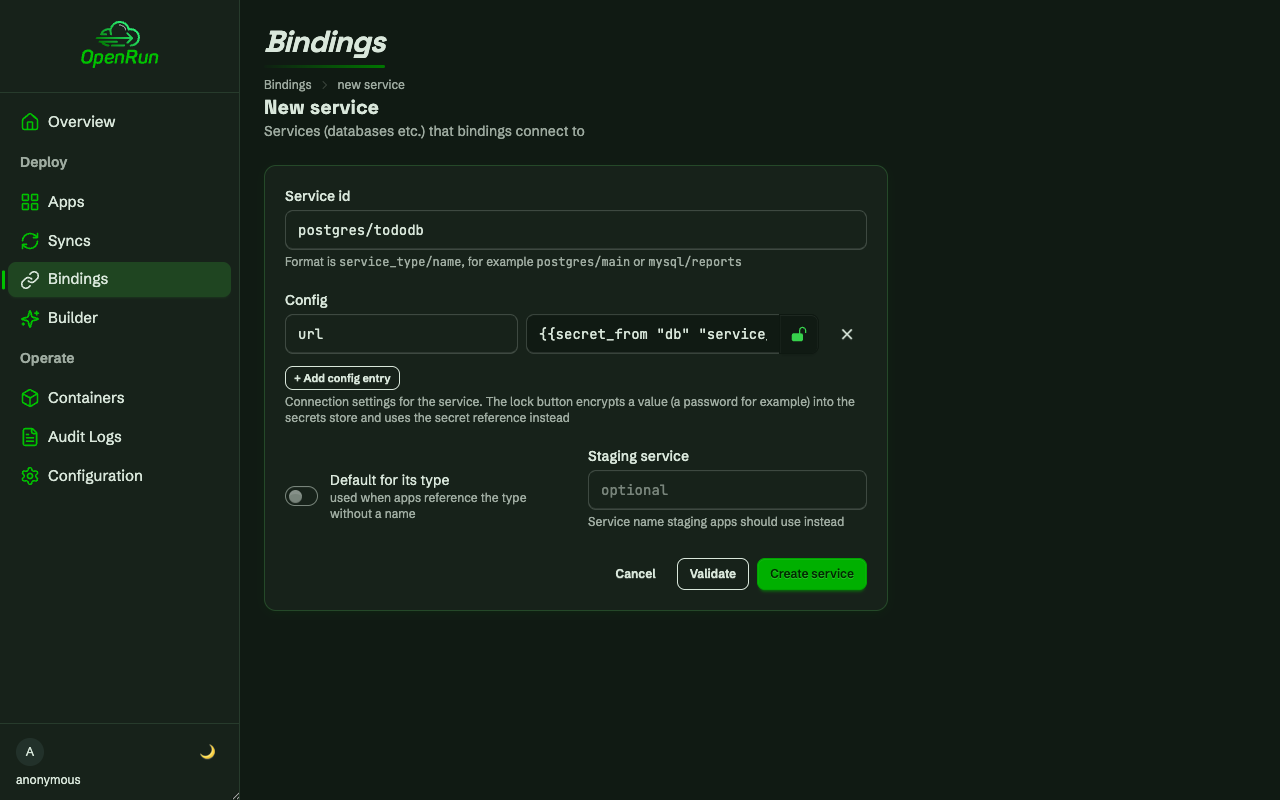
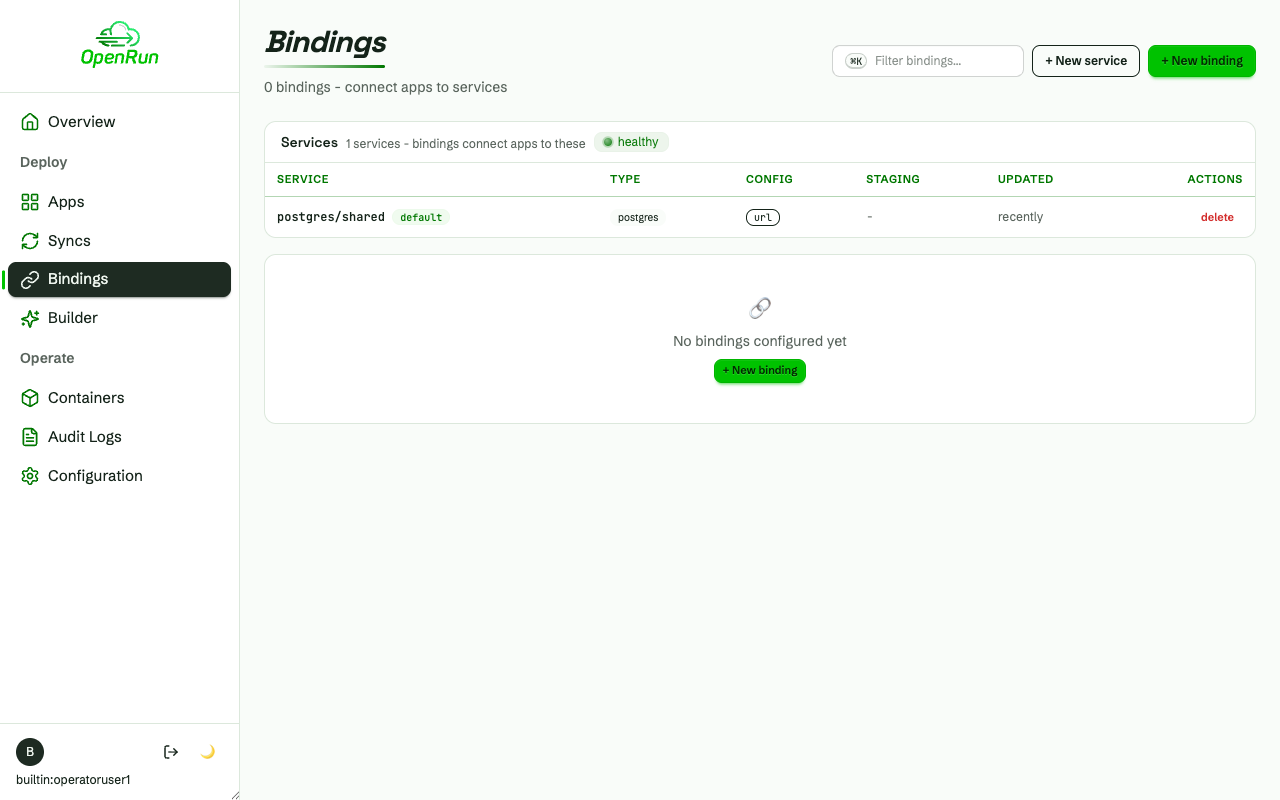
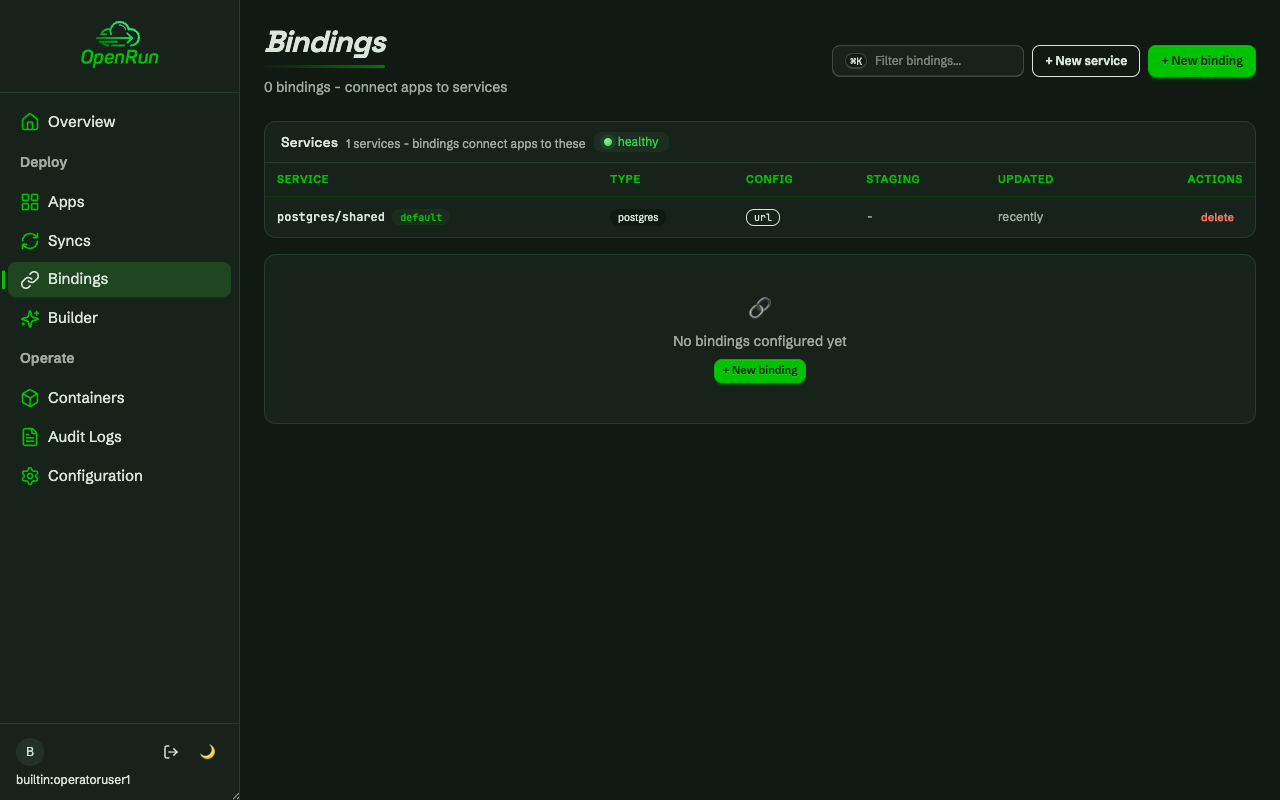
Services are named backing resources (Postgres, MySQL, Redis) that apps connect to through bindings. The lock button encrypts the connection url into the secrets store. The service config keeps only the secret reference, so credentials never appear in config listings.
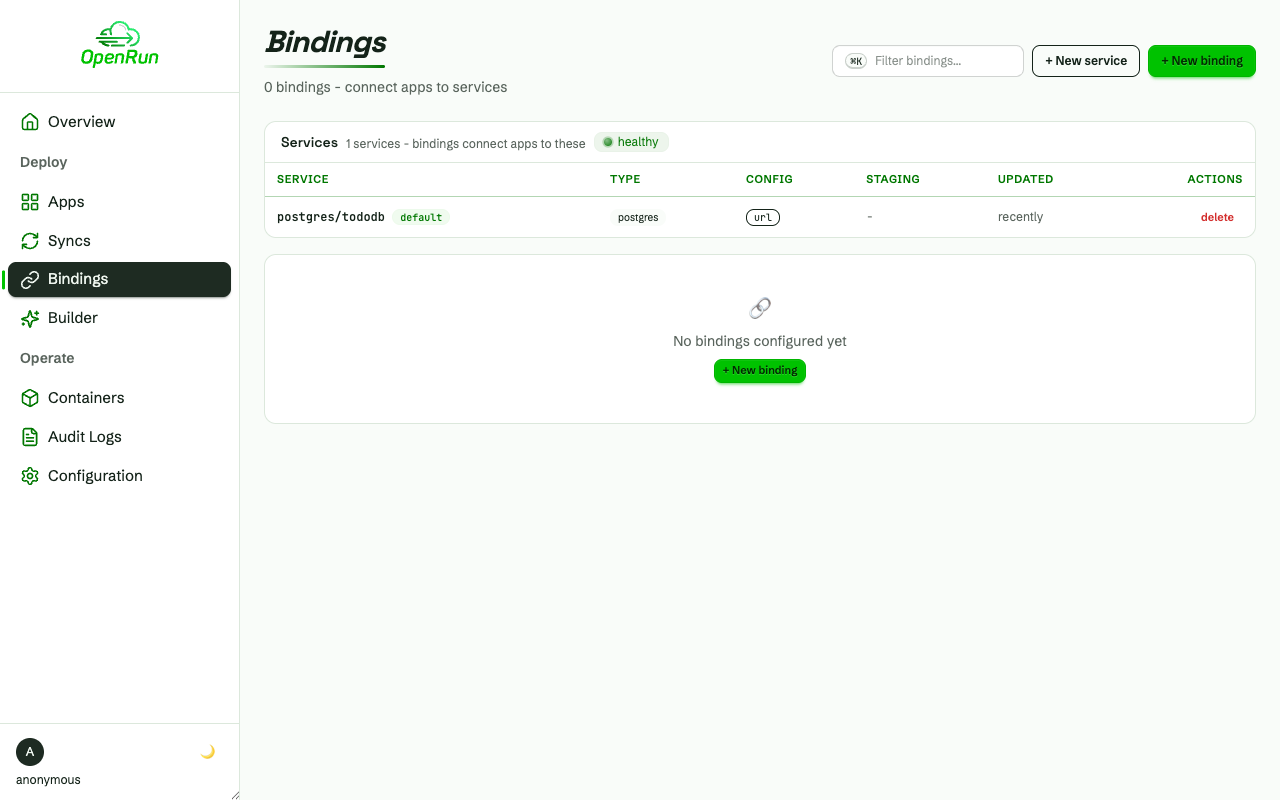
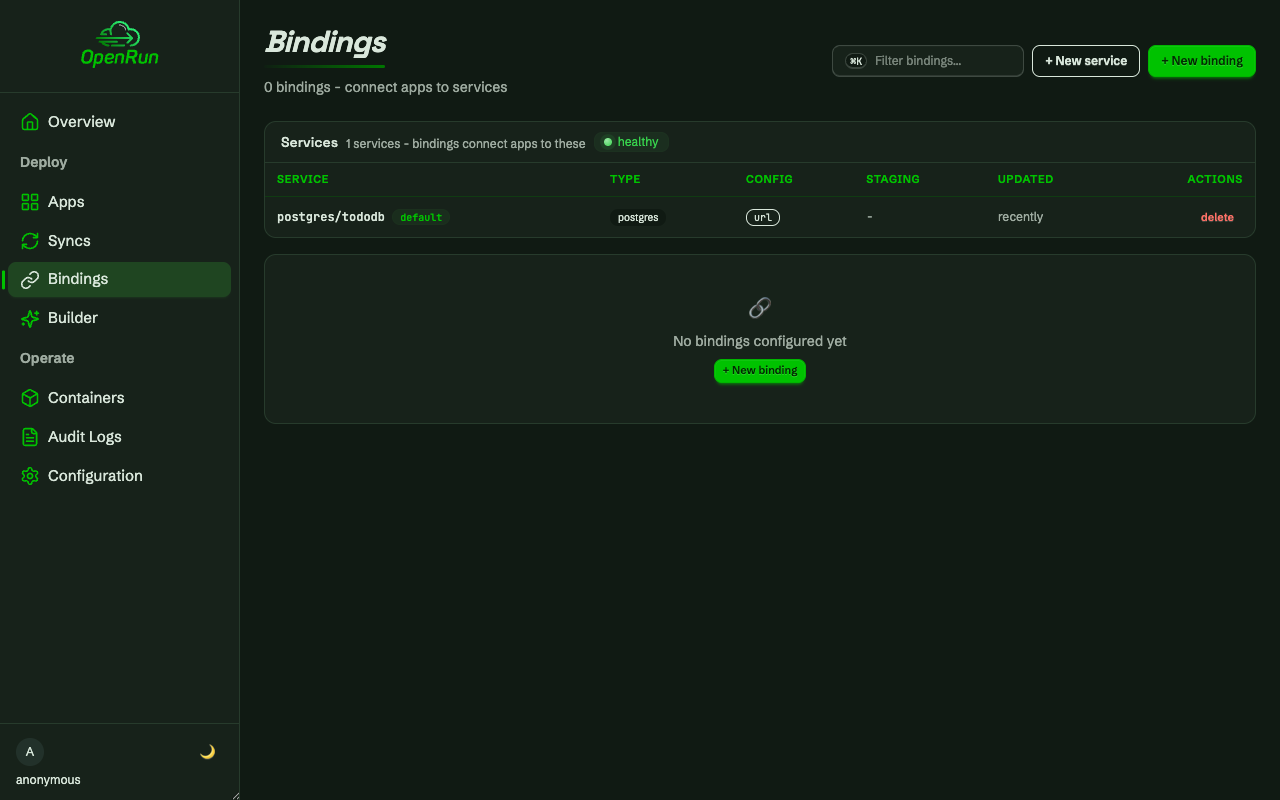
The service is listed
The created service shows on the bindings page with its config keys. The values stay on the server.
Create a binding
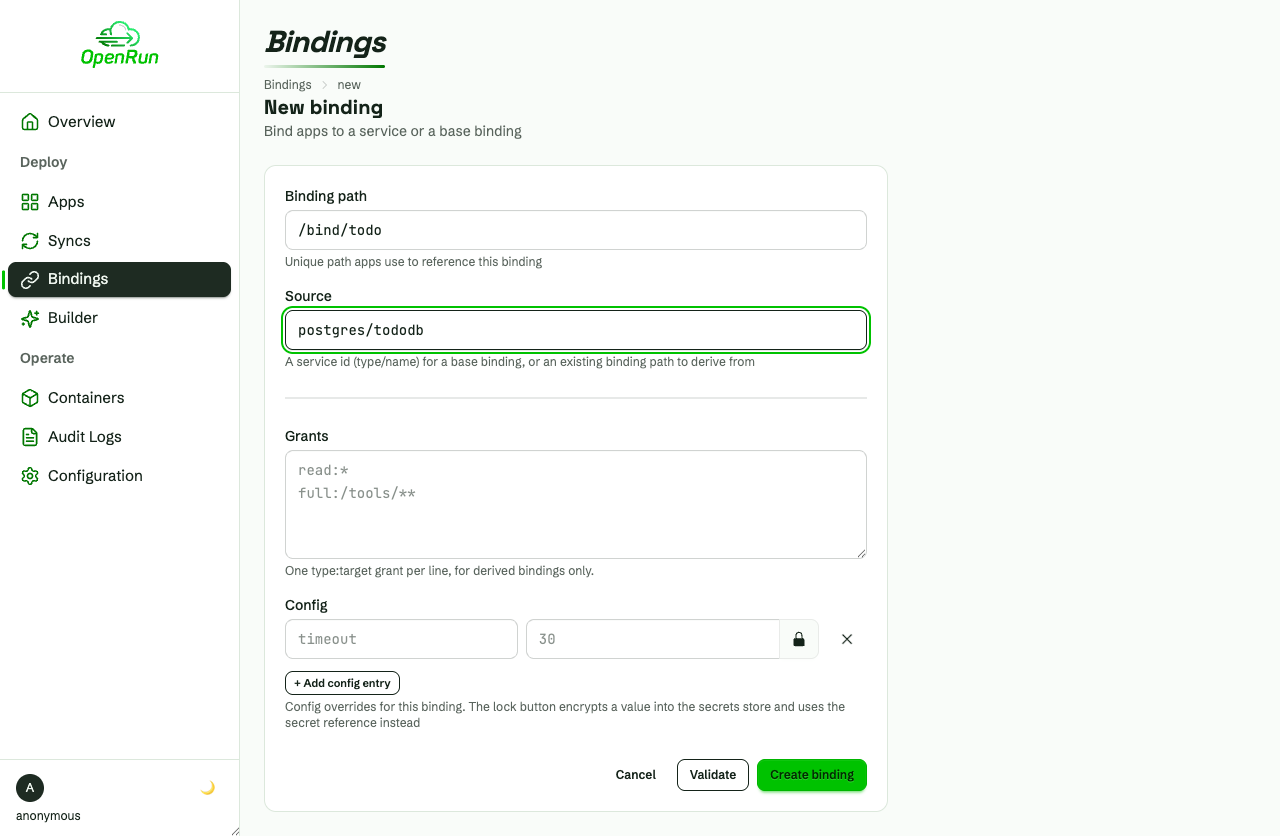
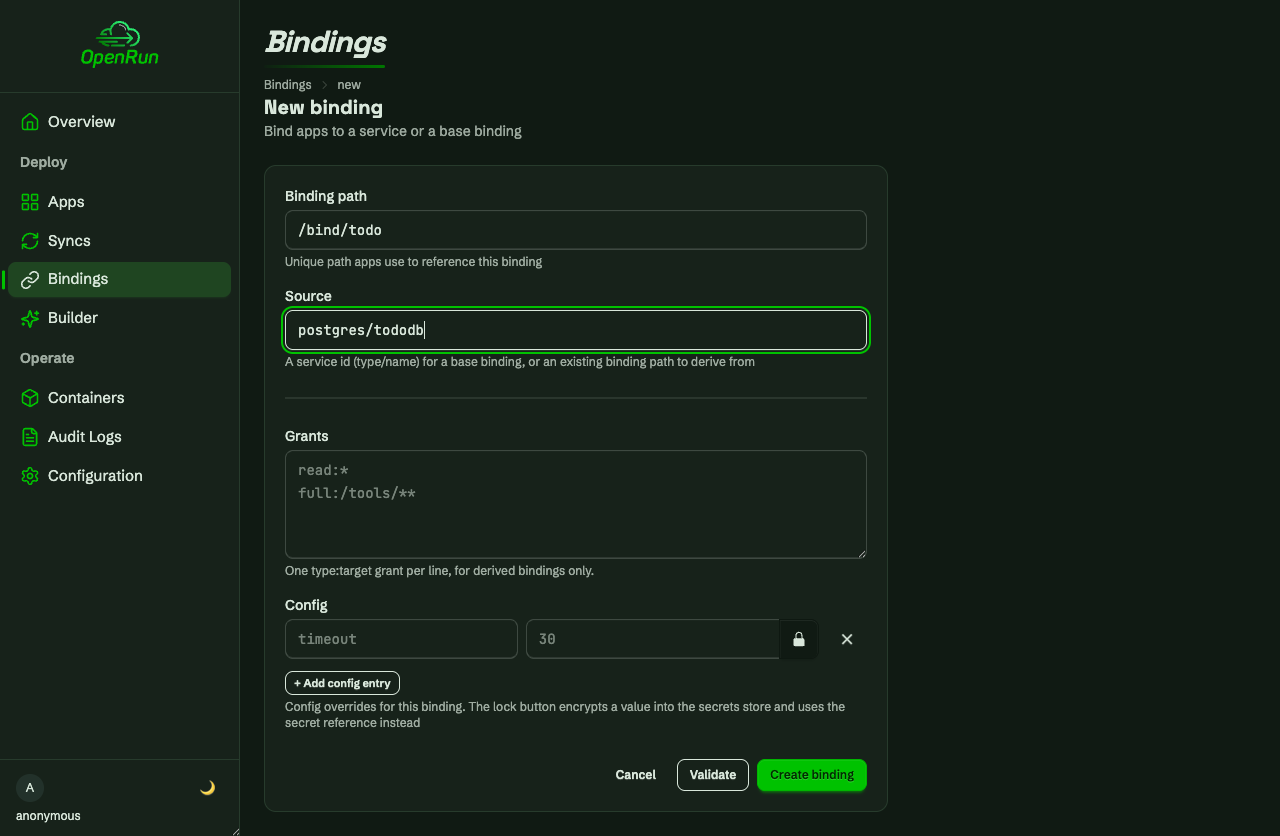
Bind to the service
A binding gives apps access to a service. Creating it provisions a dedicated account (role and schema) on the database, so each binding is isolated.
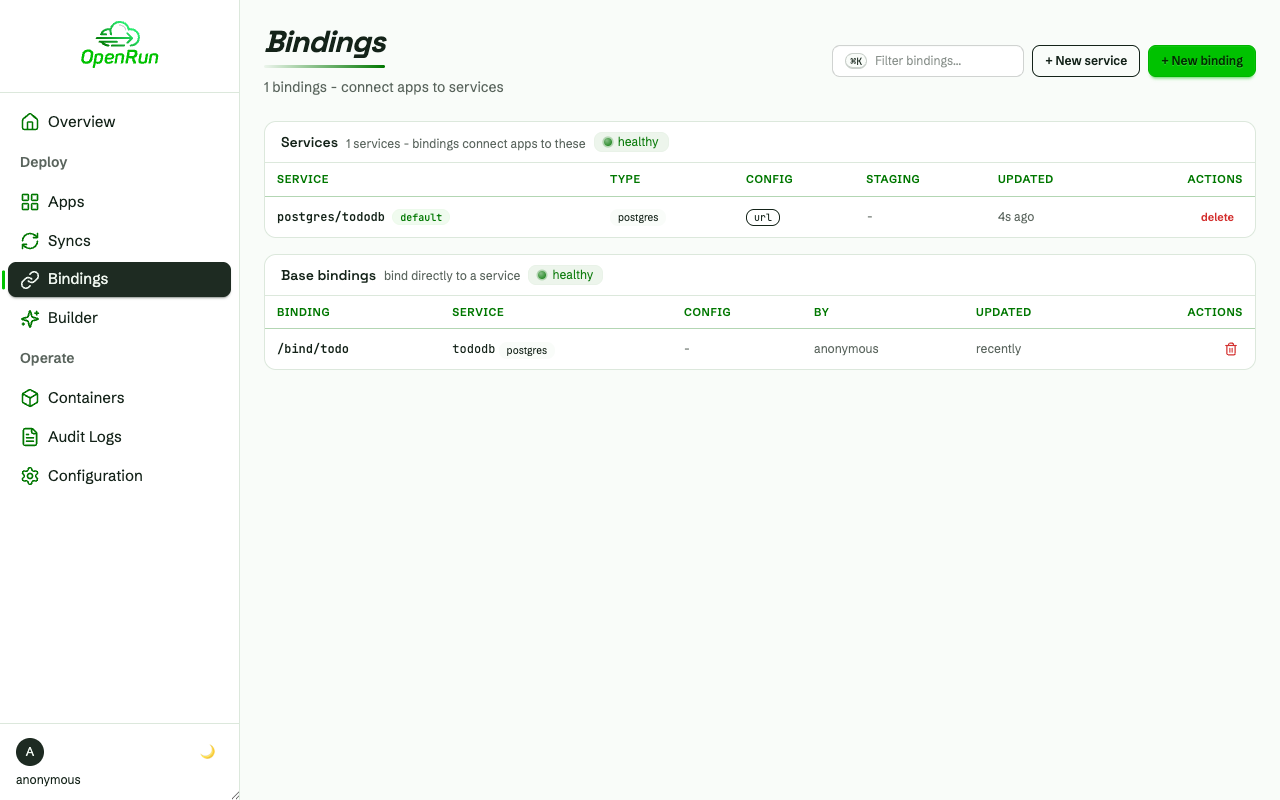
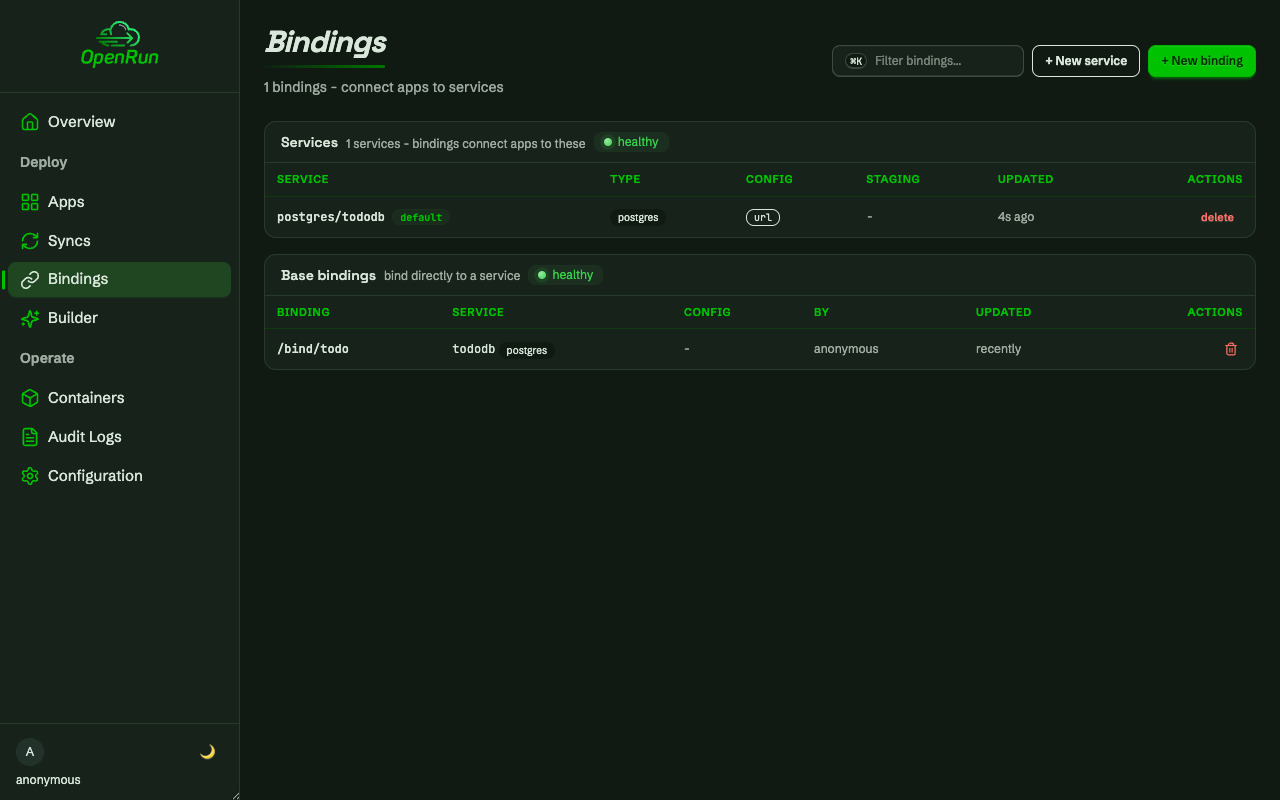
Service and binding together
The bindings page now lists the service and the base binding created from it.
Deploy from Git
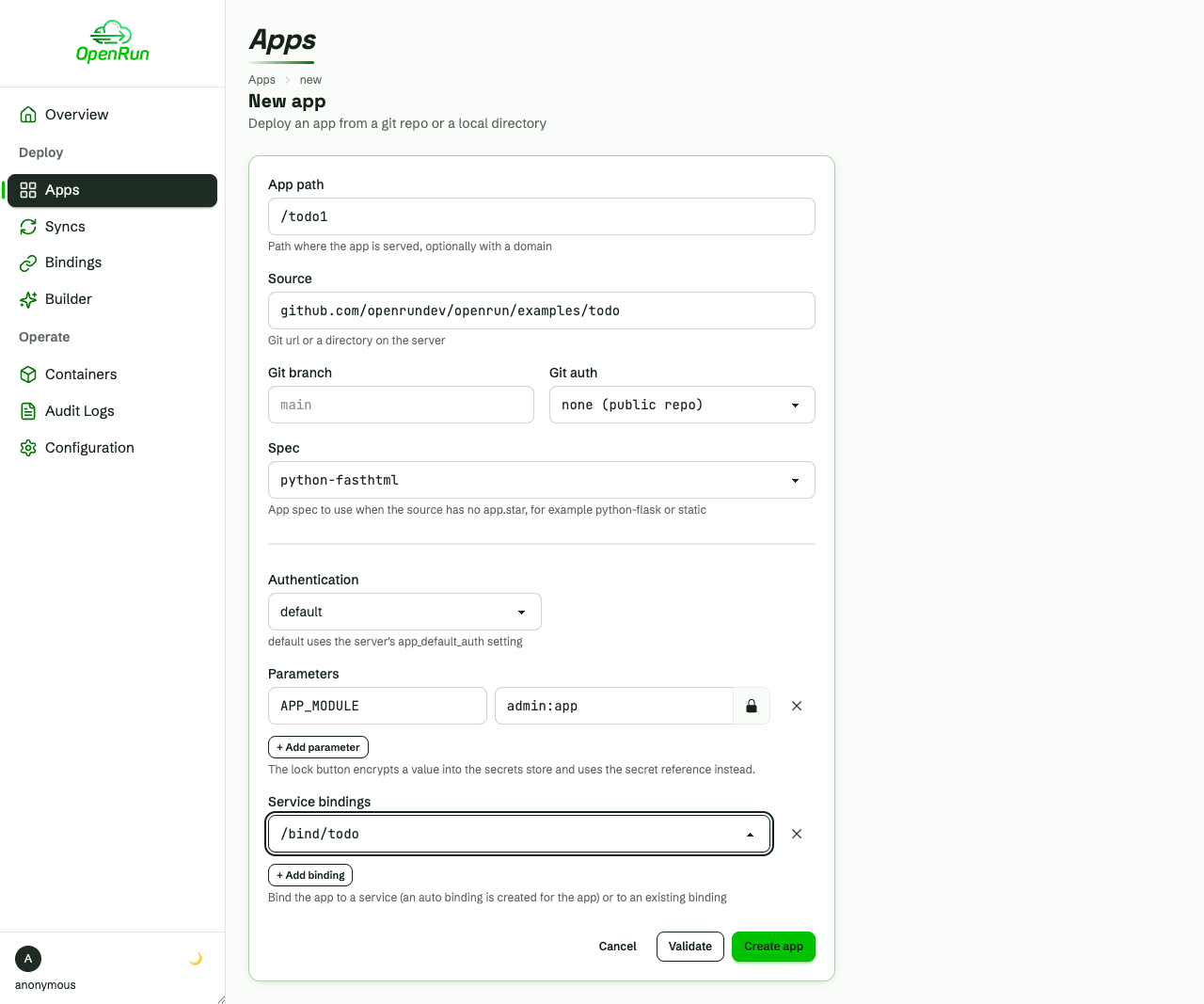
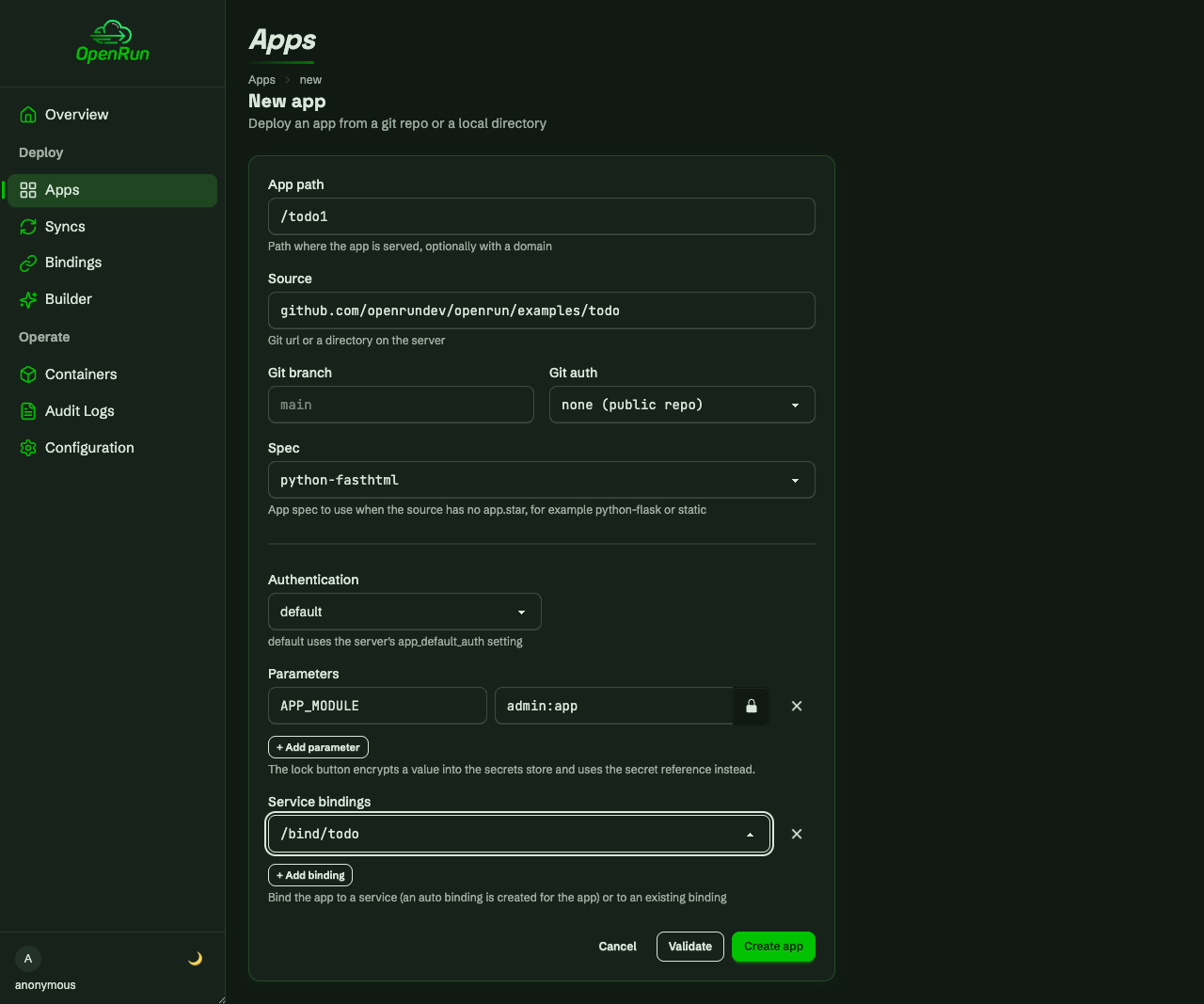
Fill in the app form
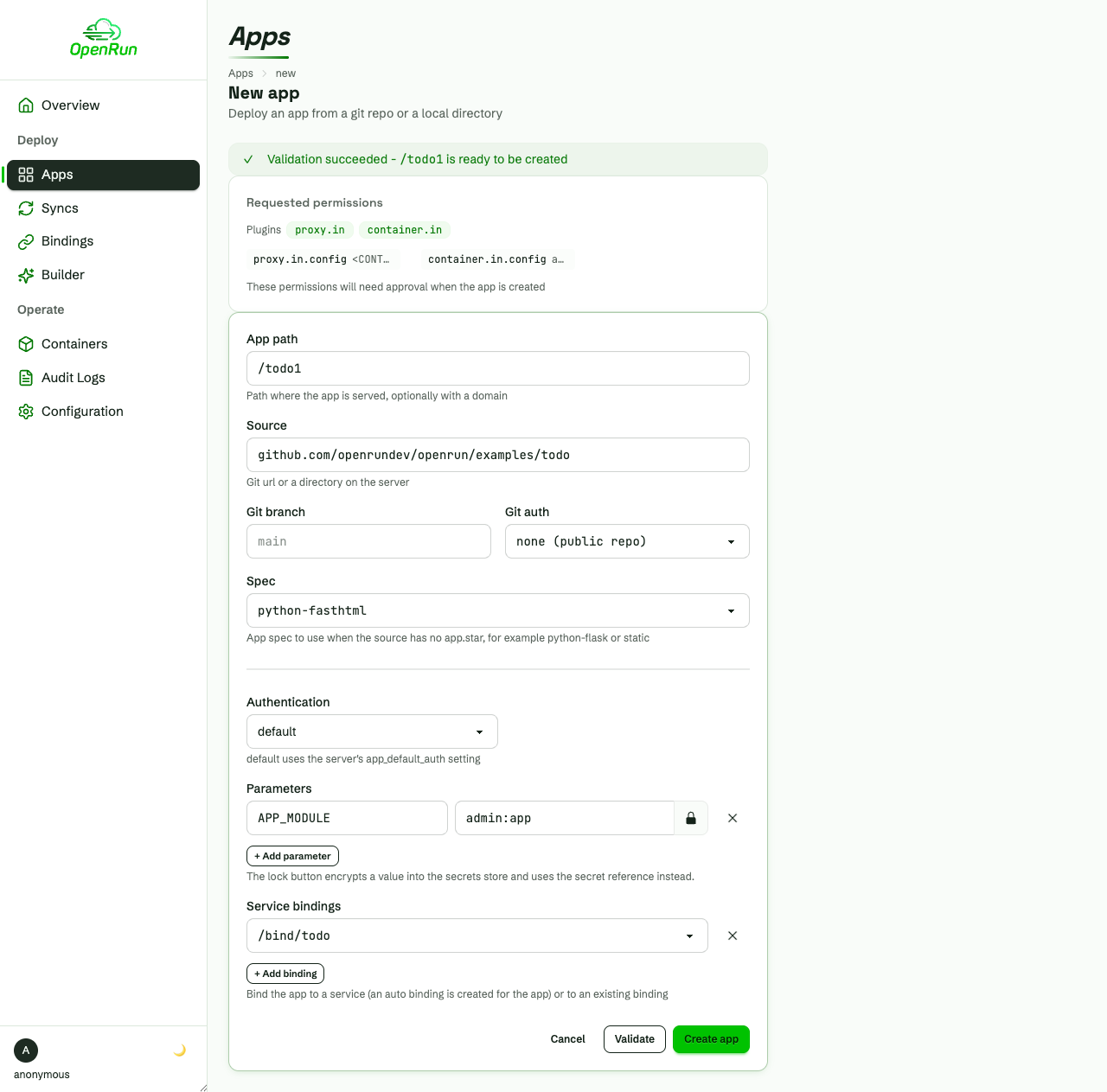
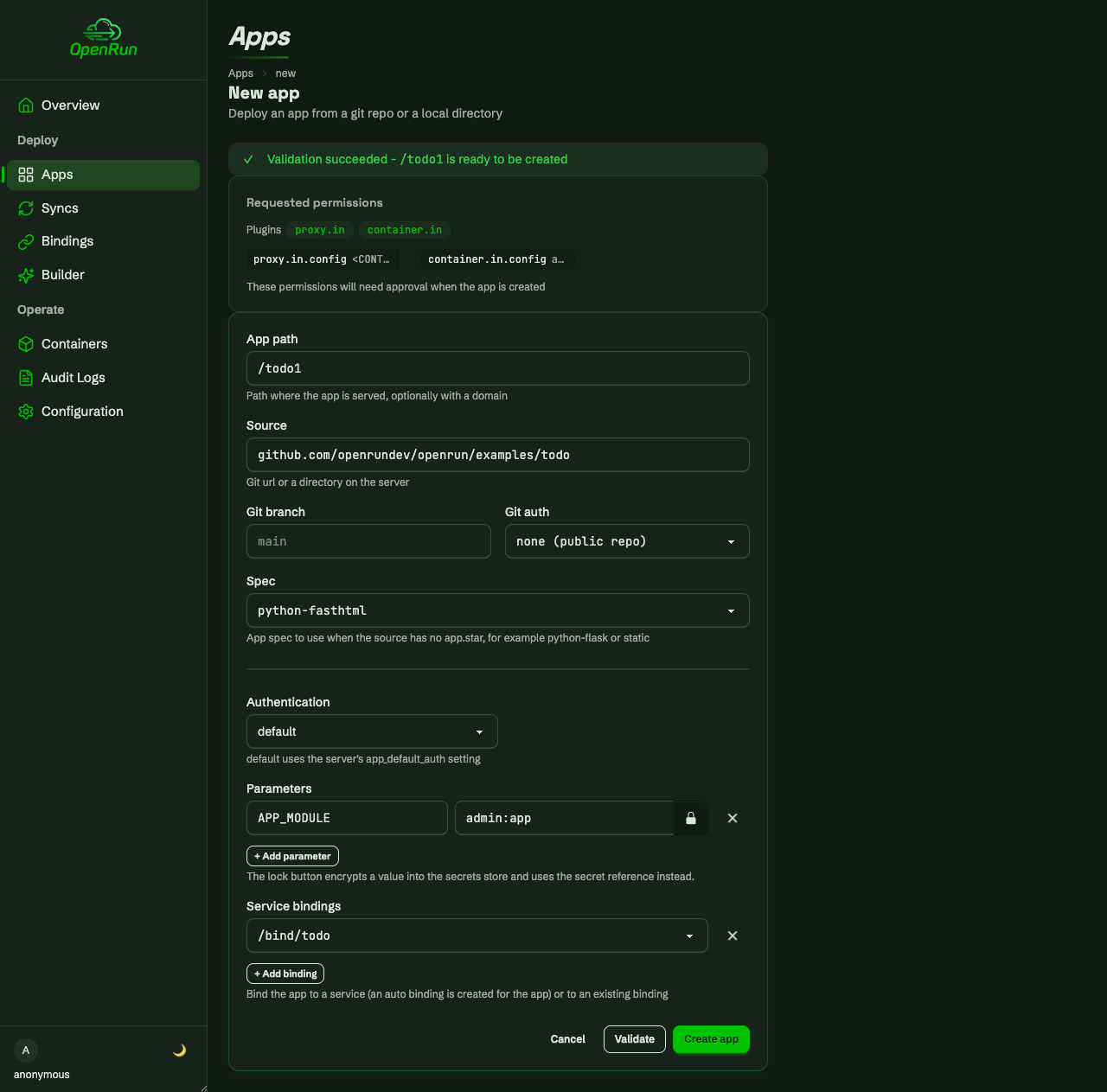
Apps deploy straight from a git repo (or a server directory). The spec dropdown picks the app type for sources without an app.star, and parameters are passed as key/value pairs that can be locked into the secrets store. The service bindings dropdown attaches the binding, and the app’s container gets the database credentials as environment variables.
Validate before creating
Validate does a dry run: the source is fetched and checked, and the permissions the app will request are listed for review before anything is created.
The app is live
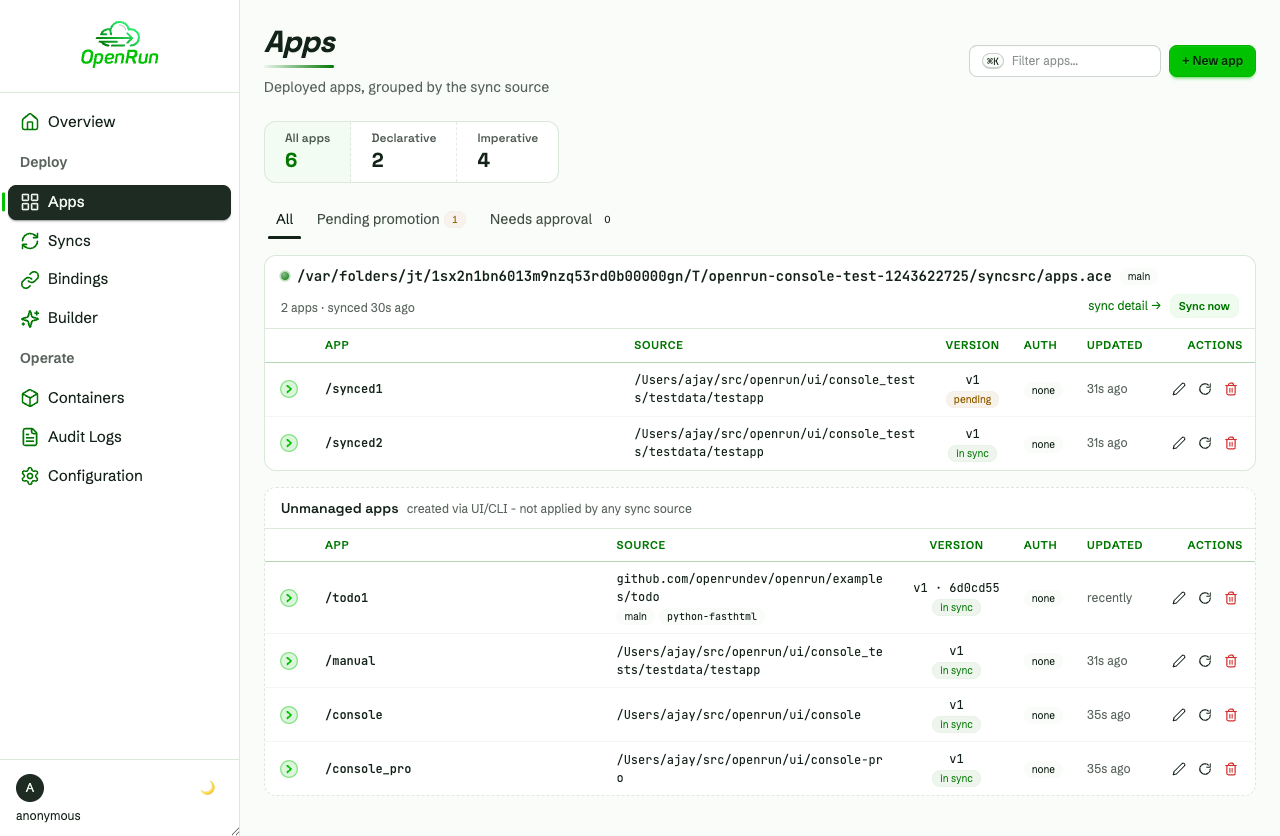
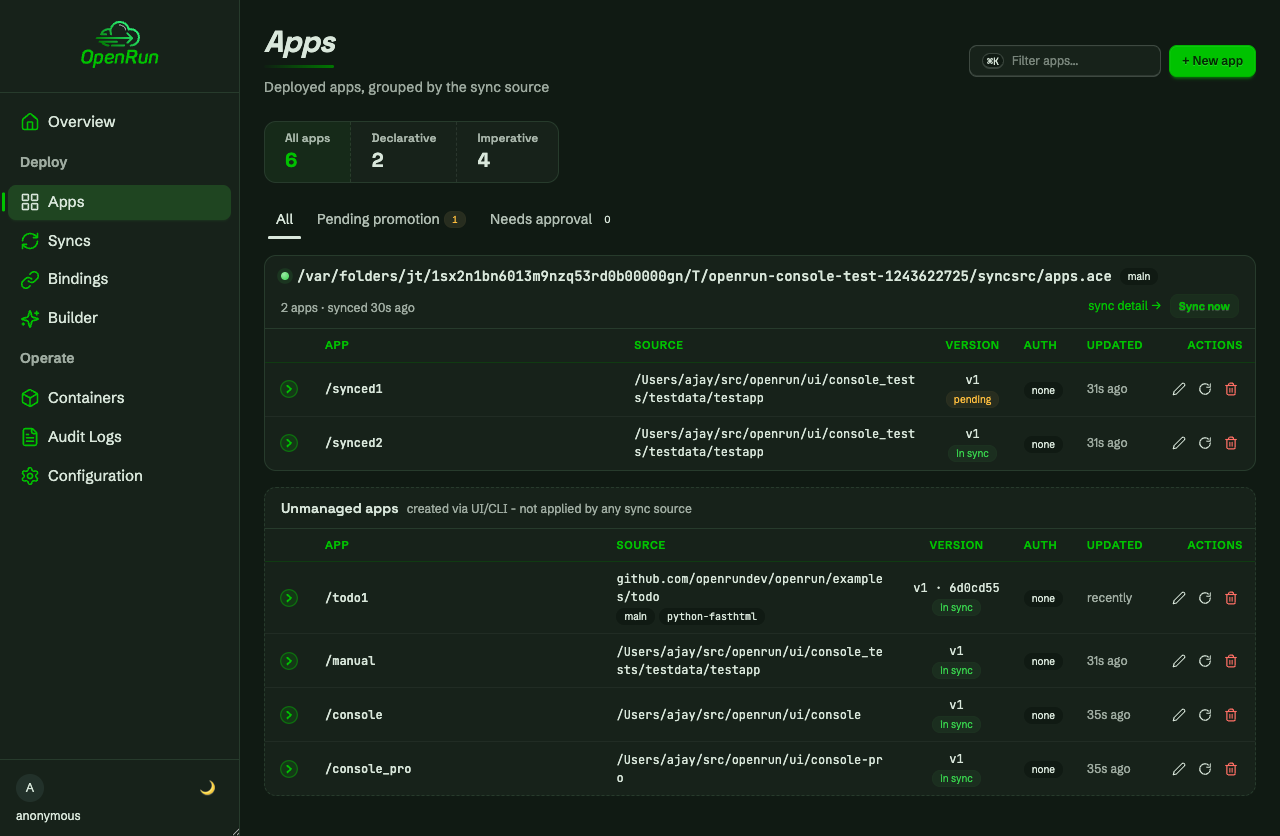
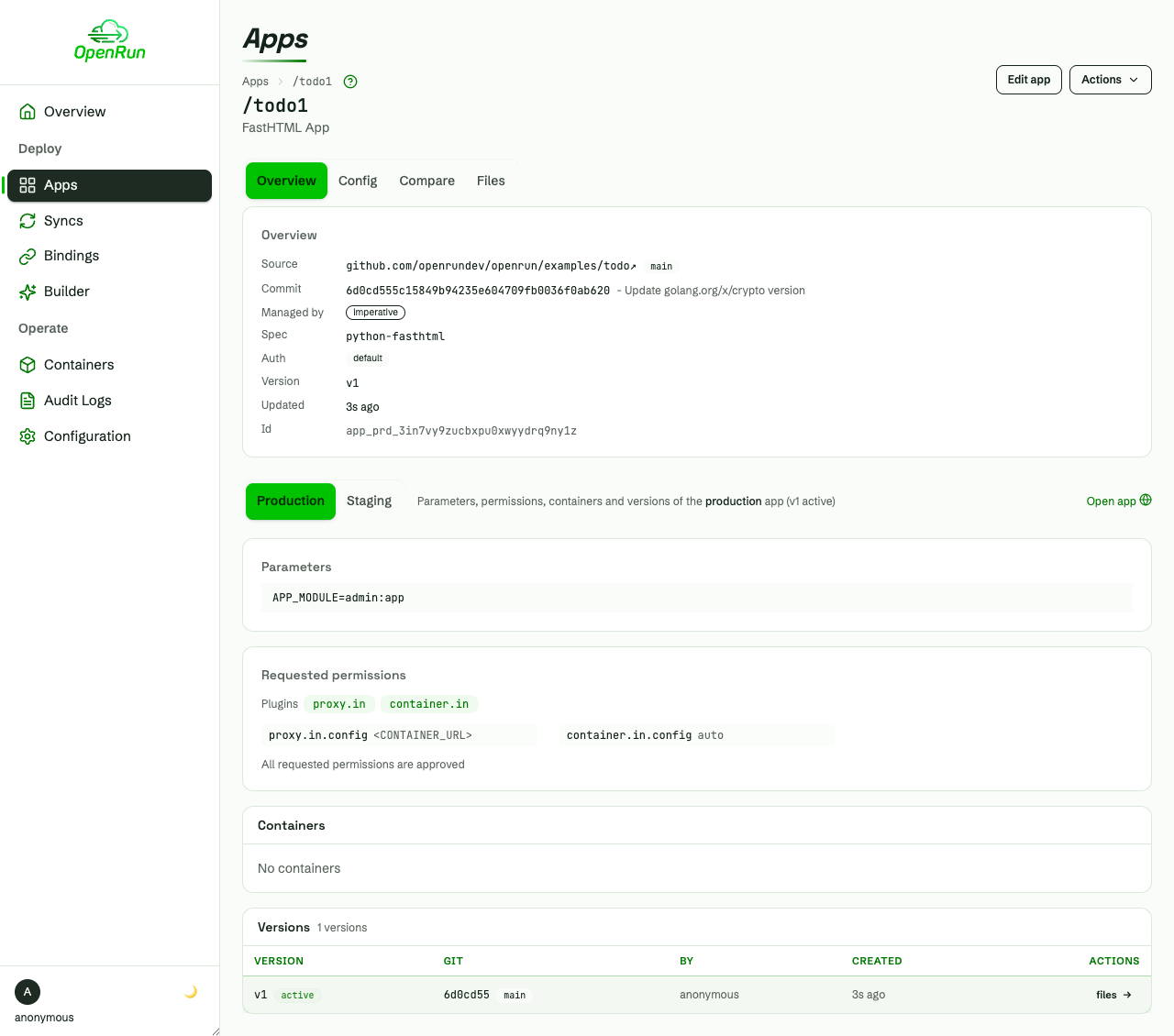
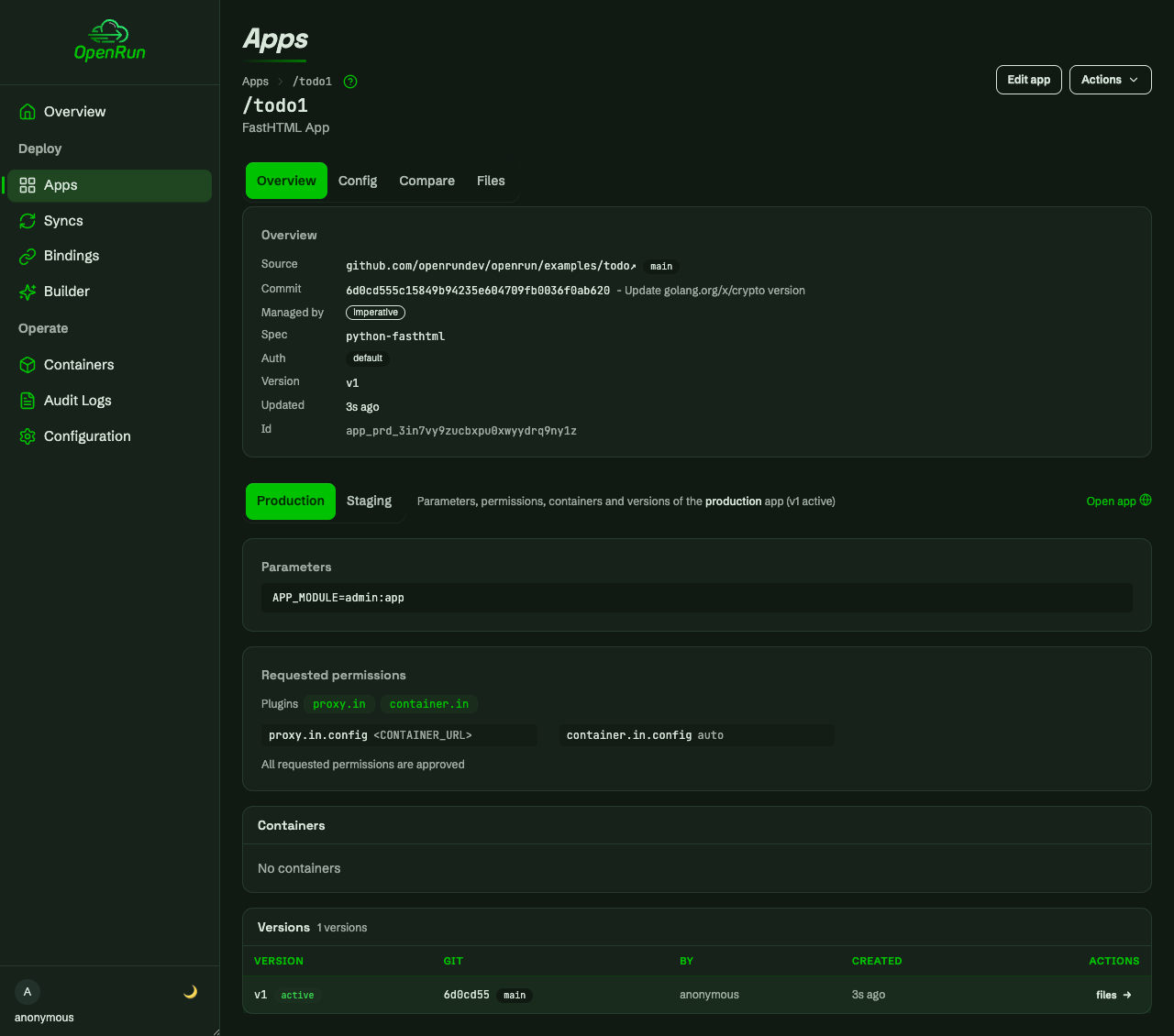
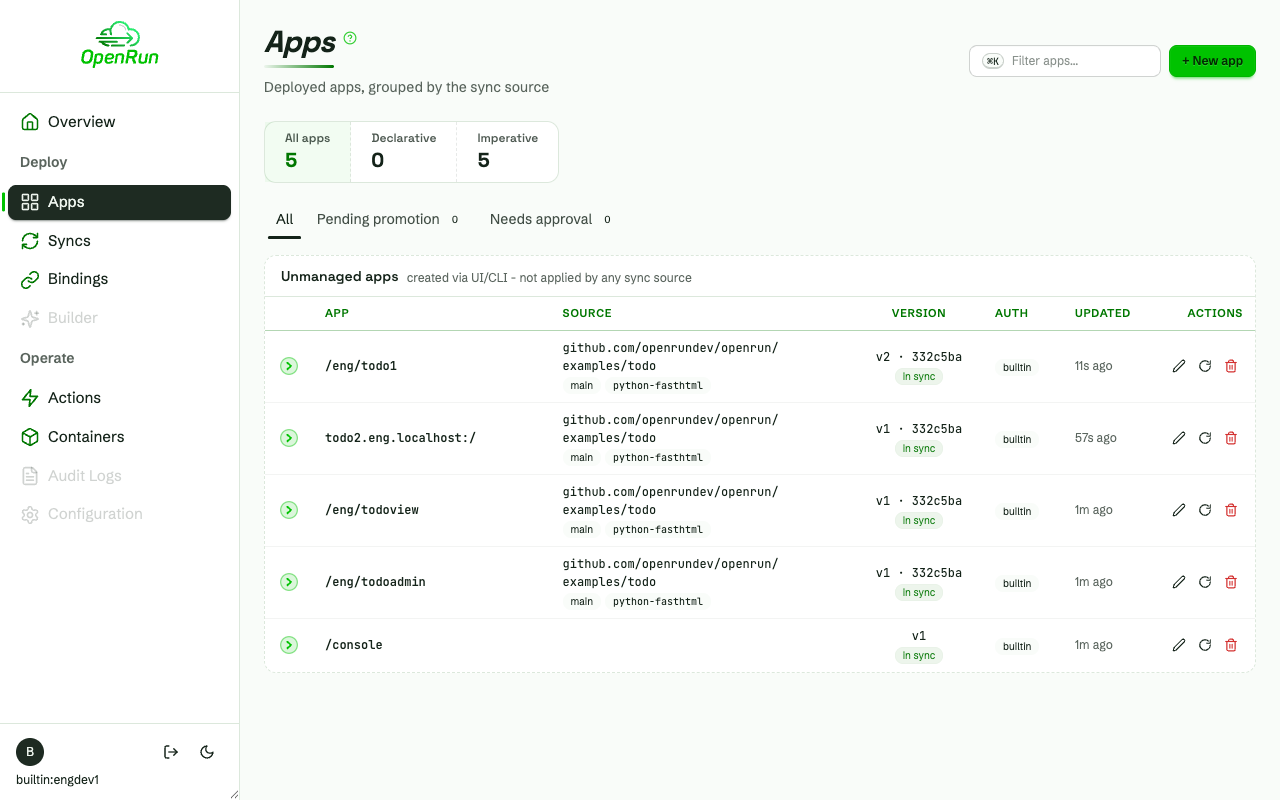
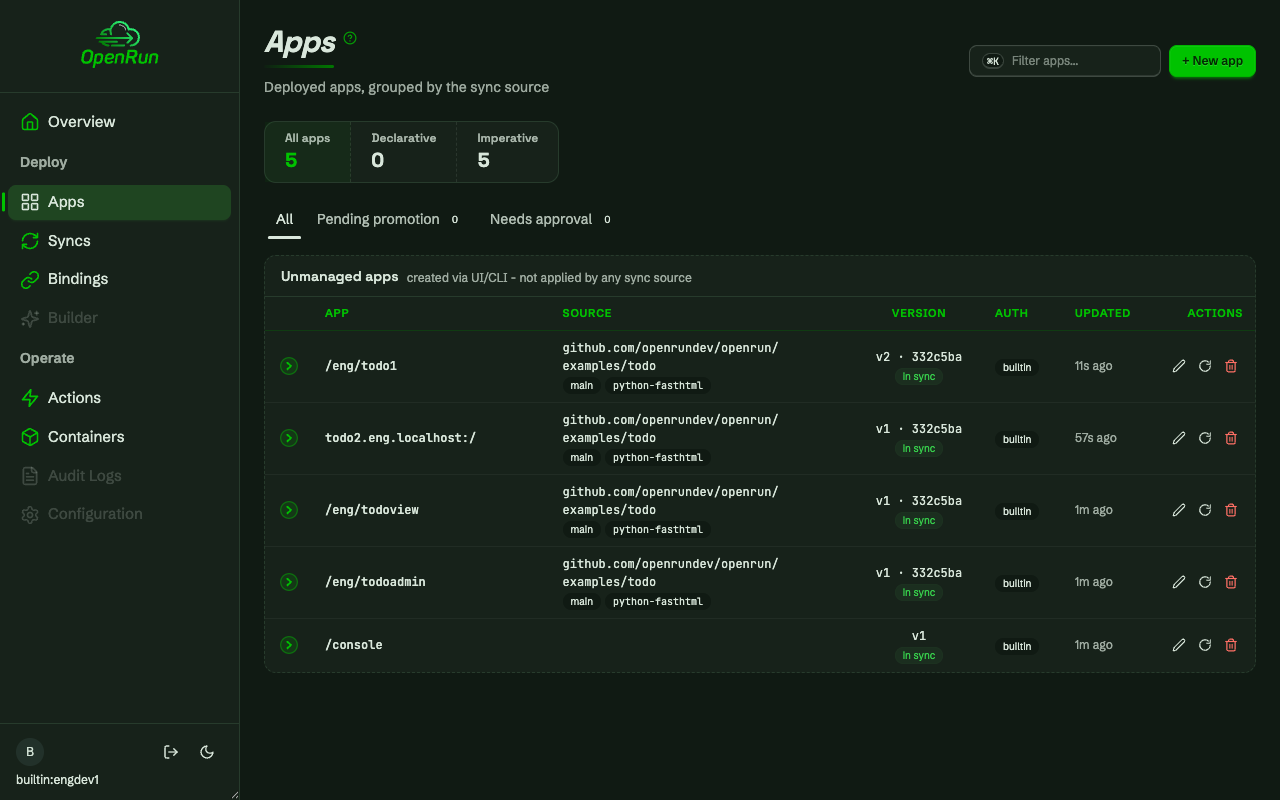
After create, the app is live with a staging environment alongside prod.
App details
The app detail page shows versions for prod and staging, the approved permissions, and links to open the running app.
Operate
Containers
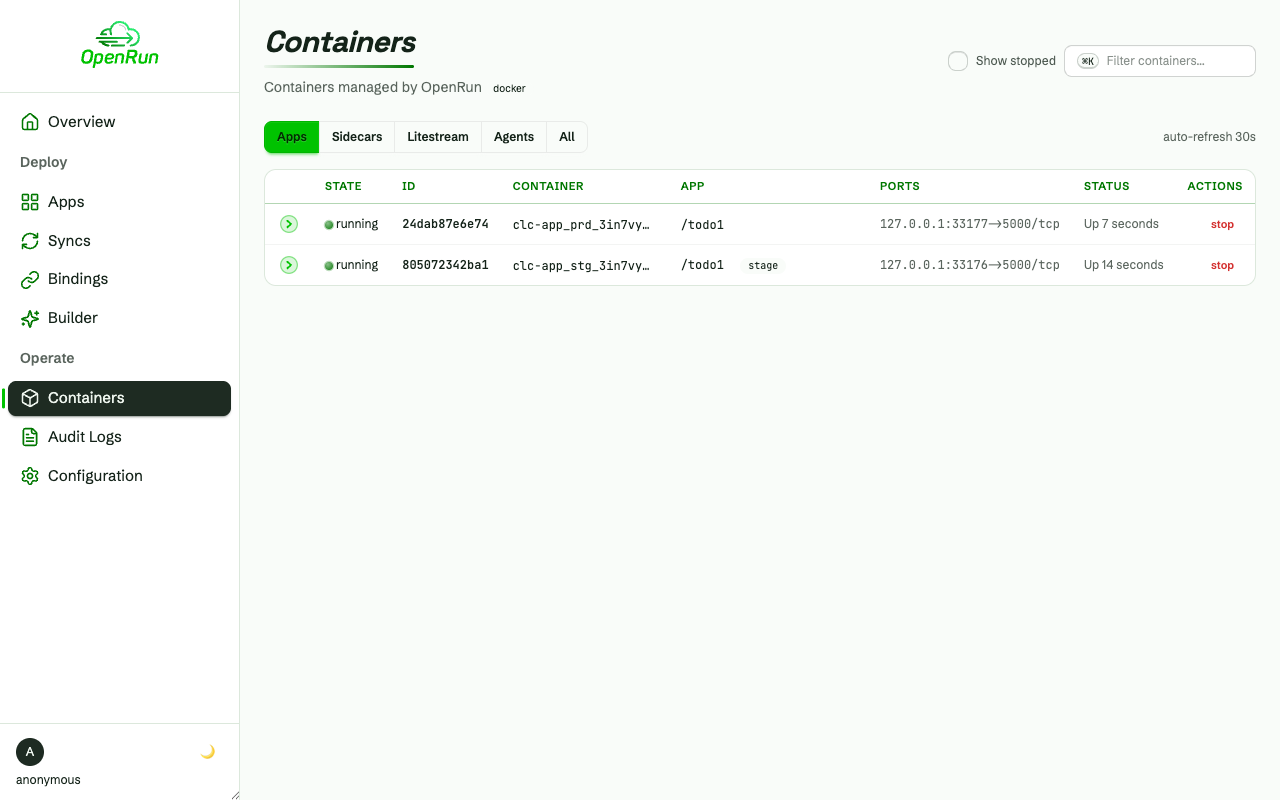
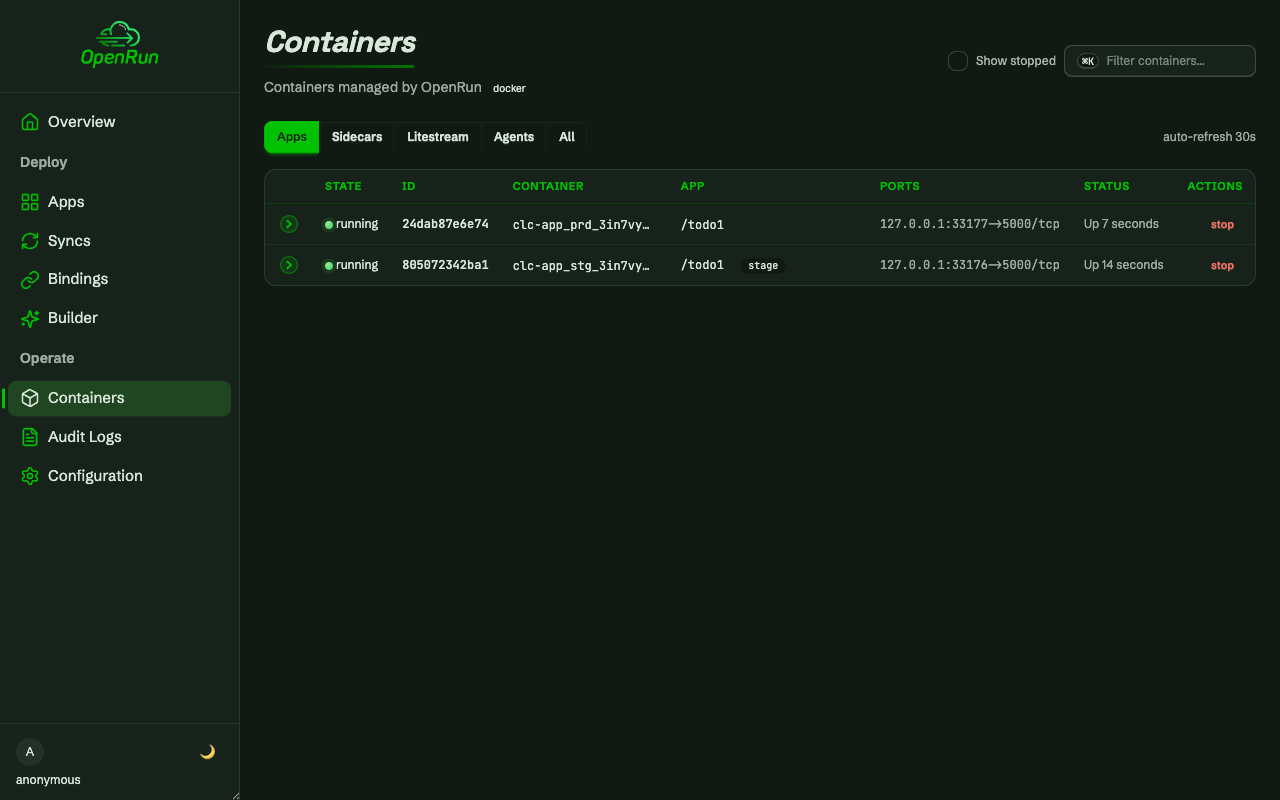
Containers for the deployed apps, with lifecycle actions, stats and logs.
Audit log
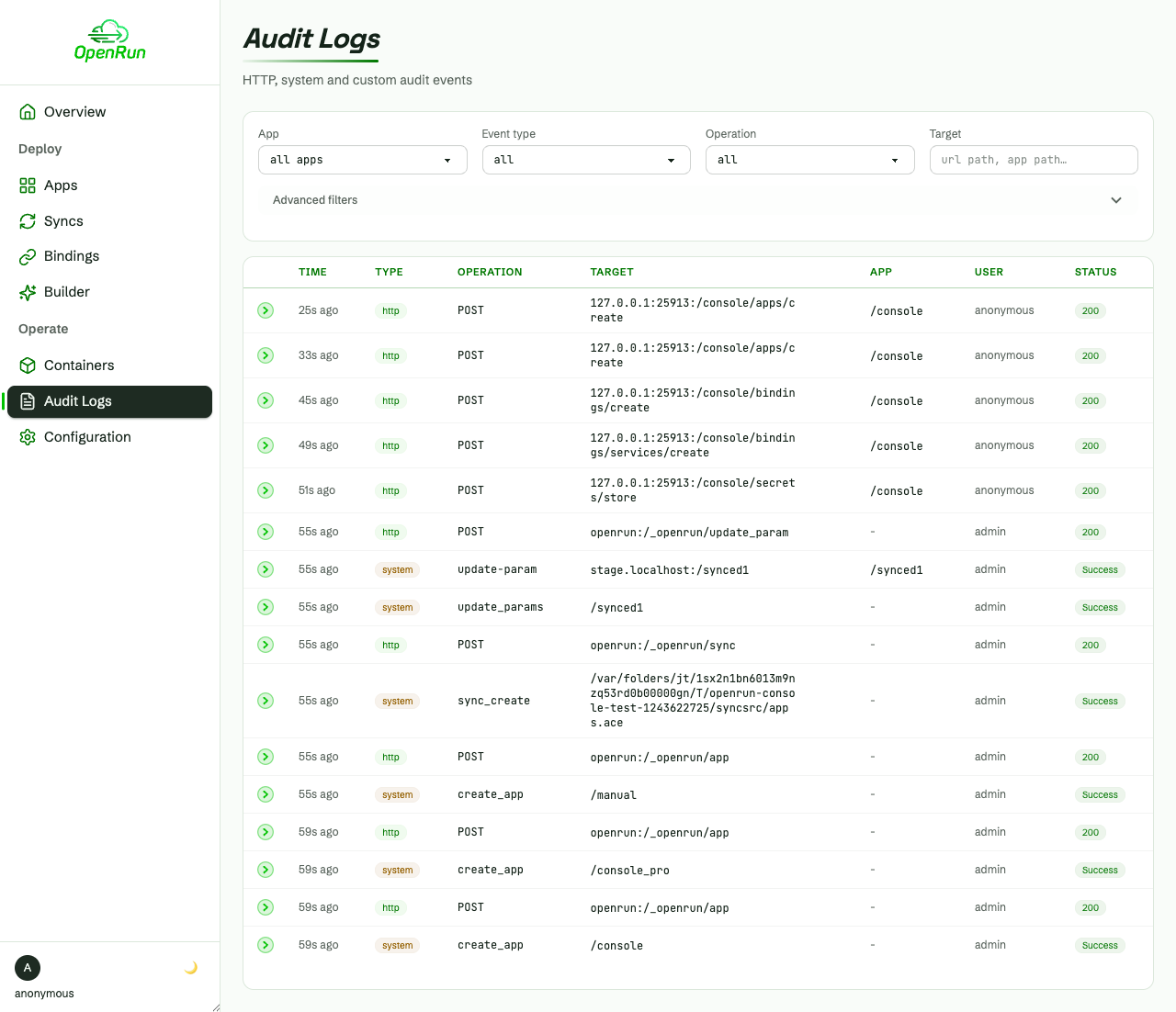
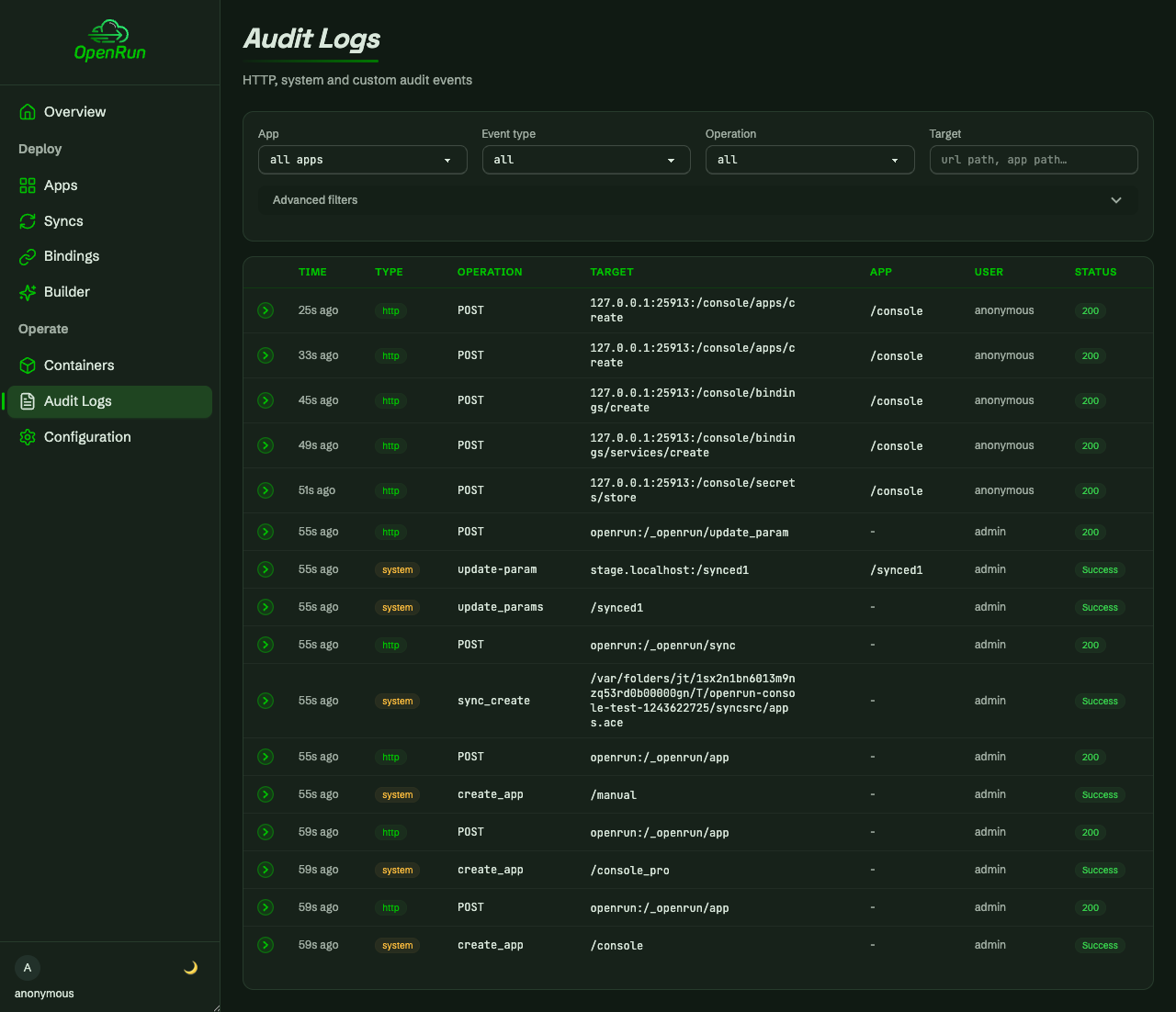
Every operation is audit logged, filterable by app, operation and status.
GitOps syncs
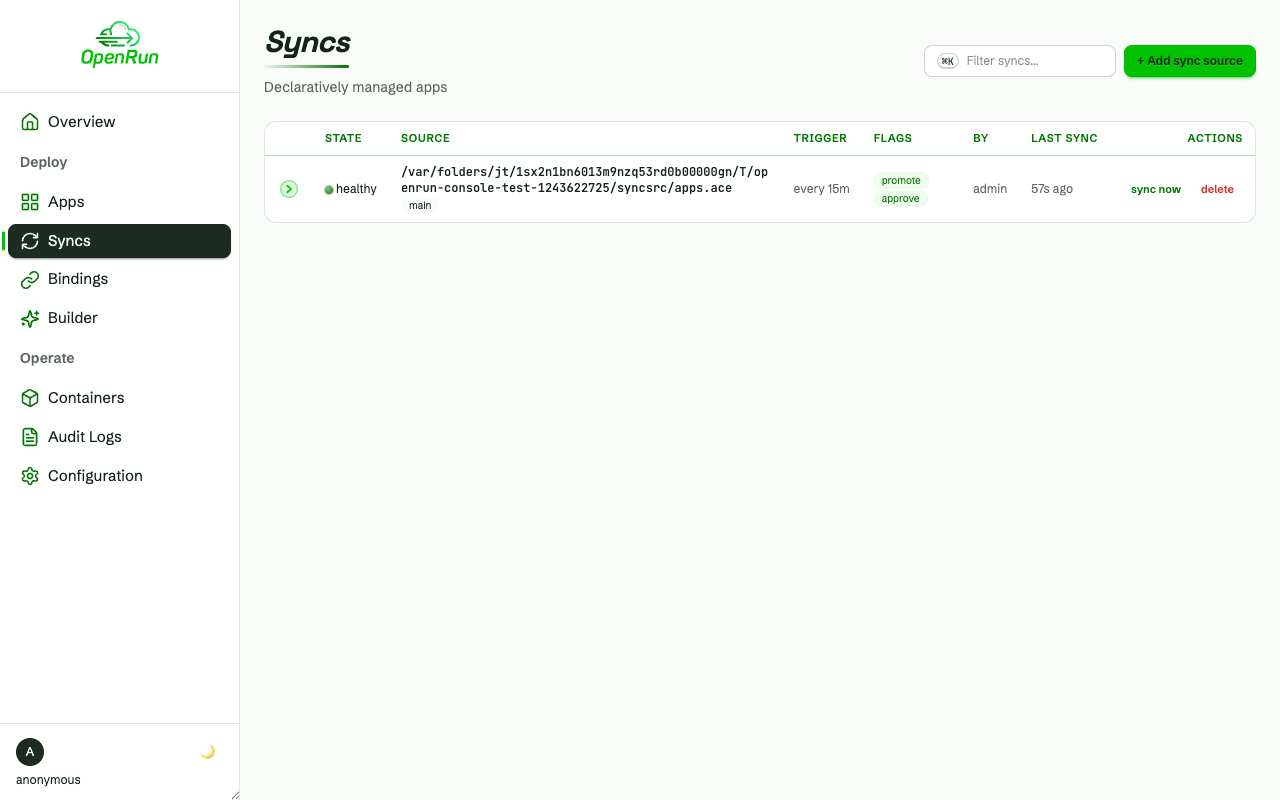
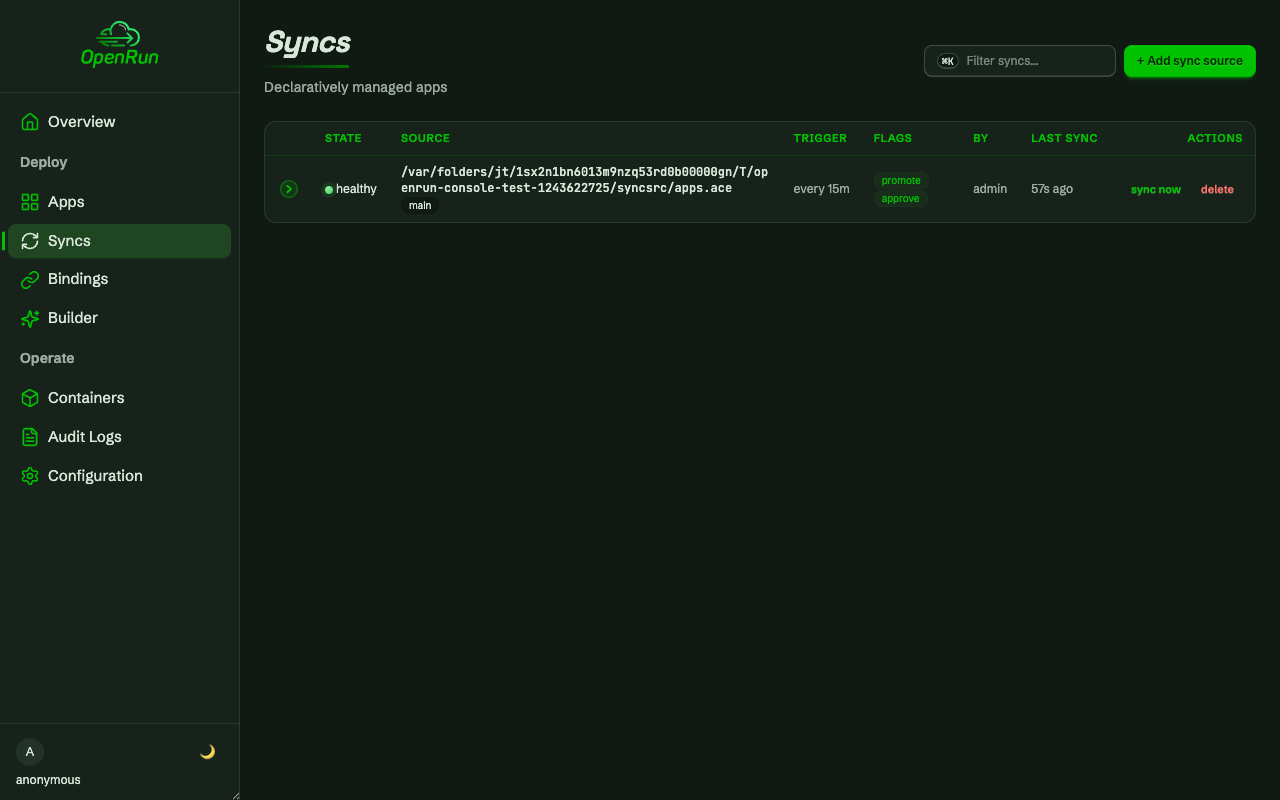
Declarative GitOps sources keep apps synced from a repo on a schedule.
AI app builder
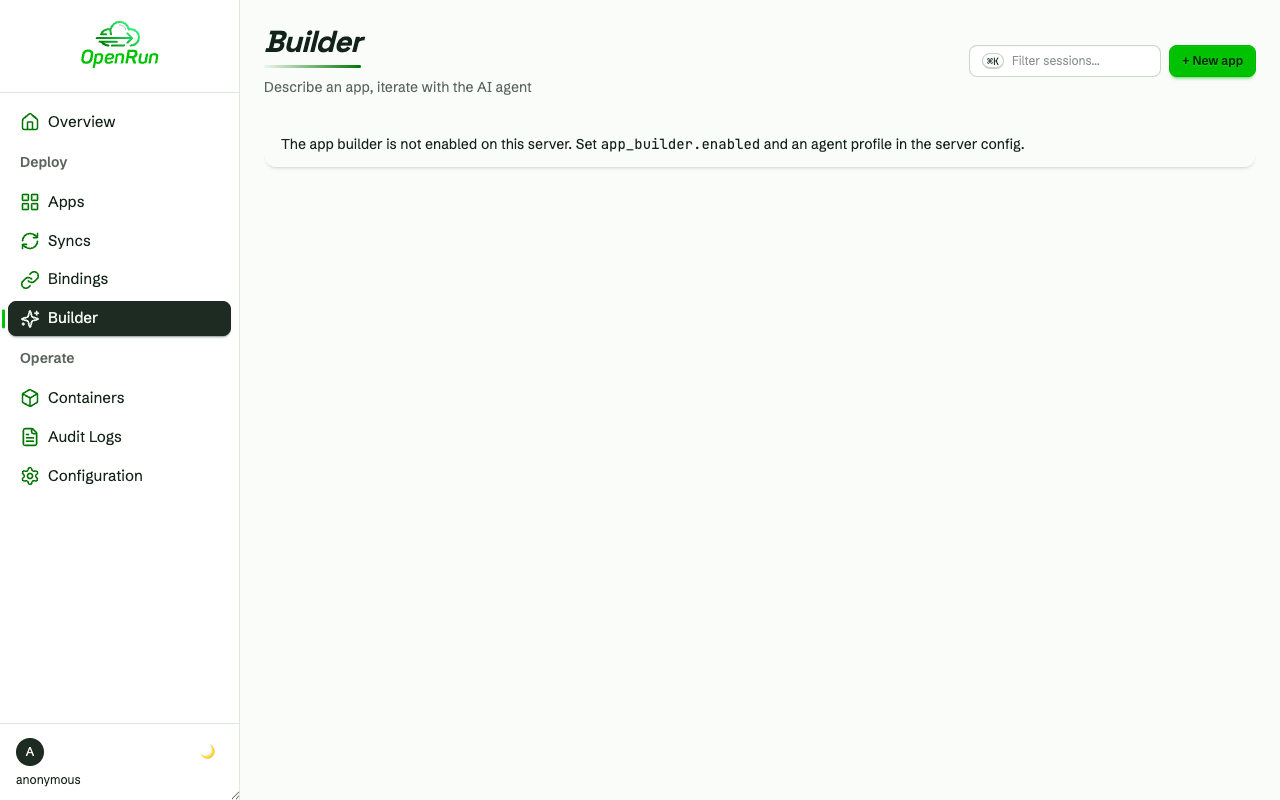
The AI app builder creates apps from a prompt in an agent session.
Server configuration
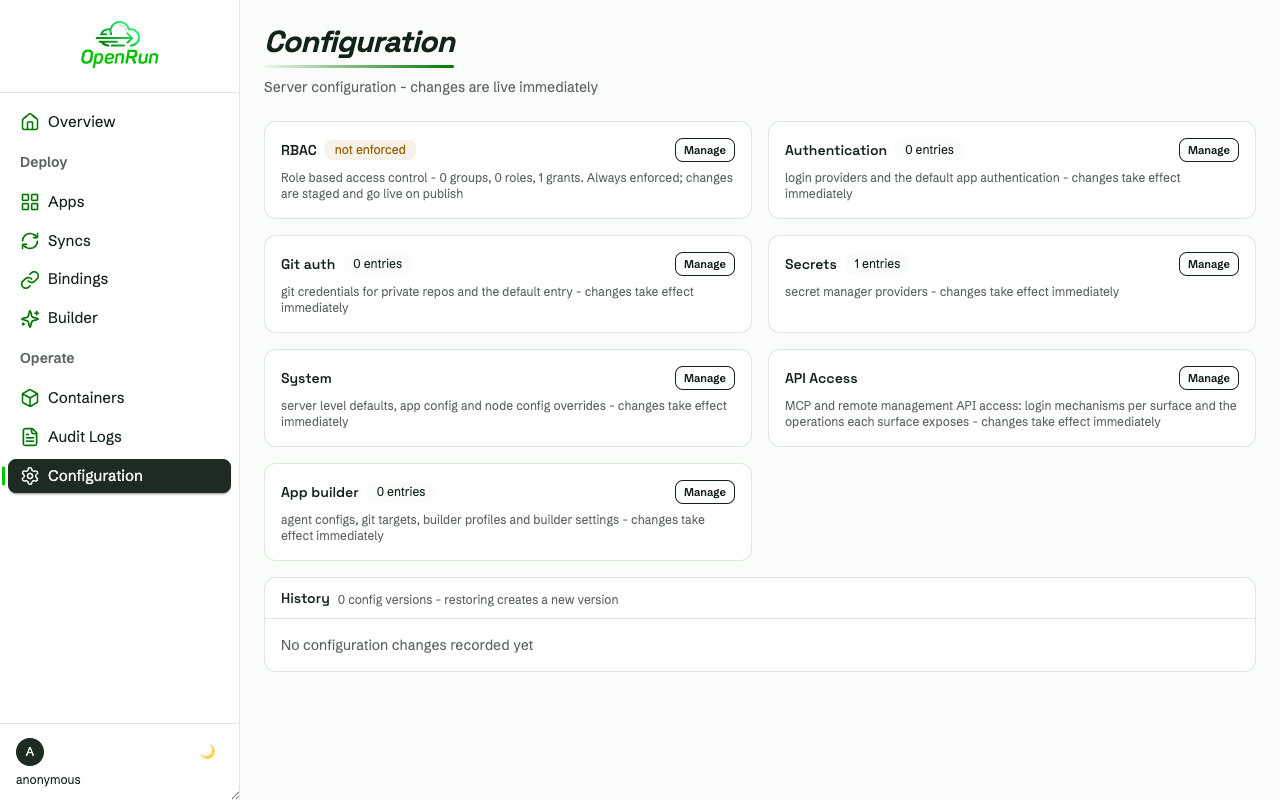
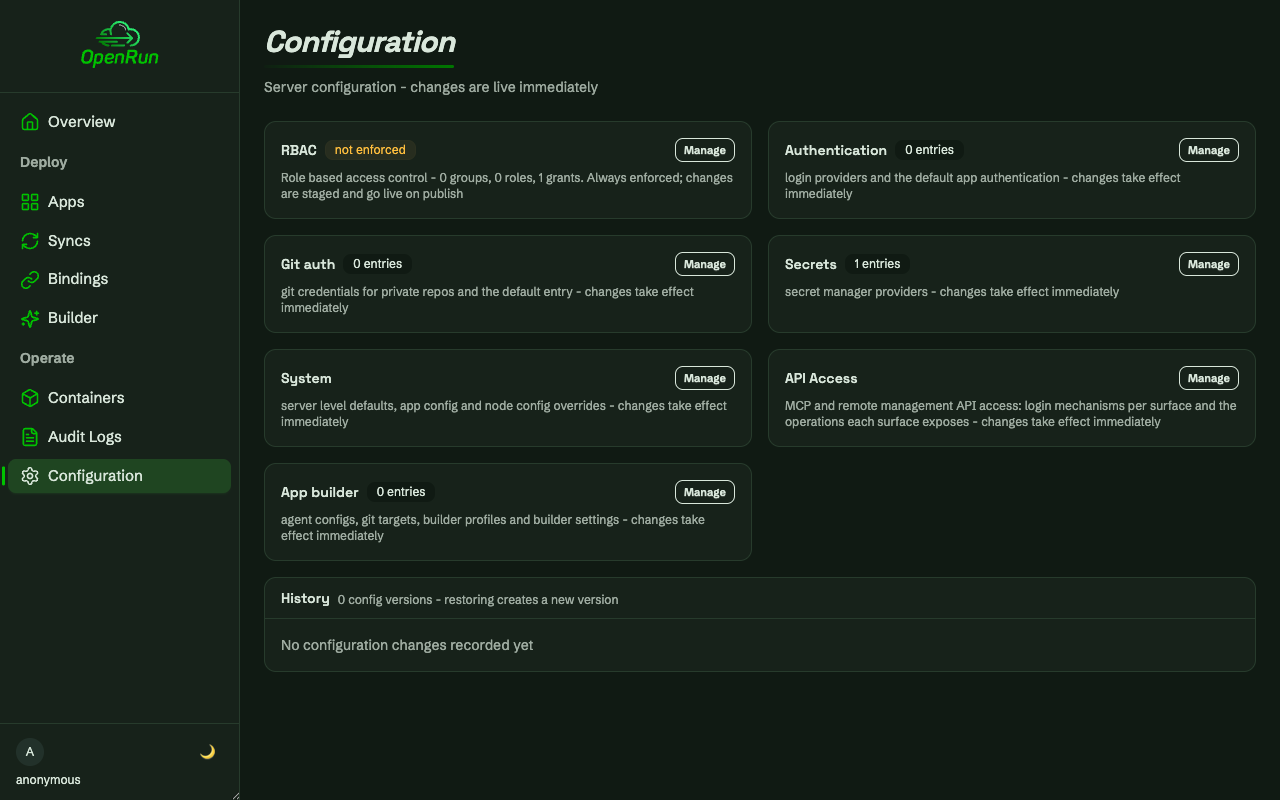
Server configuration (auth, git, secrets, RBAC and system settings) is editable from the console, with staged versions and history.
Back on the overview
Back on the overview, the deployed app shows in the apps tile and its running container is counted in the containers tile.
Role based access control
Configure and publish
The default grant
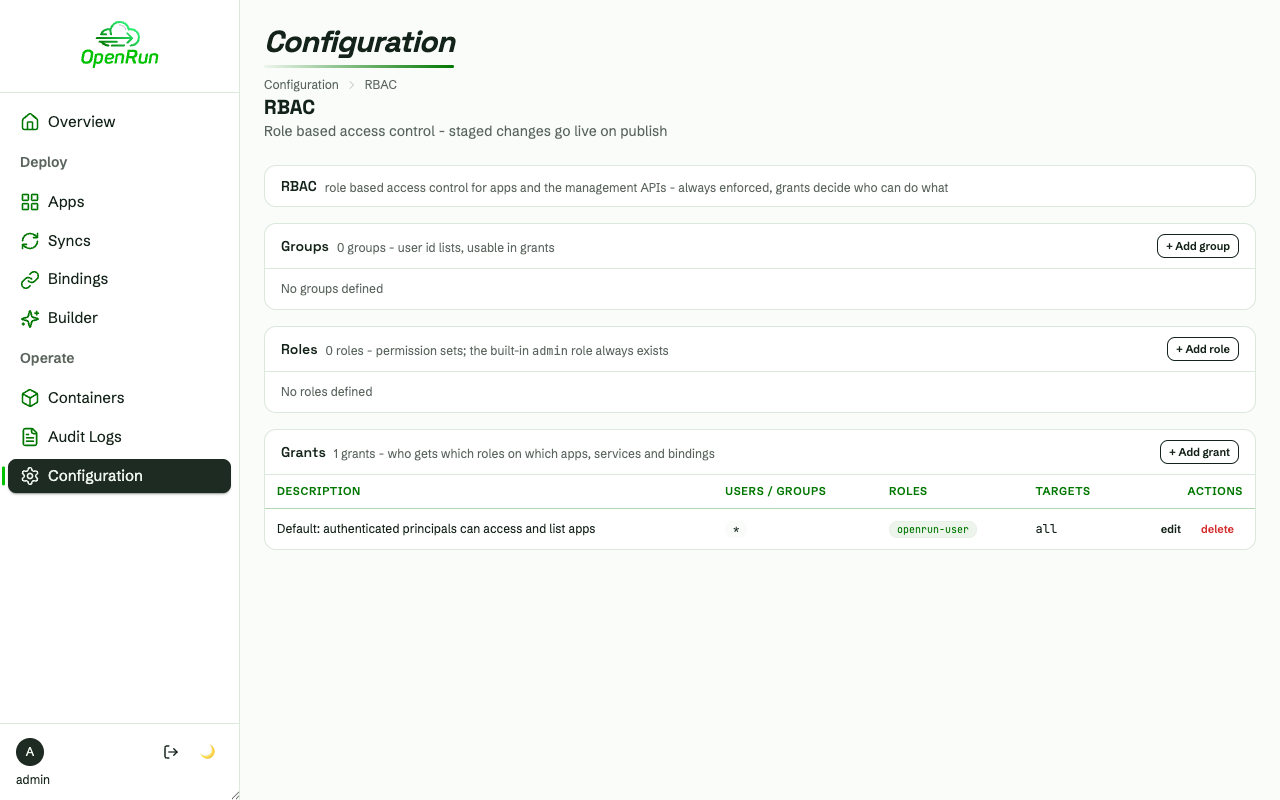
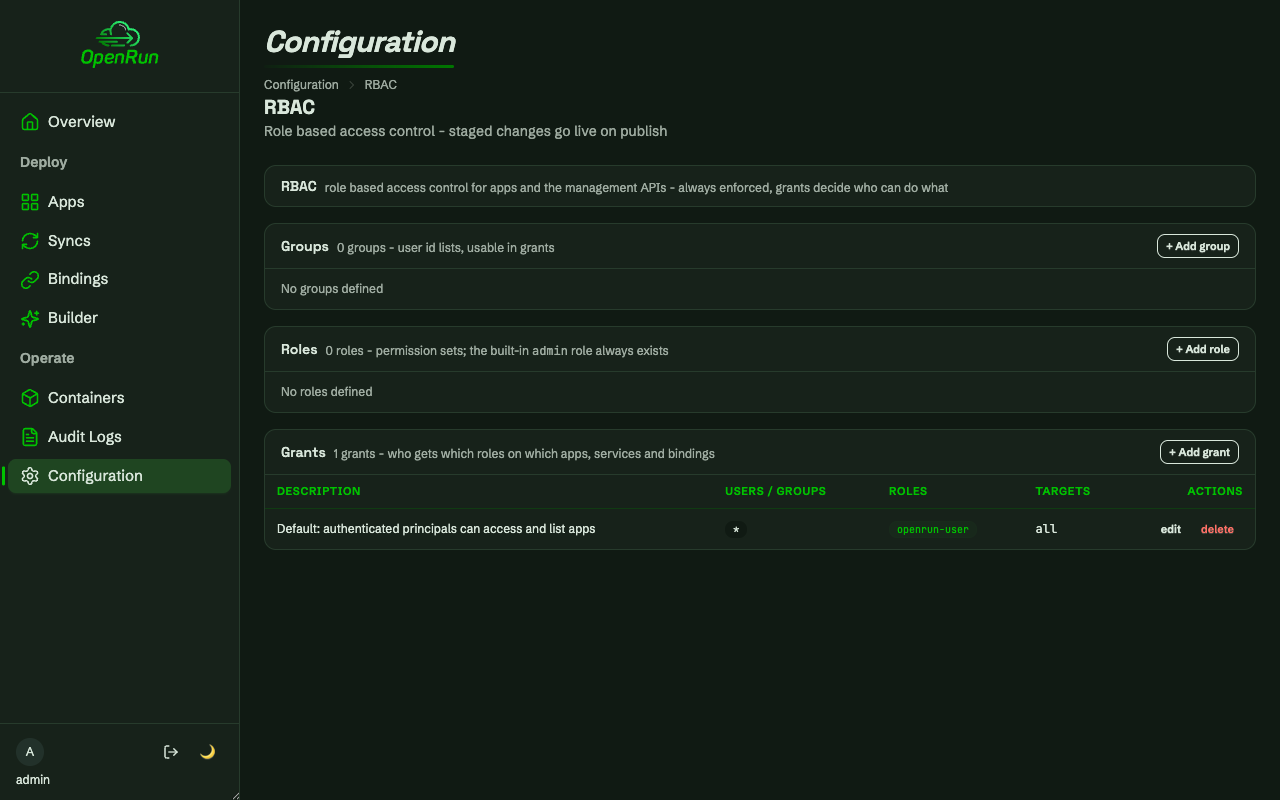
This flow walks a multi-team setup: eng and finance teams with builtin-auth users, developers scoped to their team’s paths, read-only users, and an operations group covering everything. RBAC is always on. A fresh install has a single default grant giving every authenticated principal access to all apps, and every management call is admin-only.
Stage the team grants
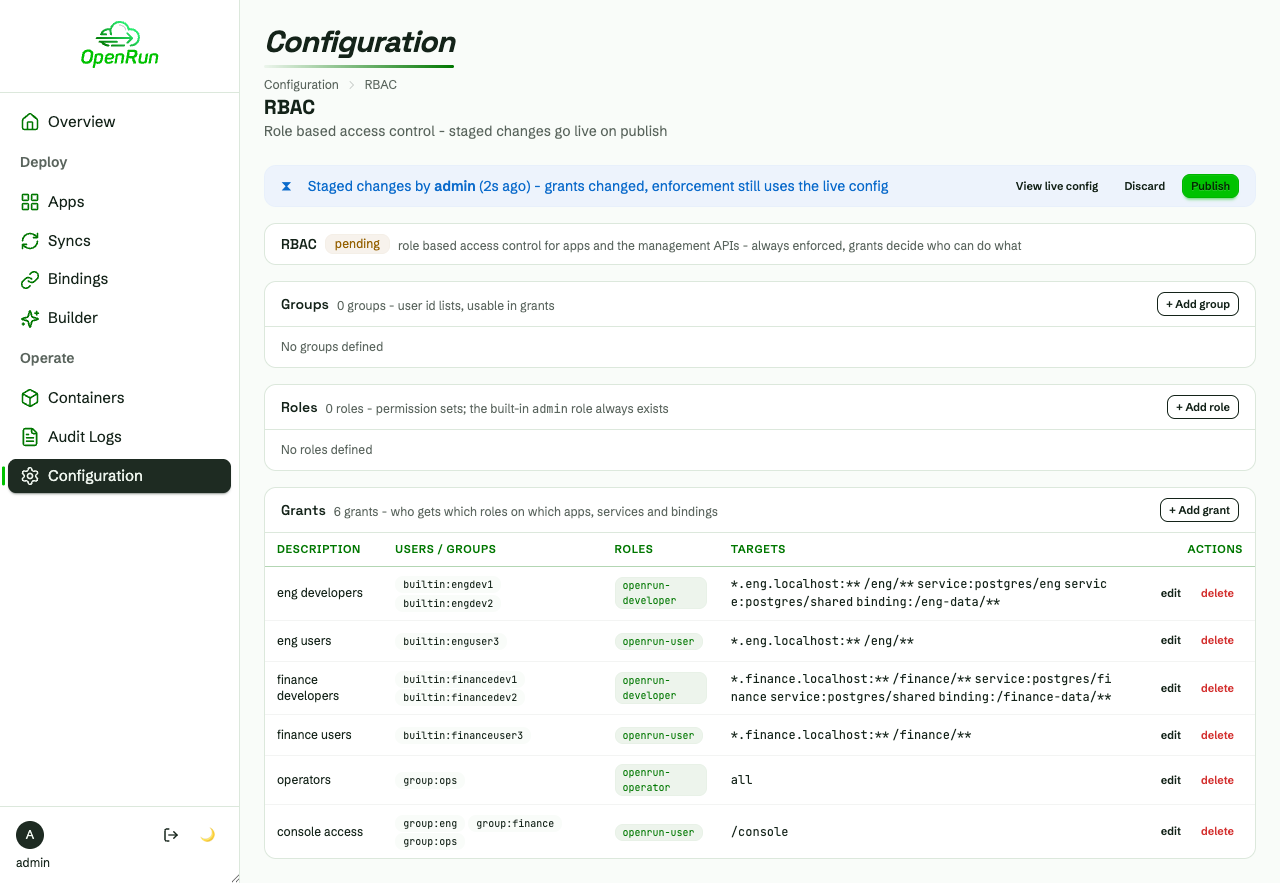
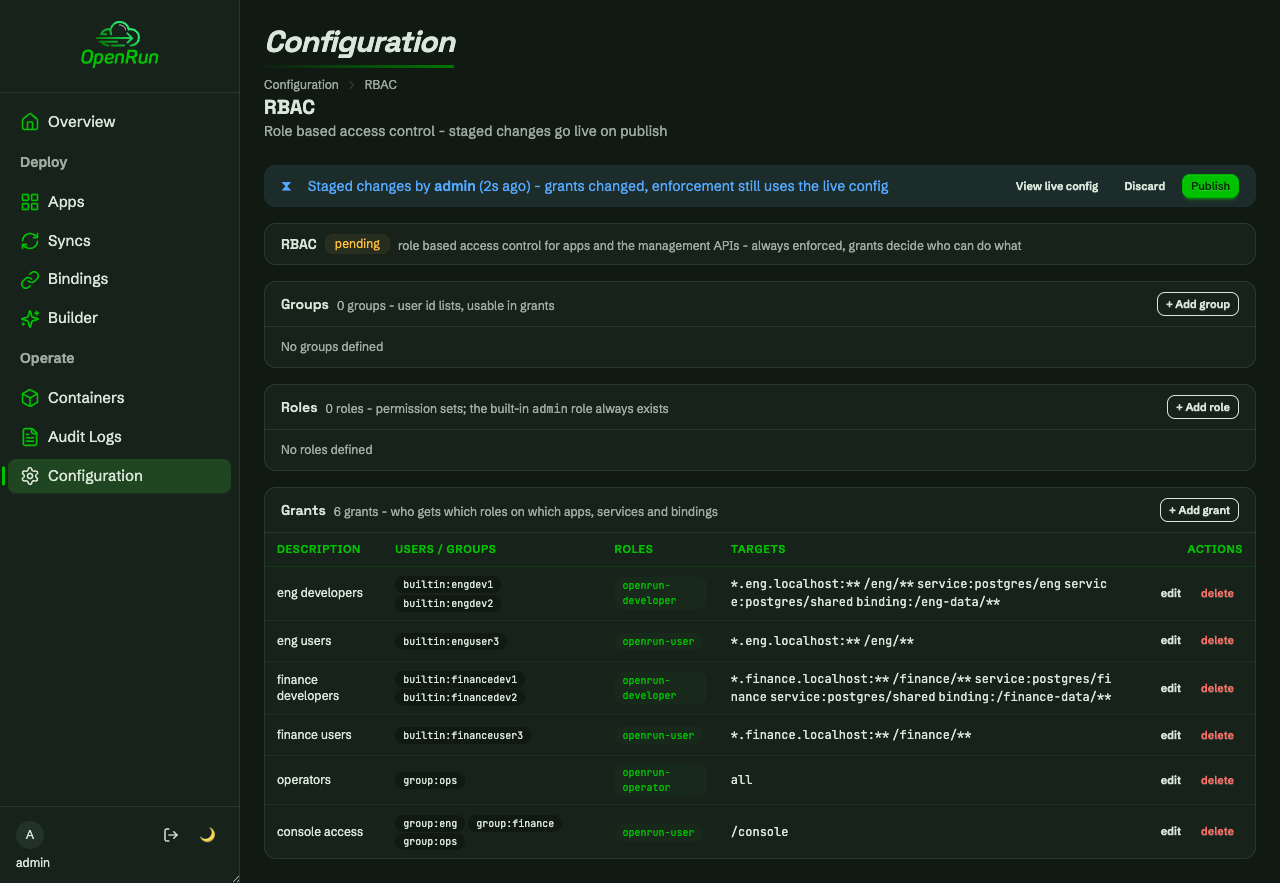
The default grant is removed and the team grants are staged as a draft. Team developers get the openrun-developer role scoped to their team paths, domains, services and binding namespace. Read-only users get openrun-user on the team apps, and the ops group gets openrun-operator on all targets.
Publish
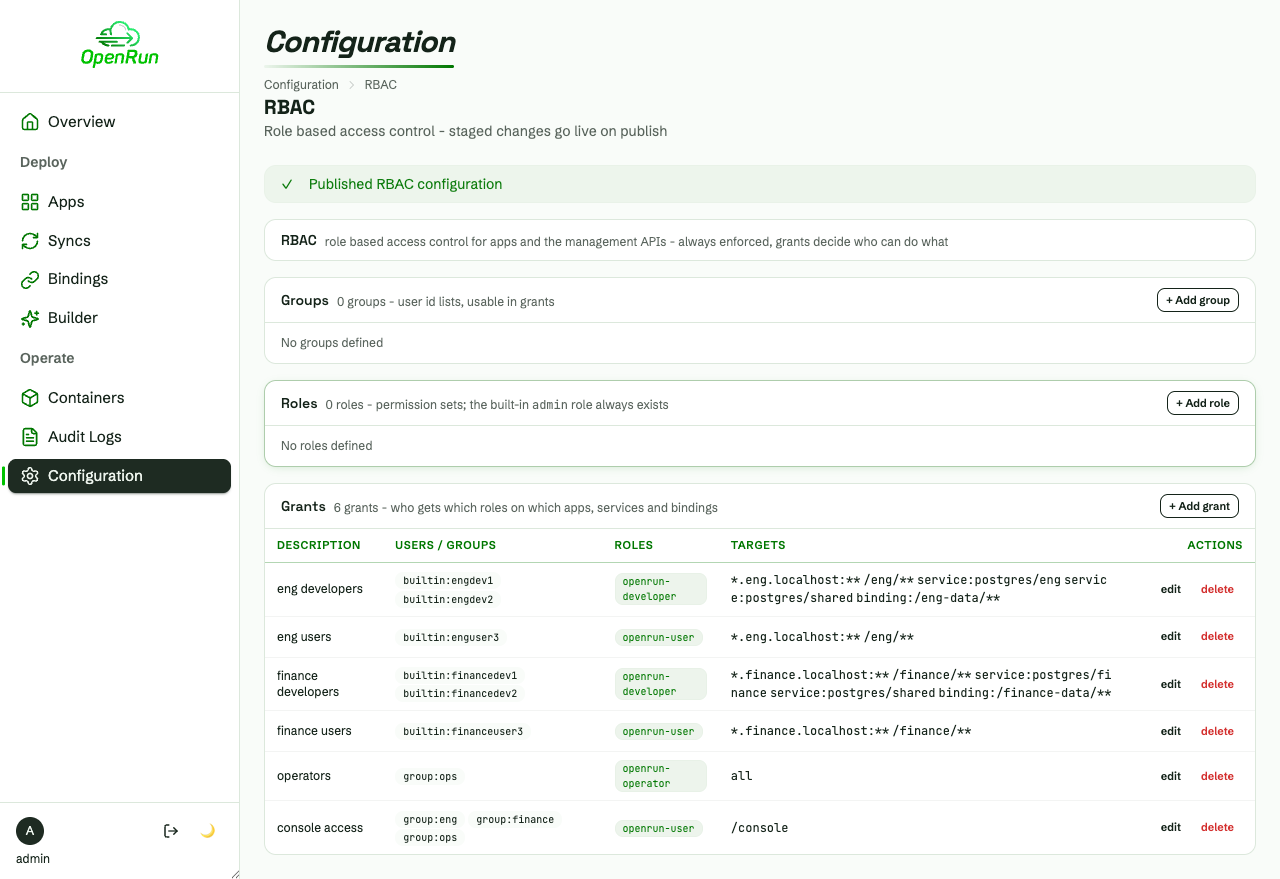
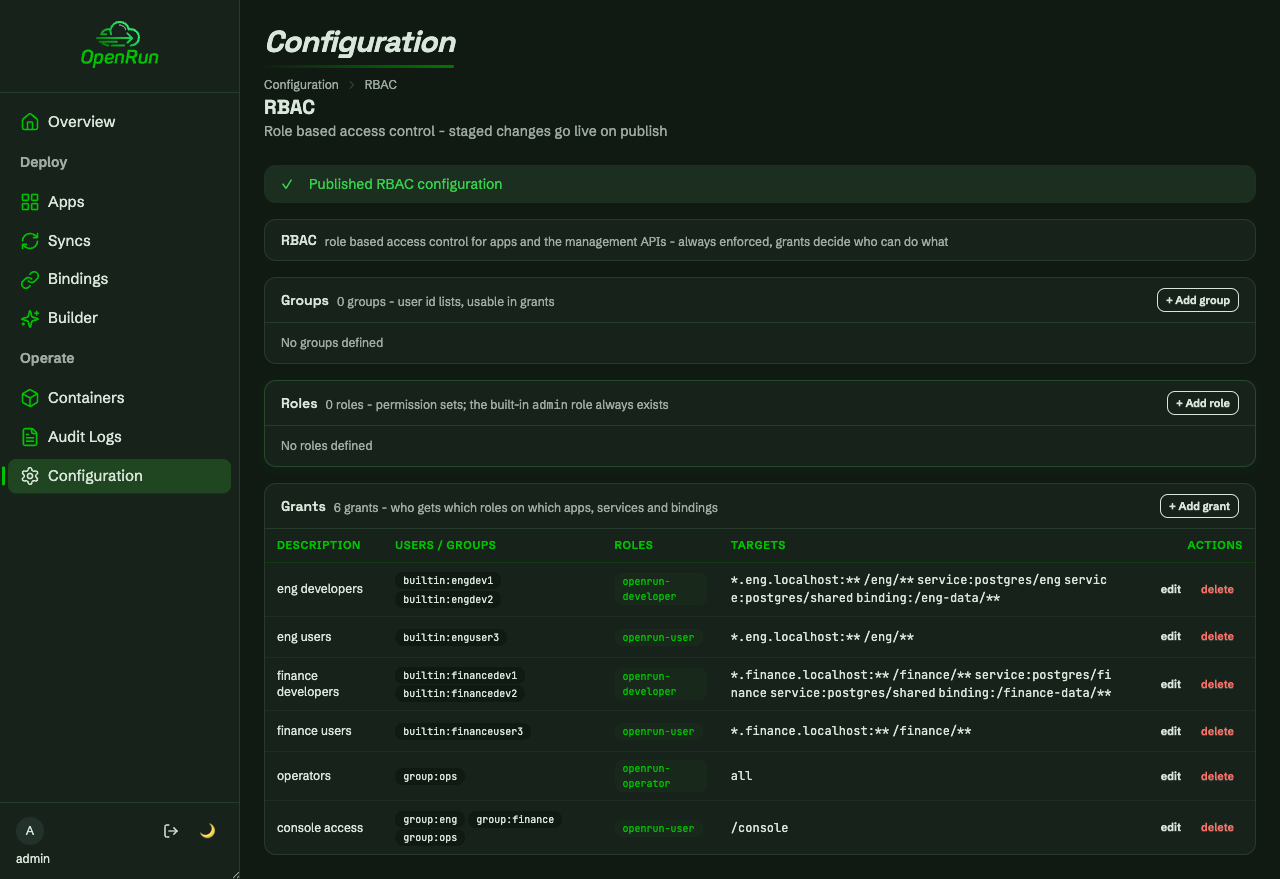
Publishing makes the draft live across the server. It takes effect immediately, with no restarts.
Team setup
Operator creates services
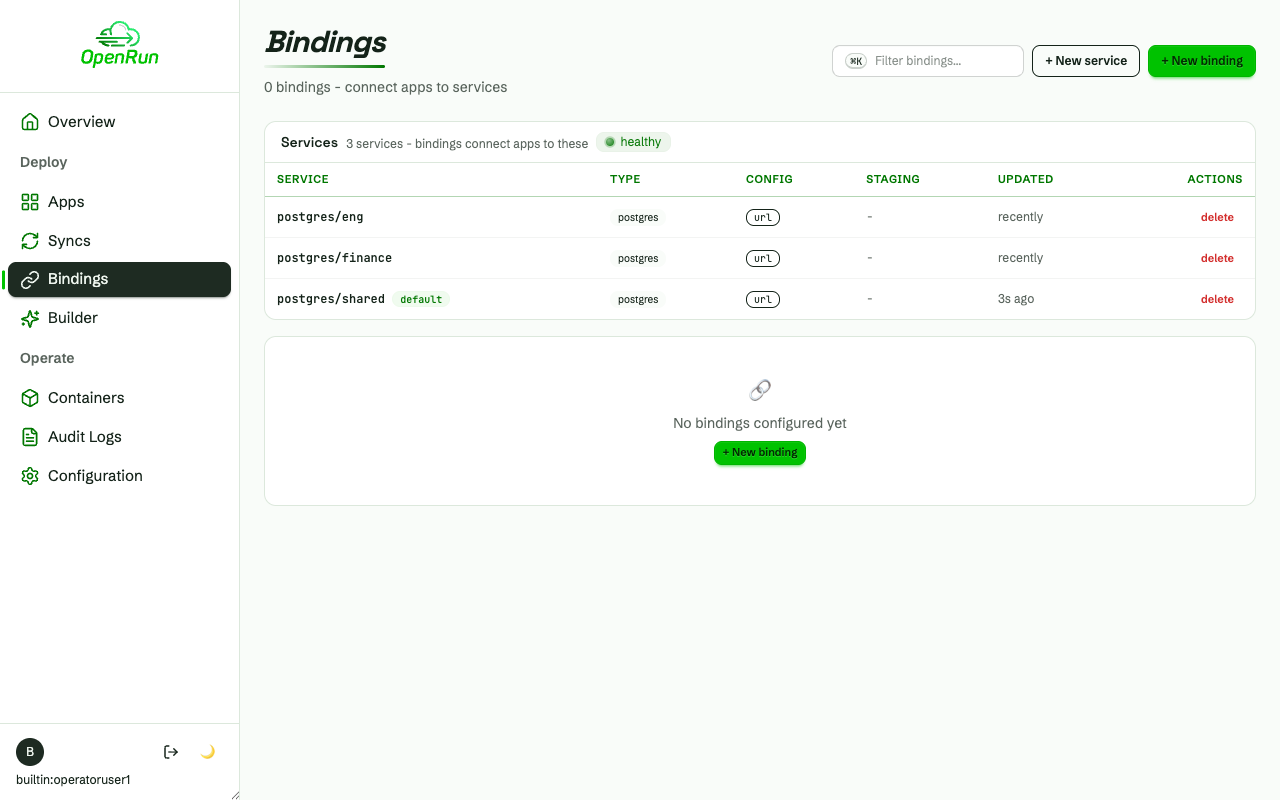
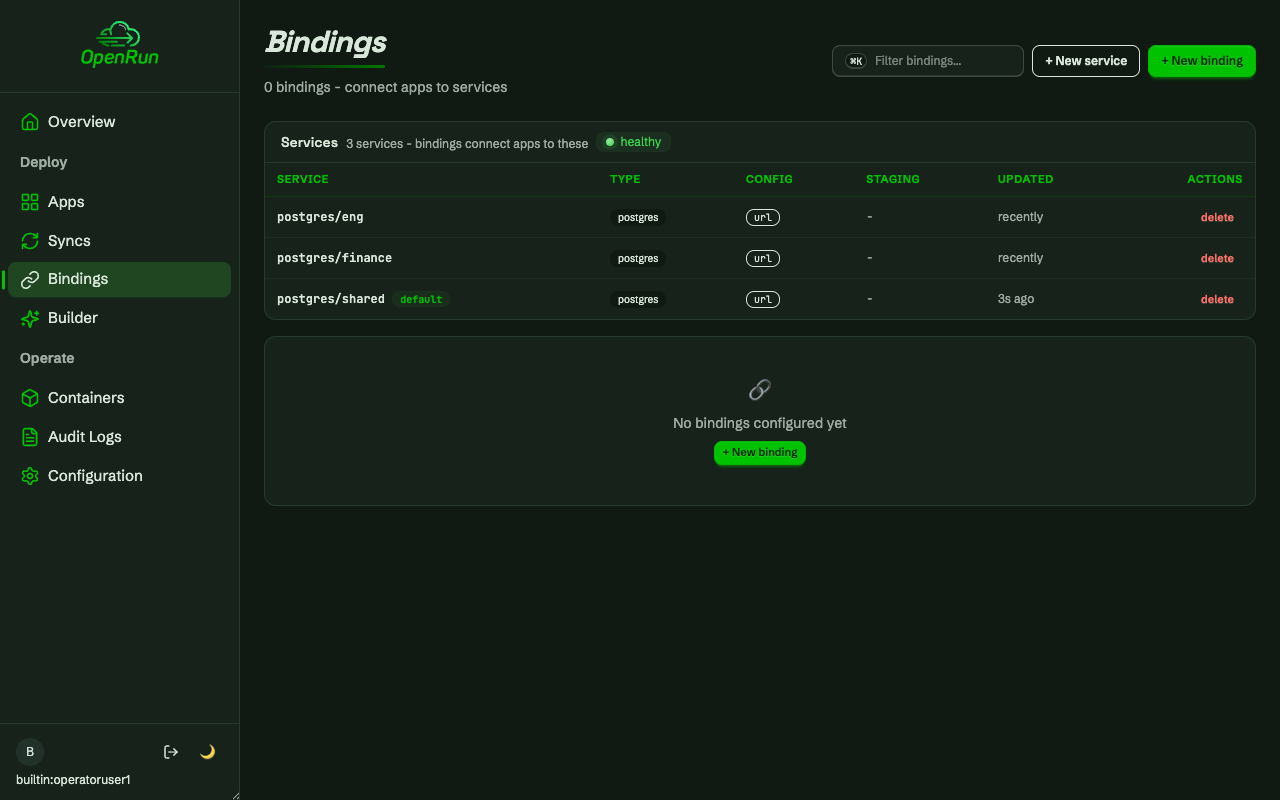
The operator creates the database services: a shared one plus one per team, each on its own database.
Every service is visible
The operator’s all-target grant shows every service.
Scoped development
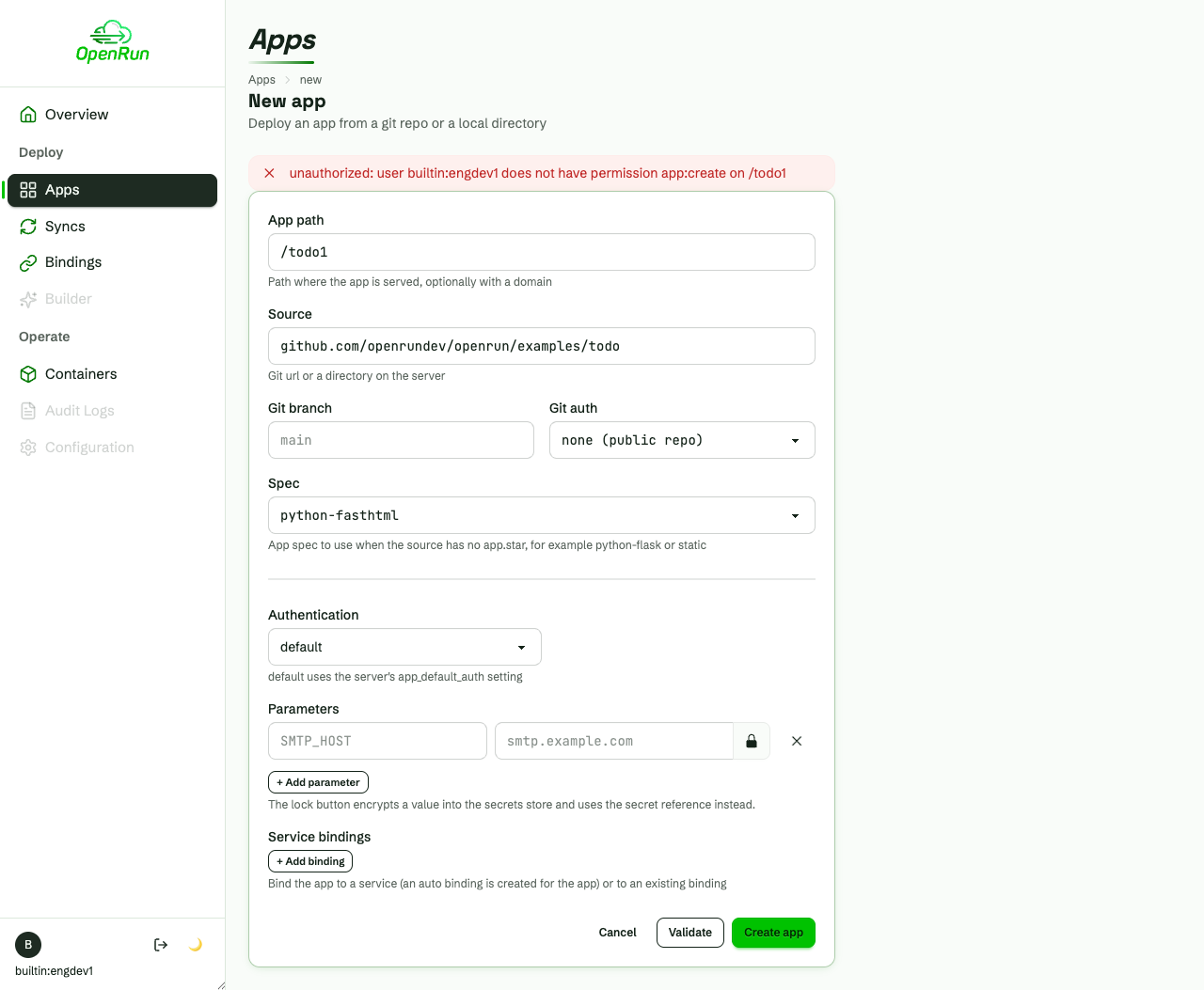
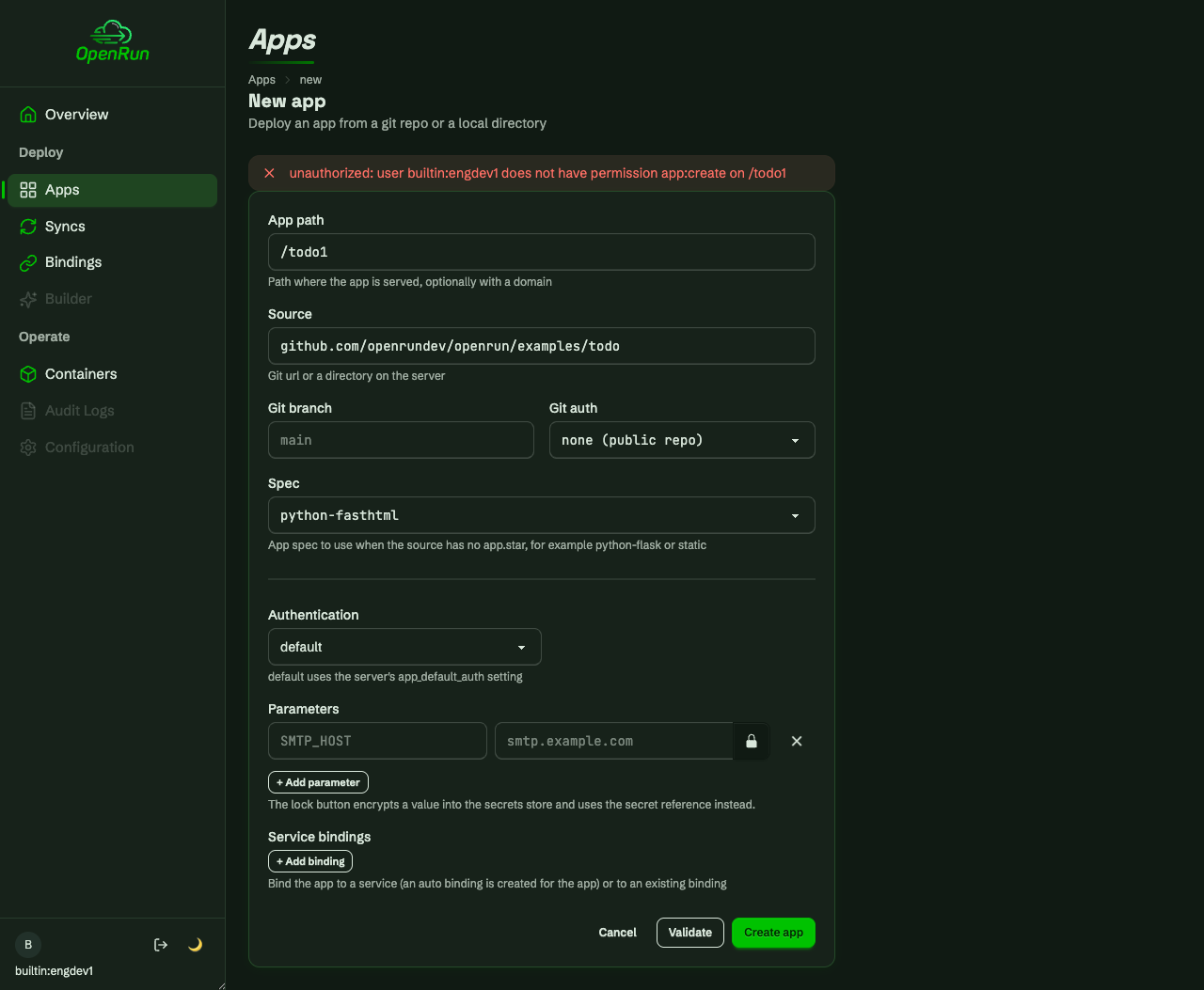
Create denied outside the scope
Grants are enforced per resource at action time. A developer can reach the create form (they hold app:create somewhere), but creating an app outside the team scope is denied.
Create inside the scope
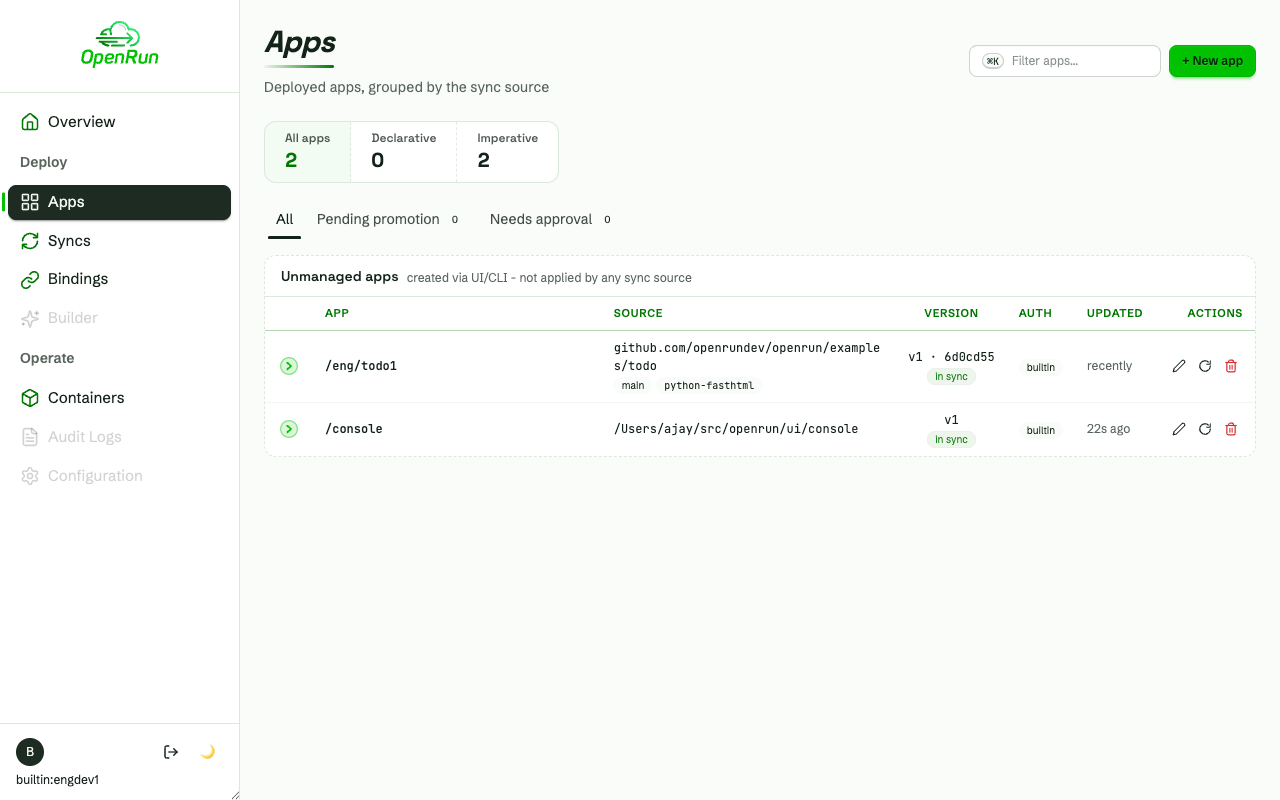
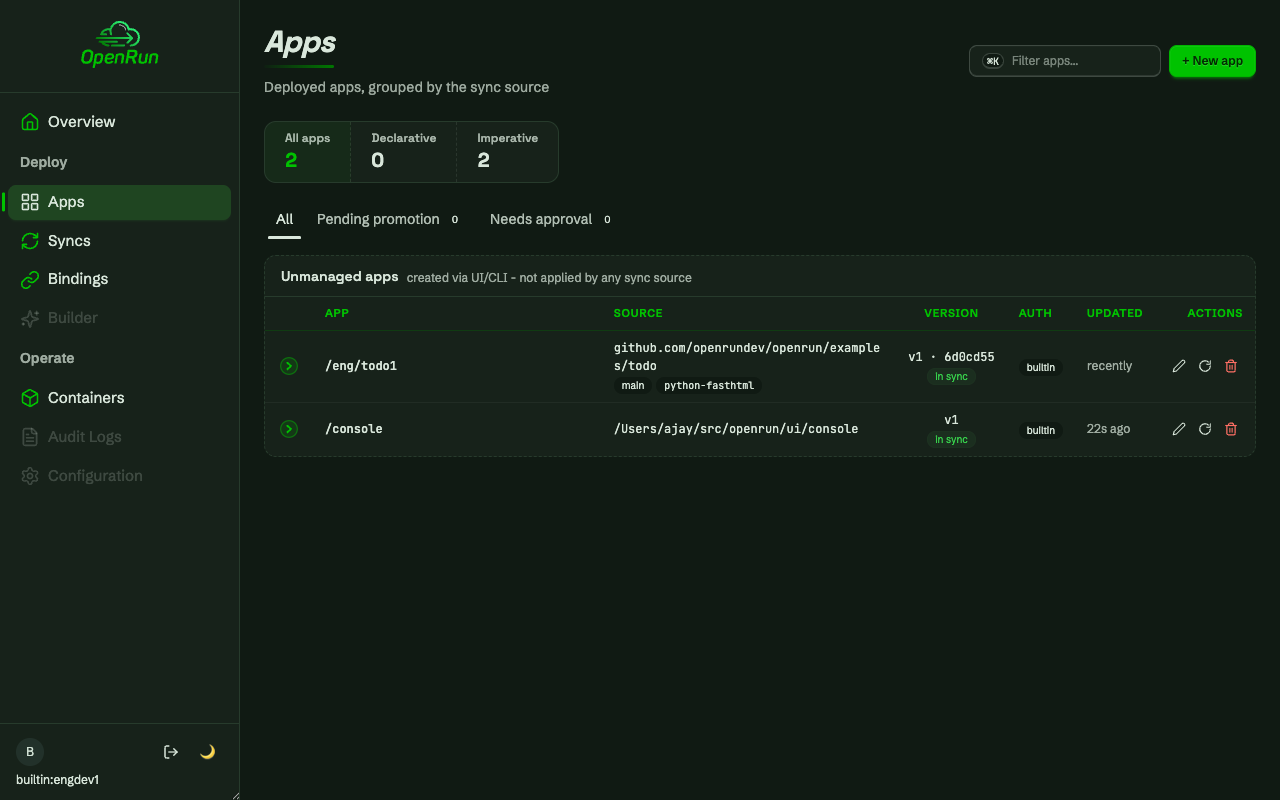
Inside the scope, the developer creates the team’s todo app bound to the team service. Attaching the binding is authorized by service:bind on that service.
Derive a read-only binding
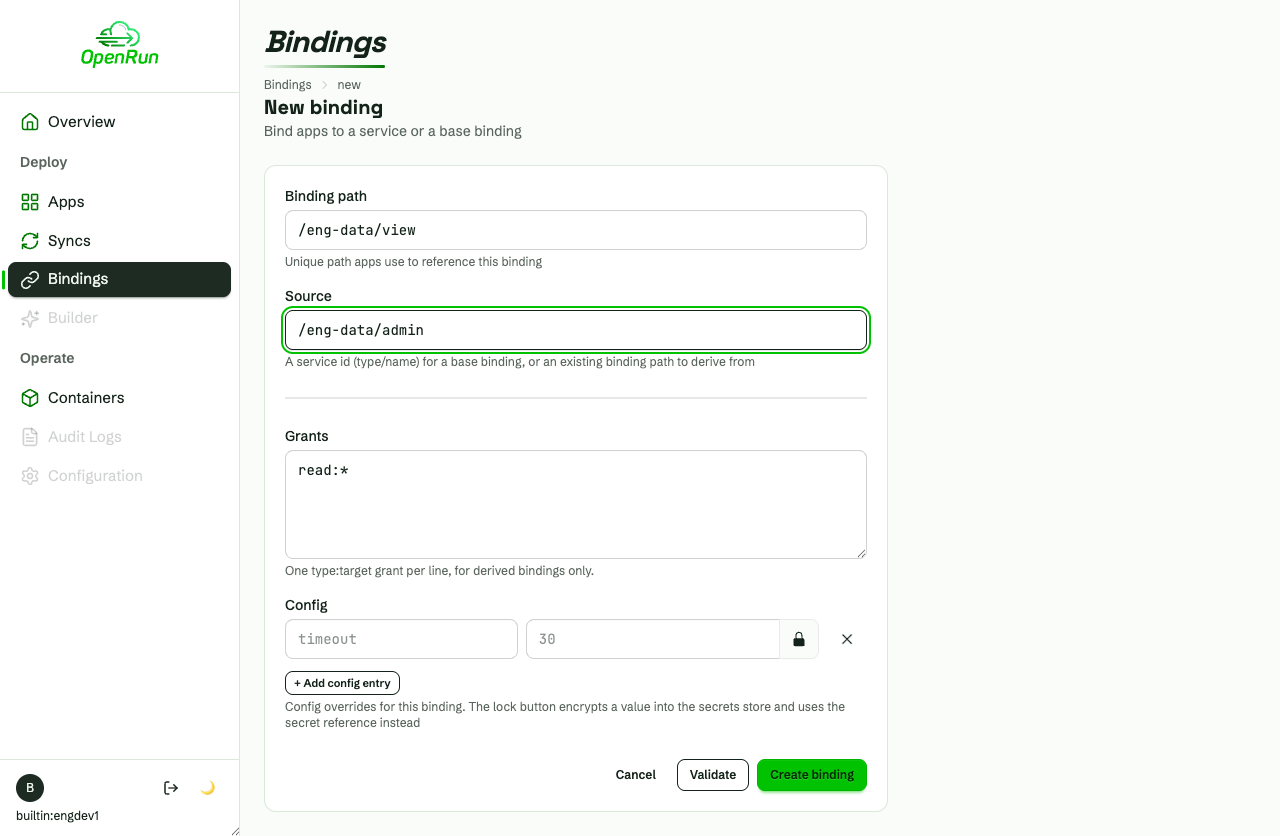
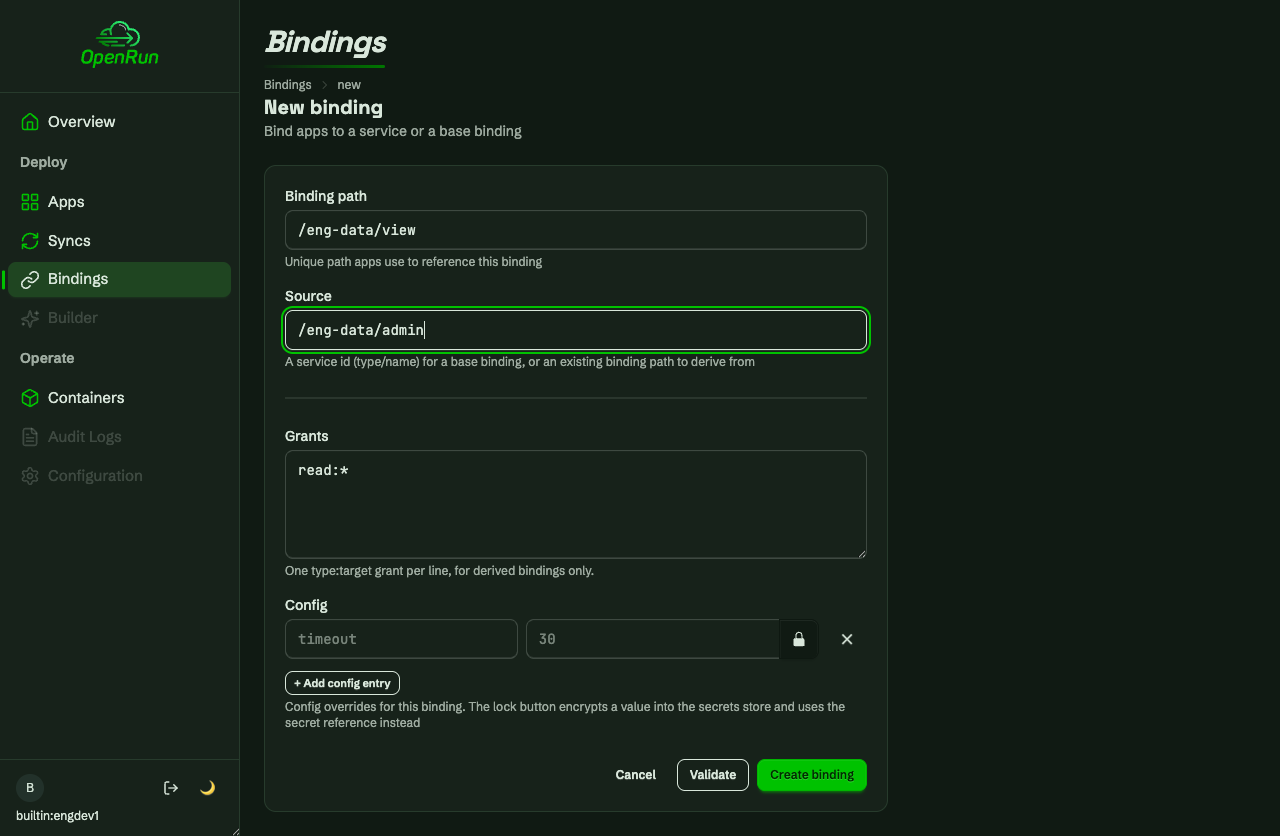
Developers can derive restricted bindings from a base binding, here a read-only view with per-table grants.
Build on the derived binding
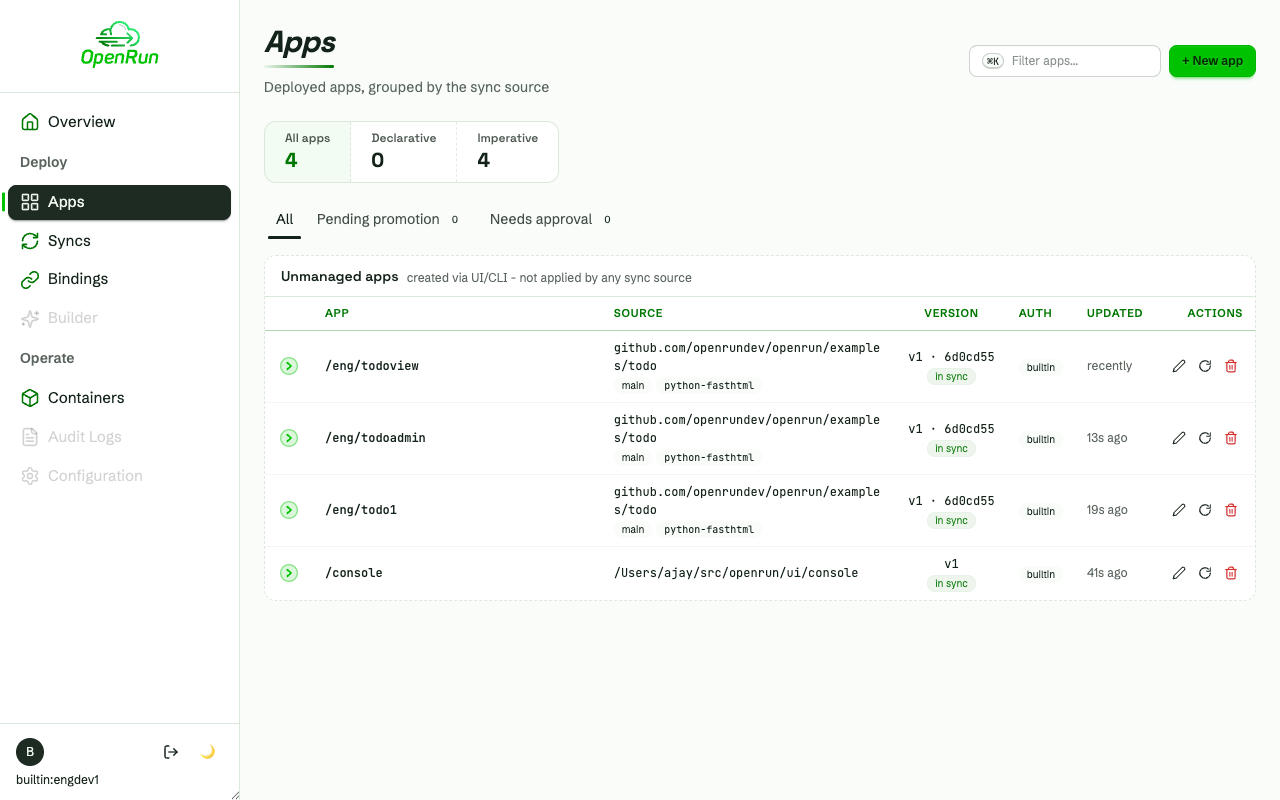
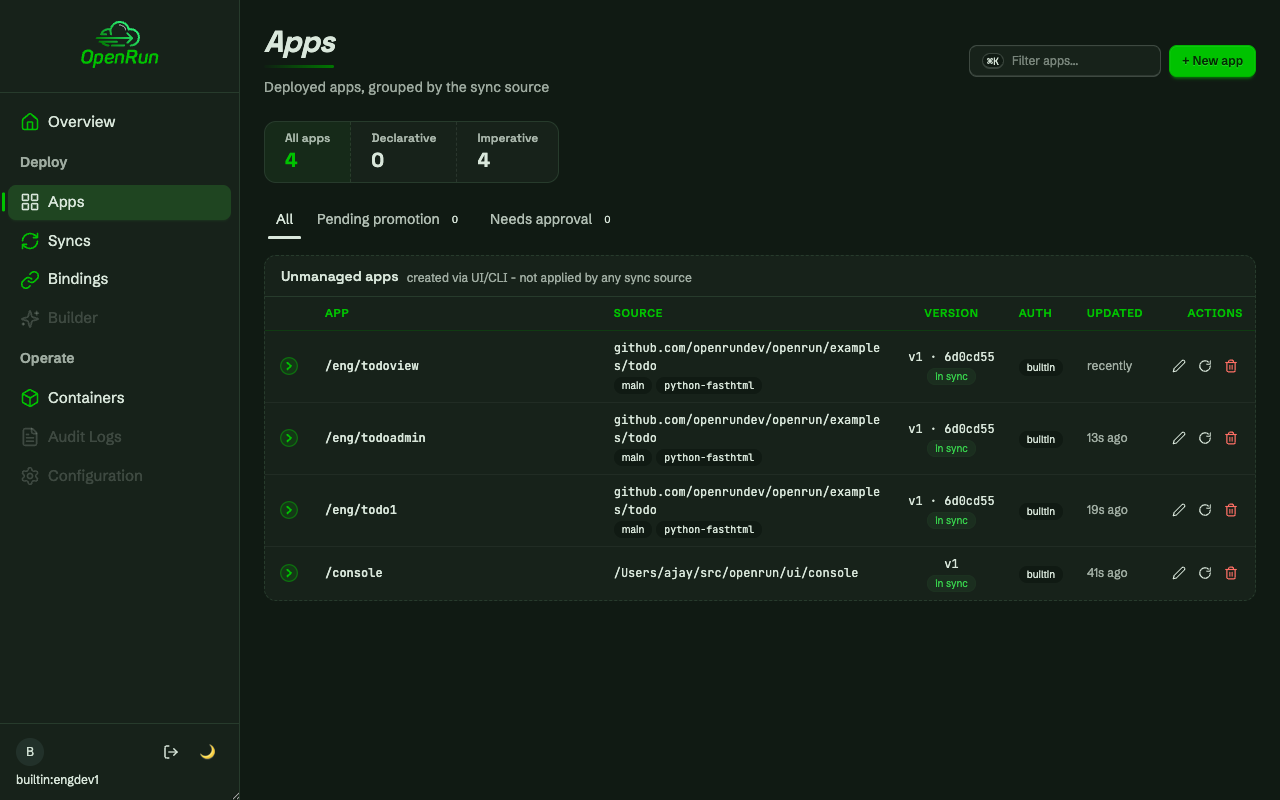
The binding dropdown lists only the services and bindings the caller can read. Other teams’ entries never appear.
Team subdomains
Domain glob targets authorize apps on team subdomains too.
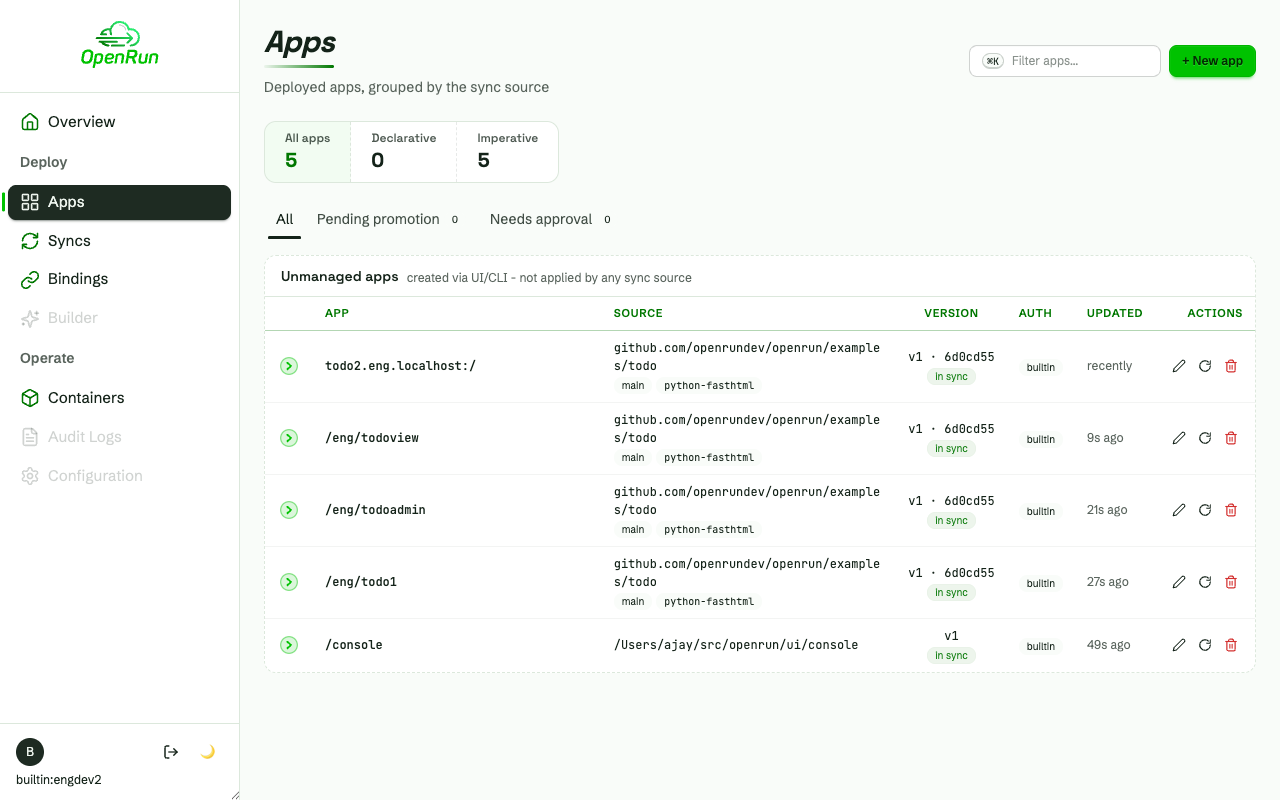
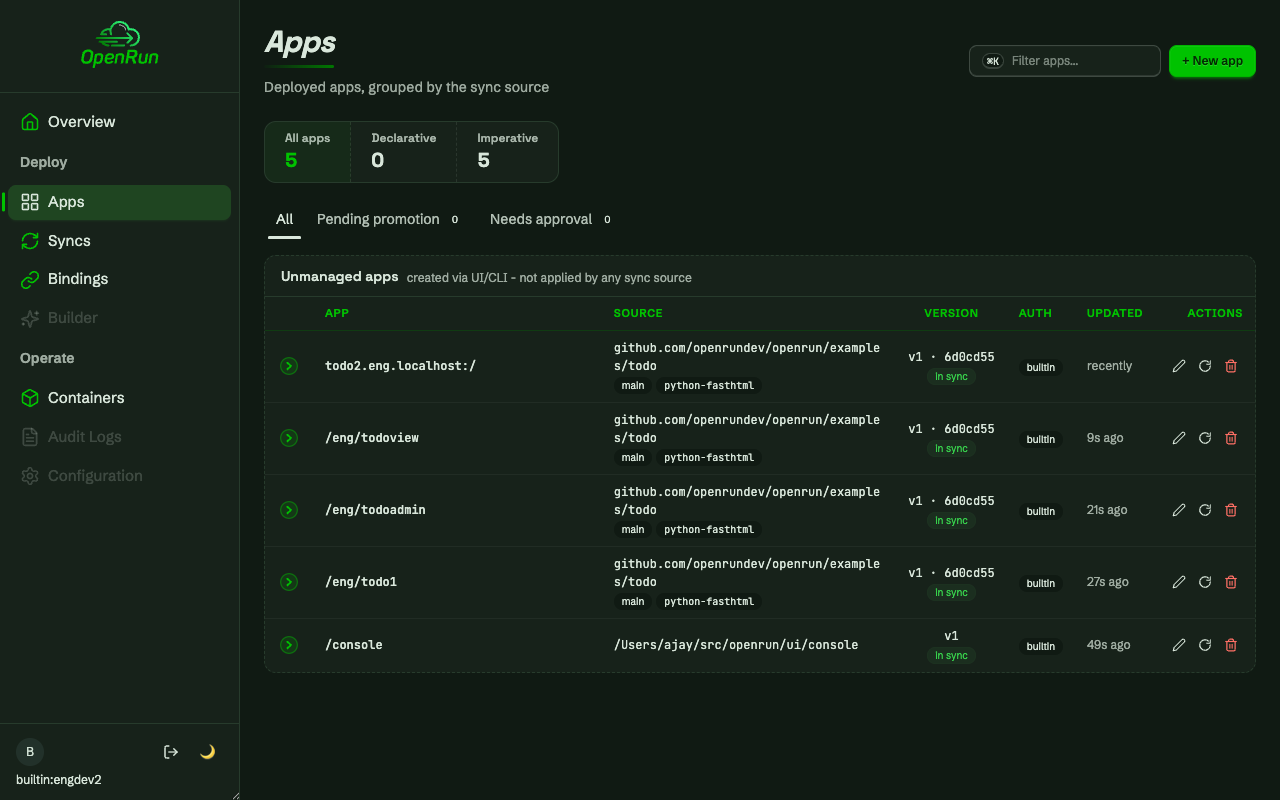
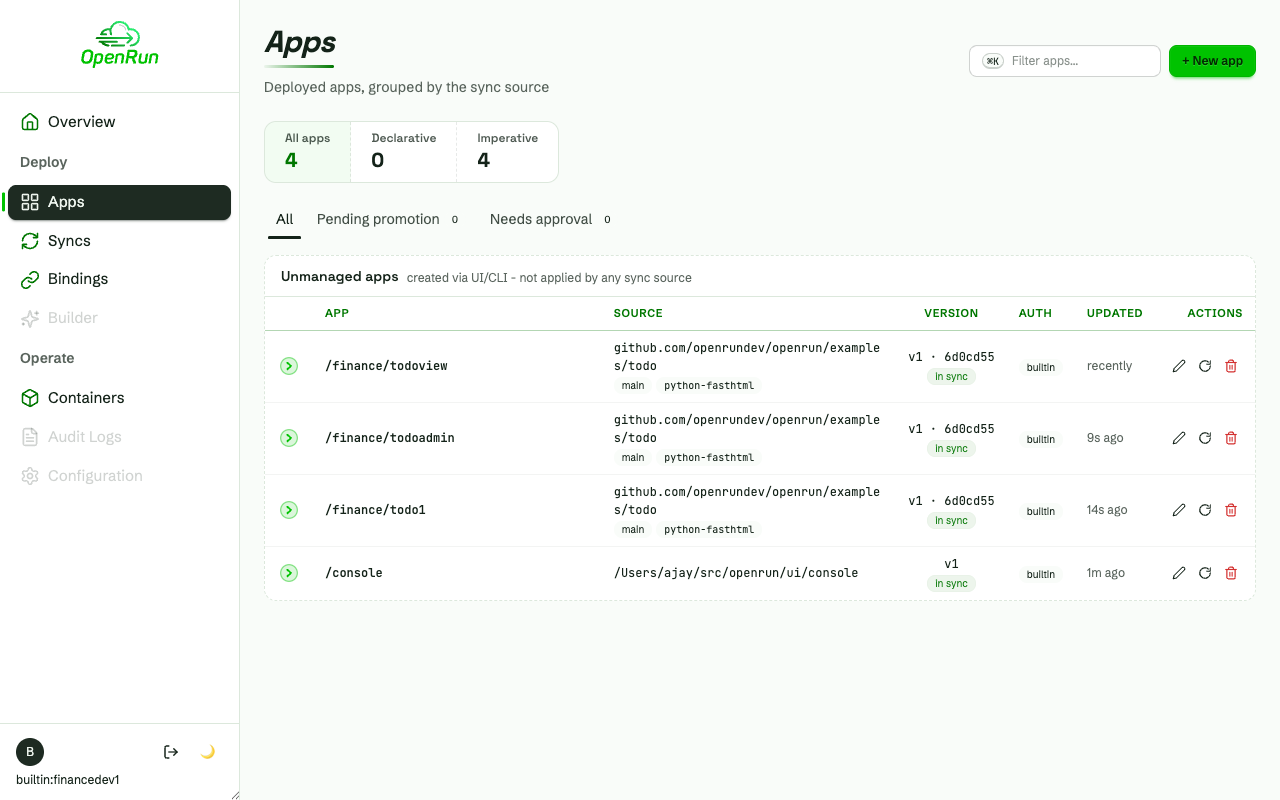
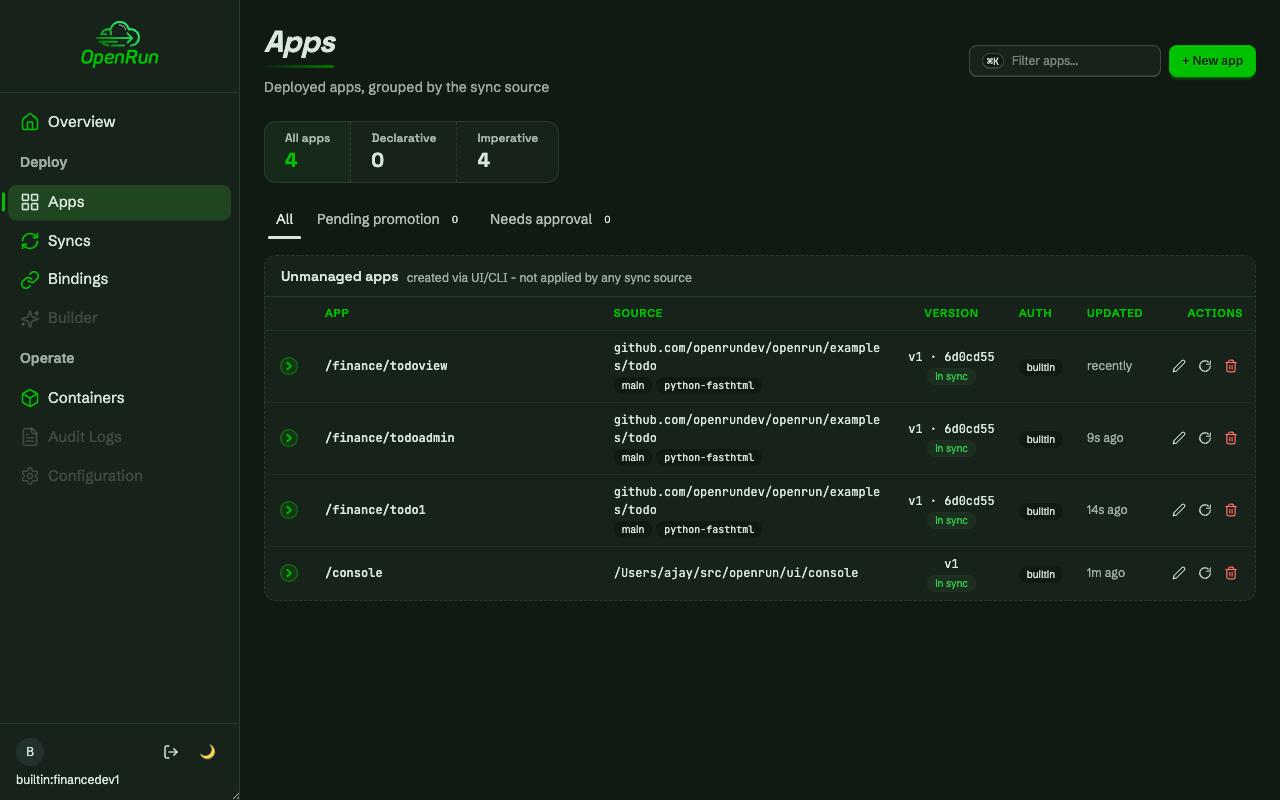
The other team
The finance team works the same way in its own scope.
Lists are filtered
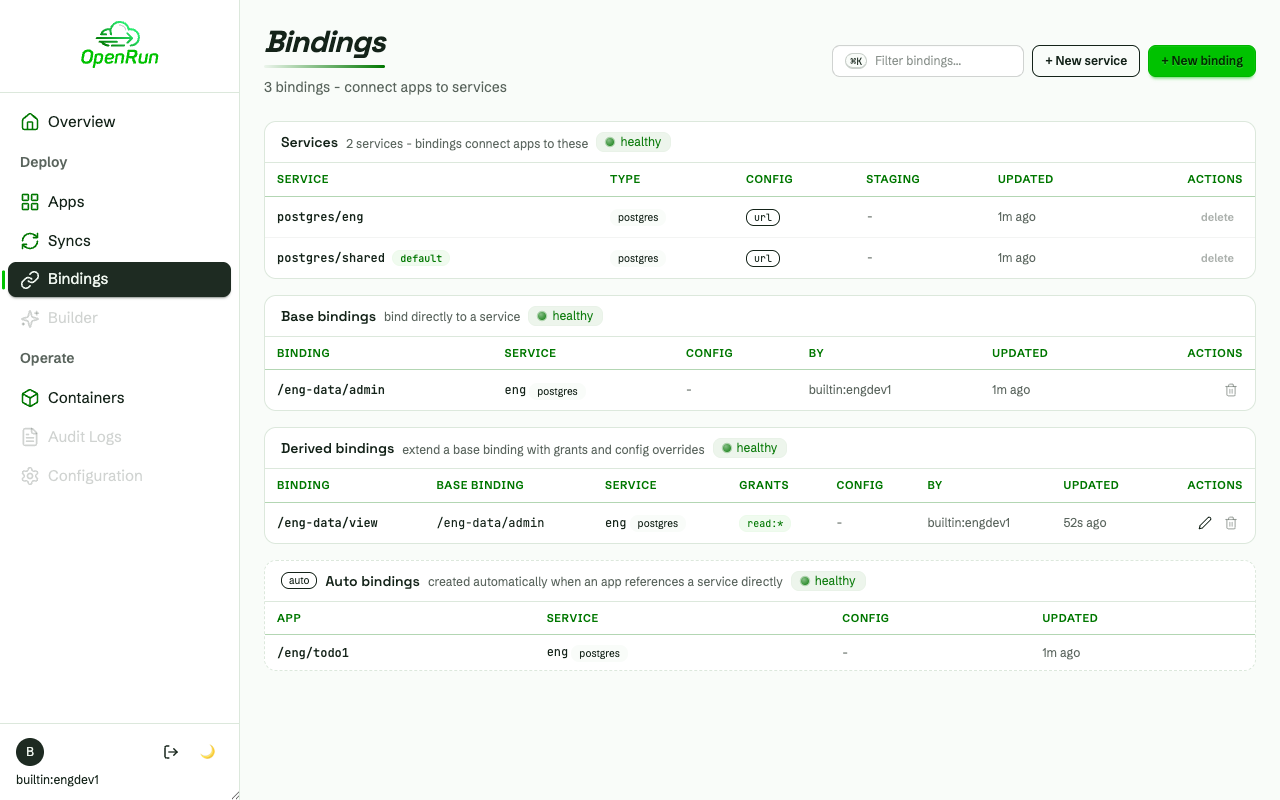
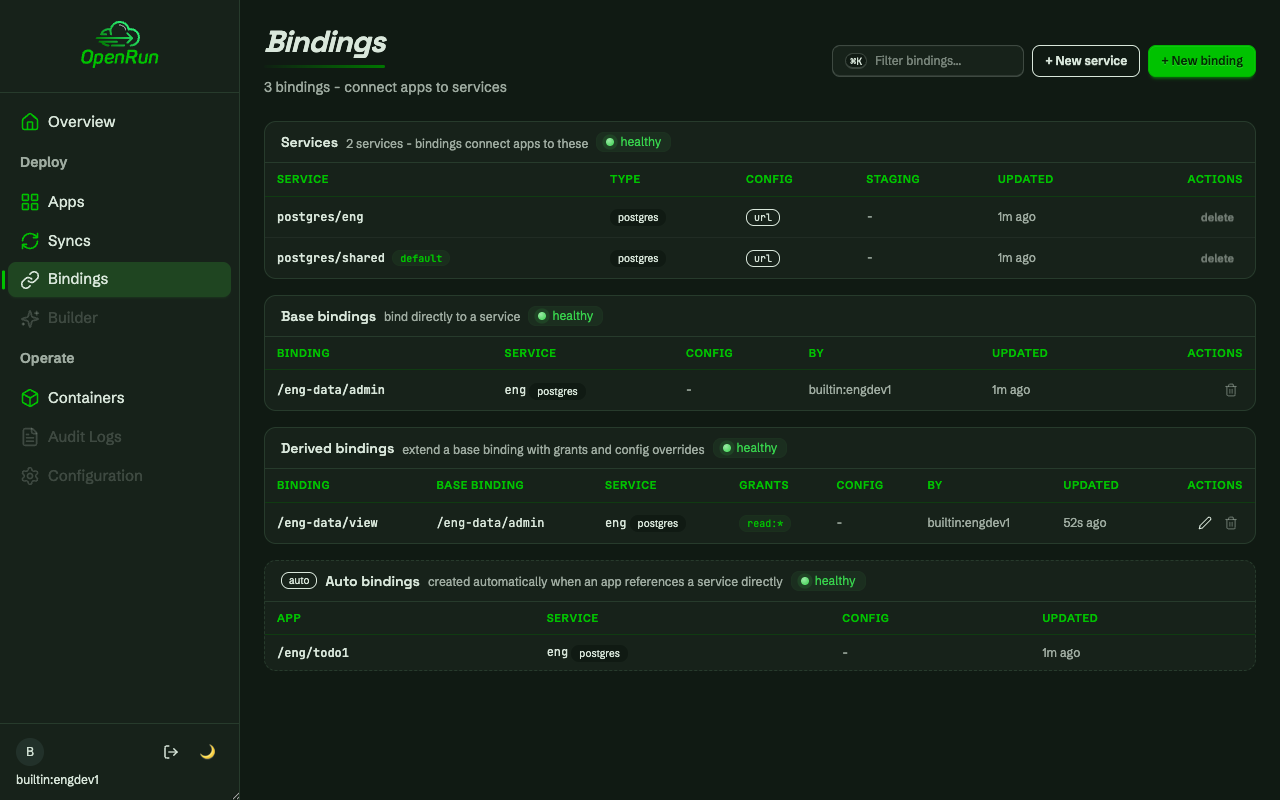
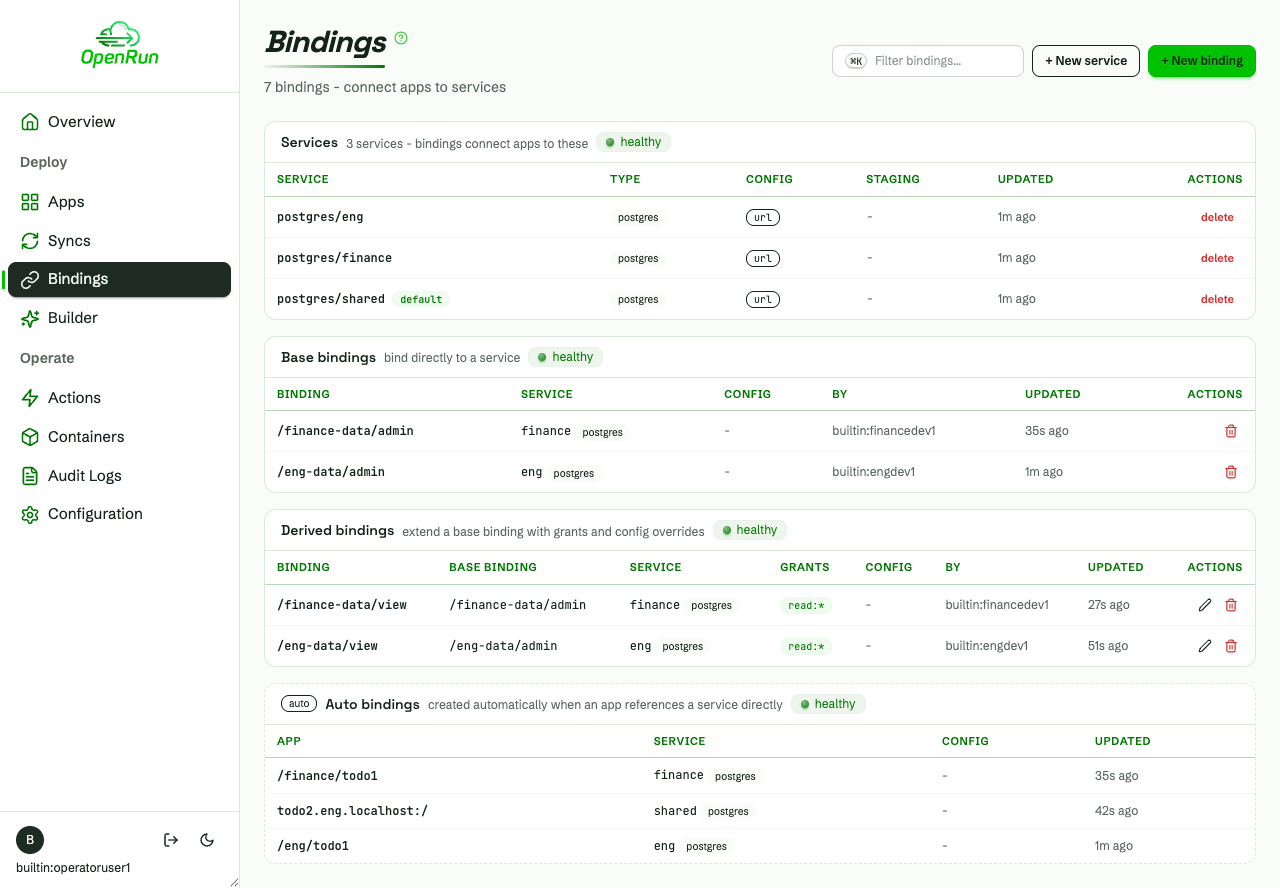
Every list is filtered on the server to what the caller can read. A developer’s bindings page shows the team and shared entries only.
Read-only users and operators
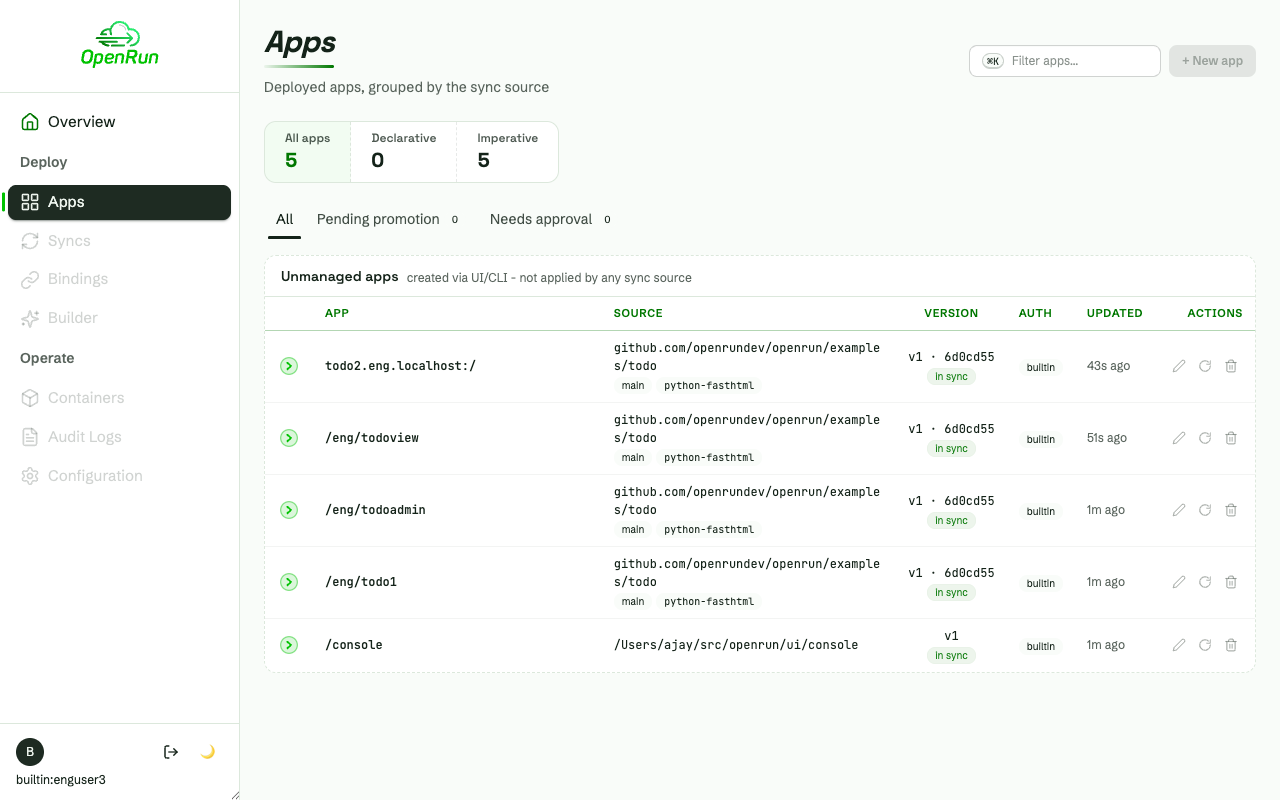
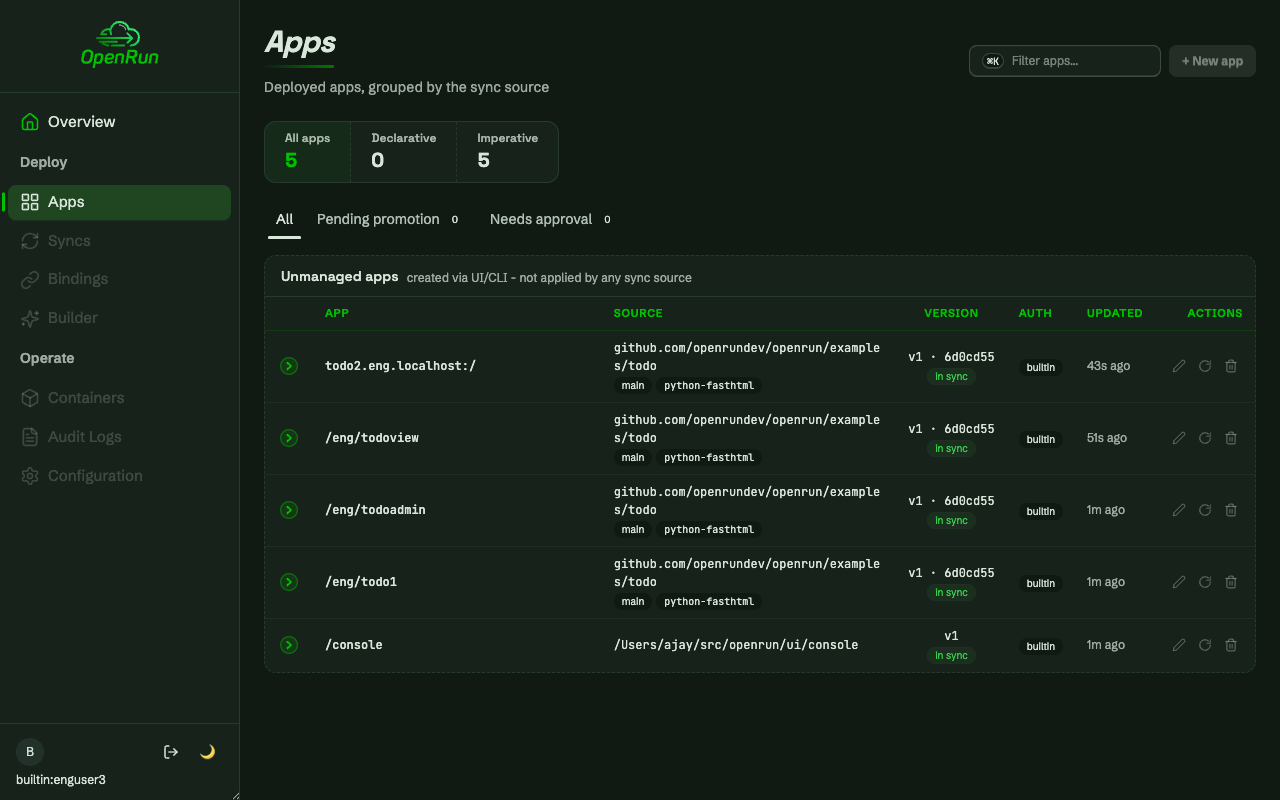
Read-only apps page
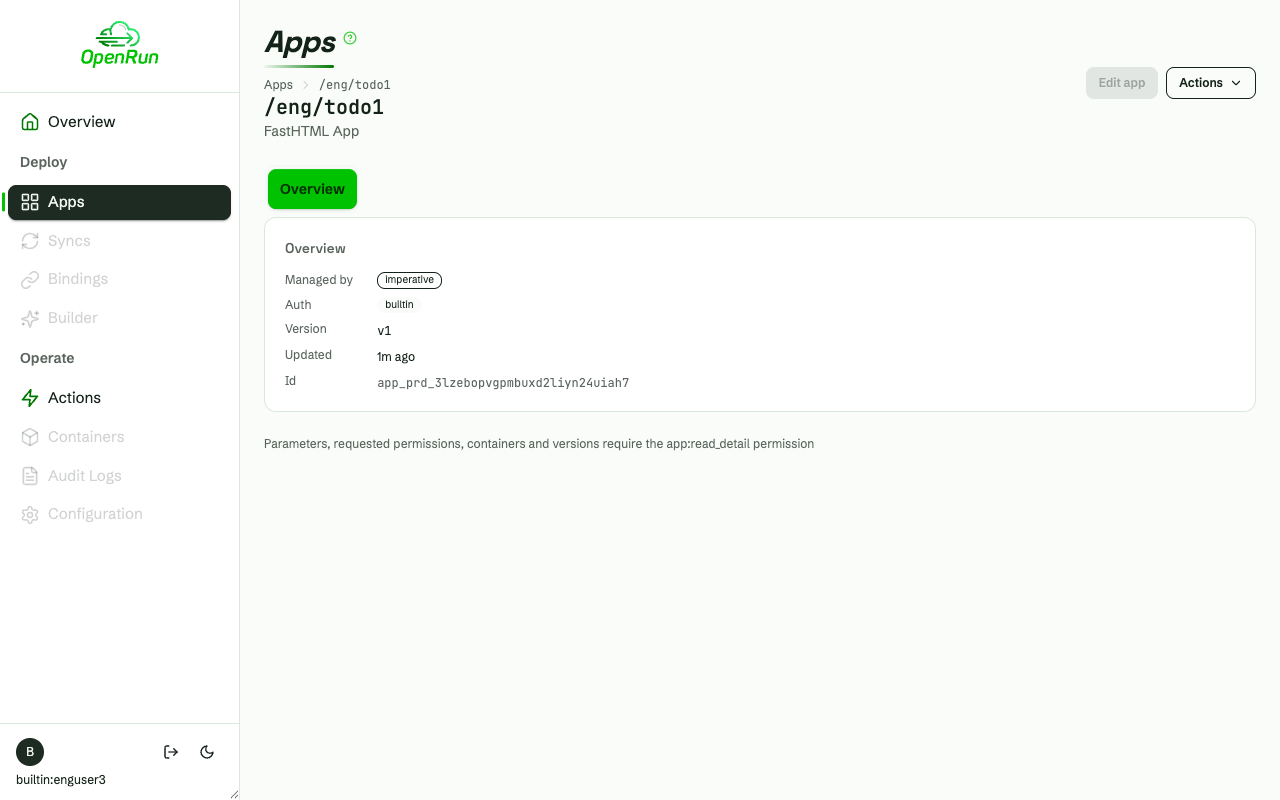
A read-only user sees the team apps, with every write control disabled and labeled with the missing permission. Nav areas without a read permission are disabled too.
Read-only app details
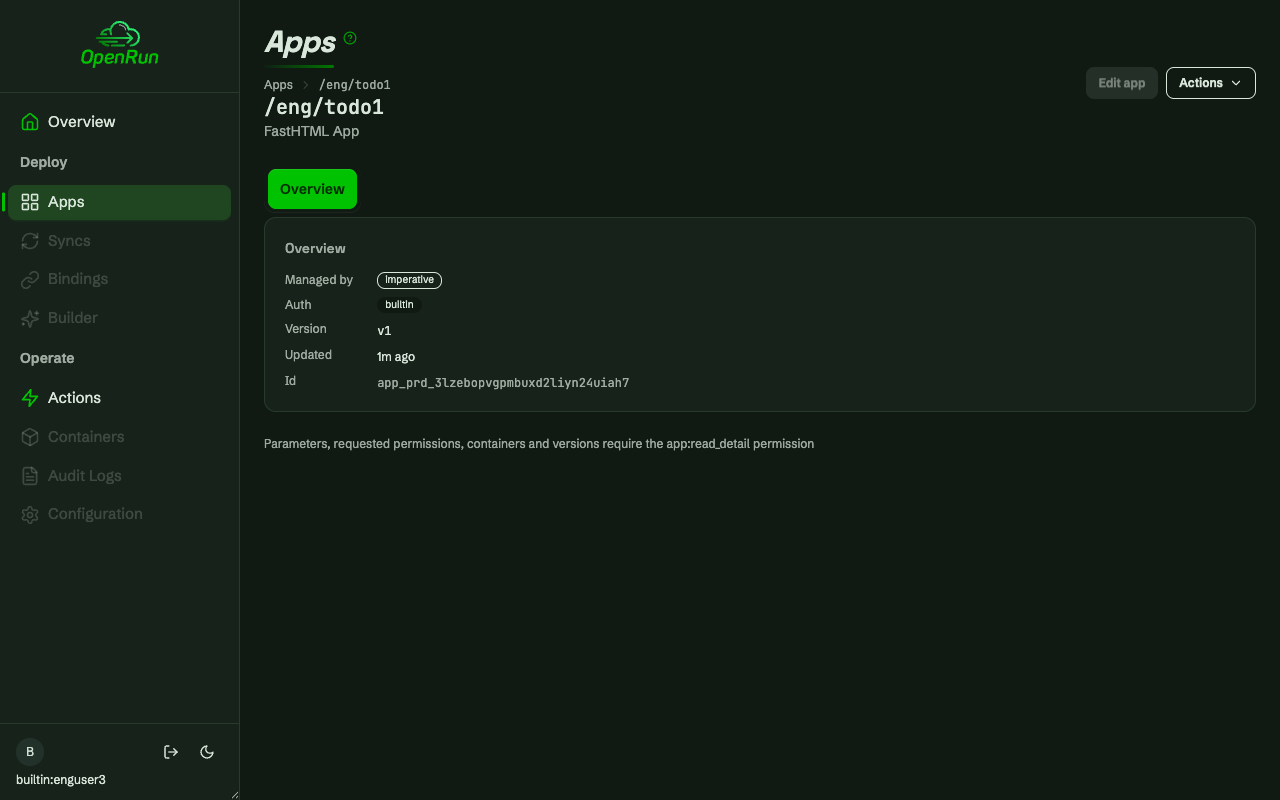
The same user’s app detail page shows only the basic app info. The Config, Compare and Files tabs, the source and the per-environment panel need app:read_detail, which the user role does not hold.
The operator sees everything
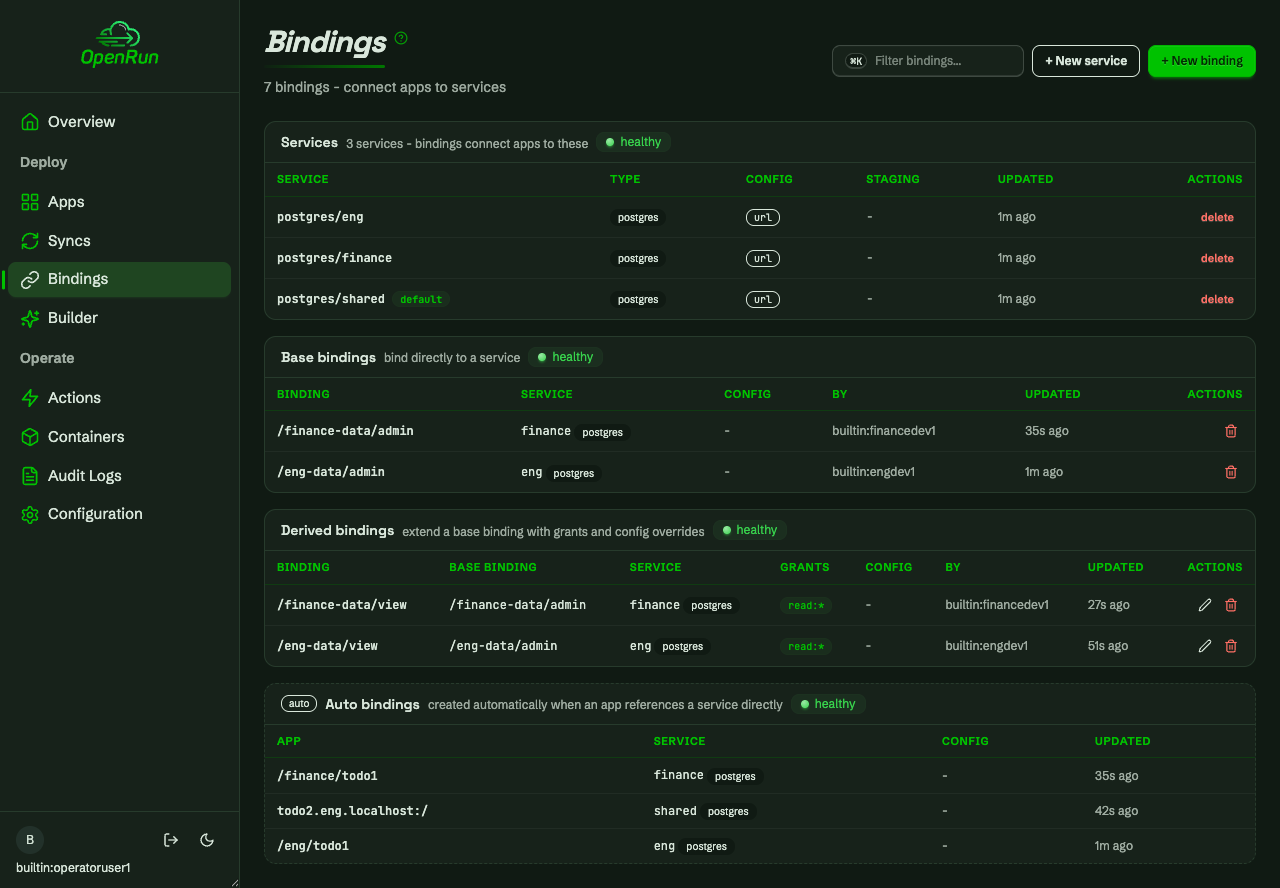
The operator’s all-target grant sees everything, plus approve/promote and the configuration pages.
Per-resource denials and staged updates
Denied in place
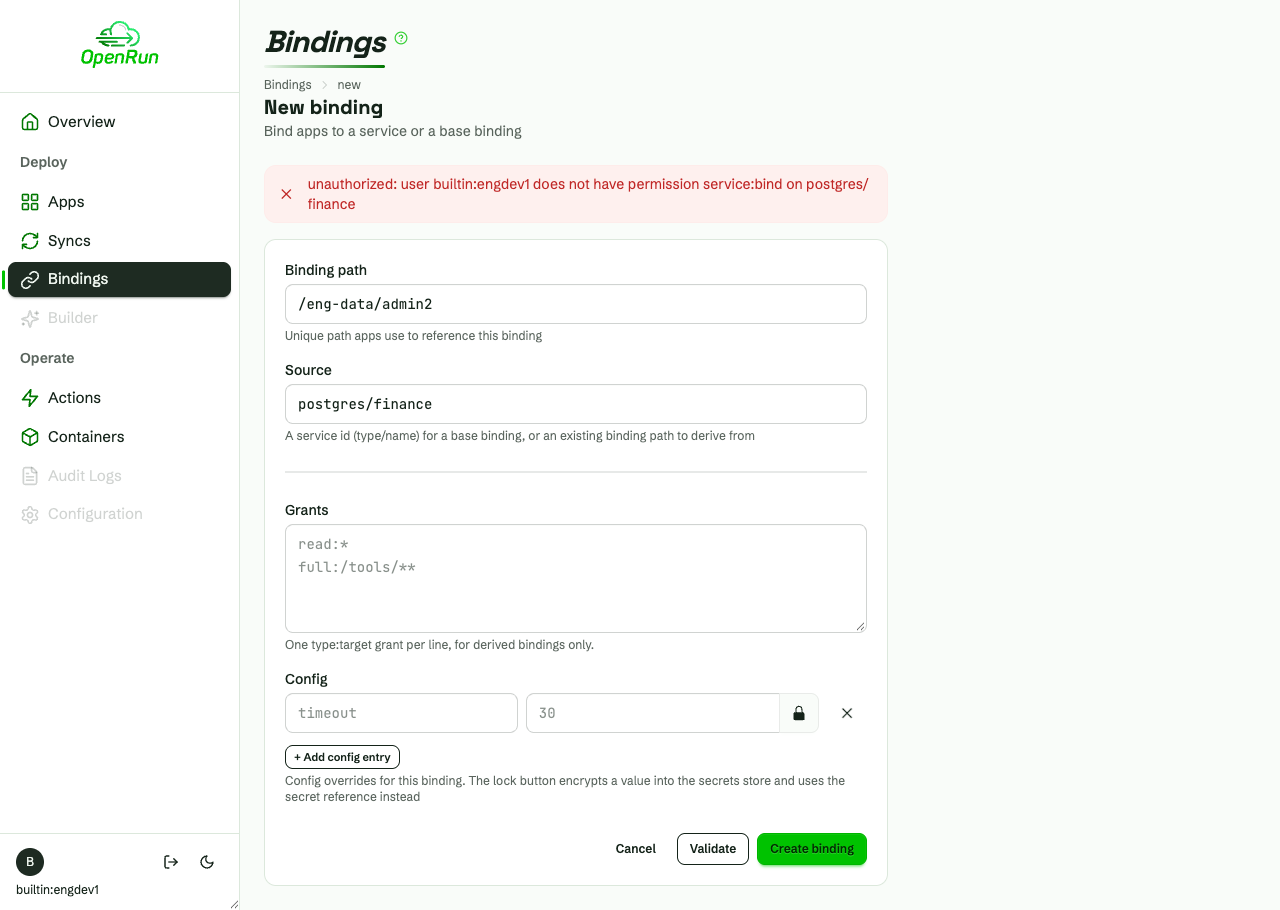
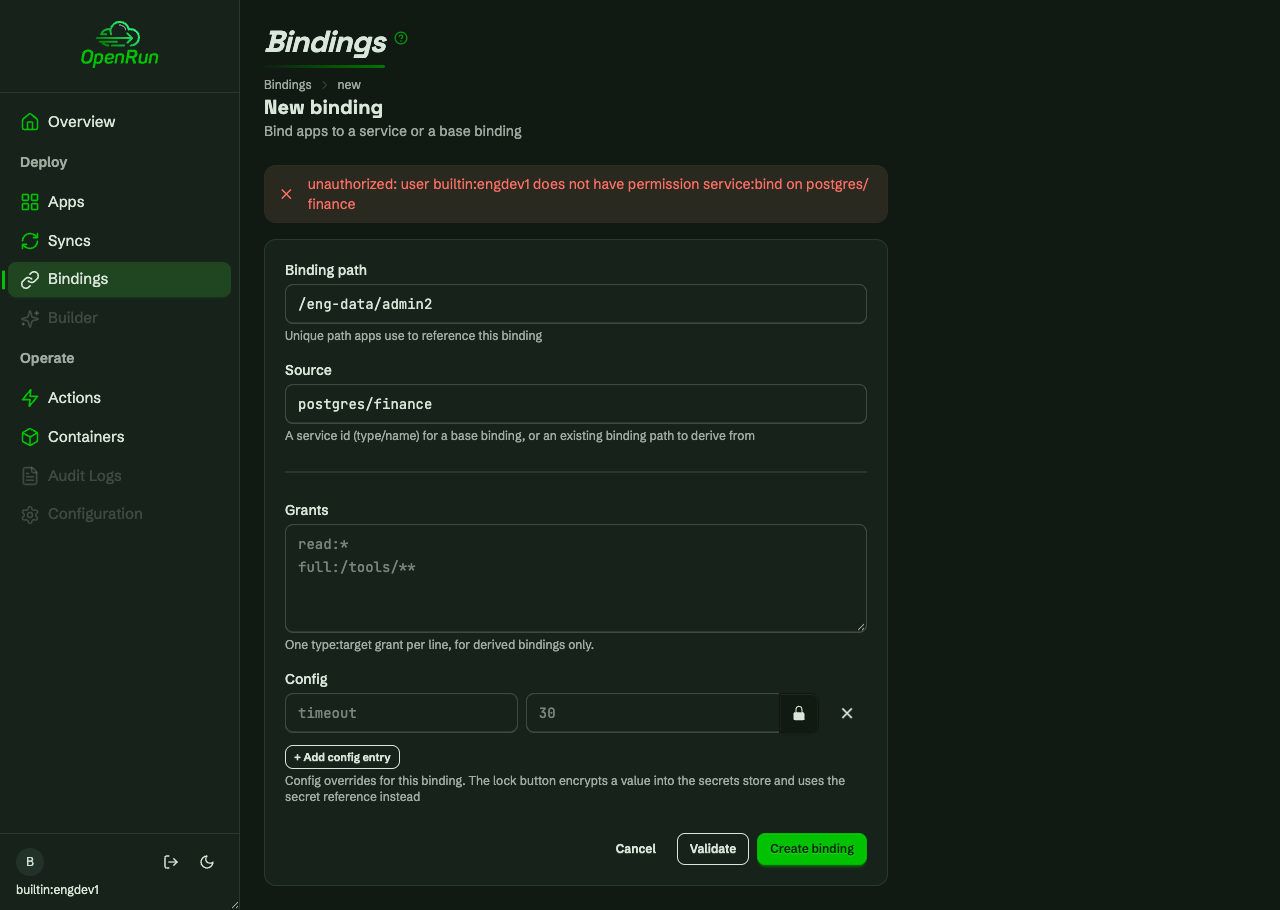
Write attempts outside the granted targets are each denied per resource, with the form re-rendered in place: a service outside the team’s namespace, a binding outside the team prefix, a binding sourced from another team’s service.
Stage, then promote
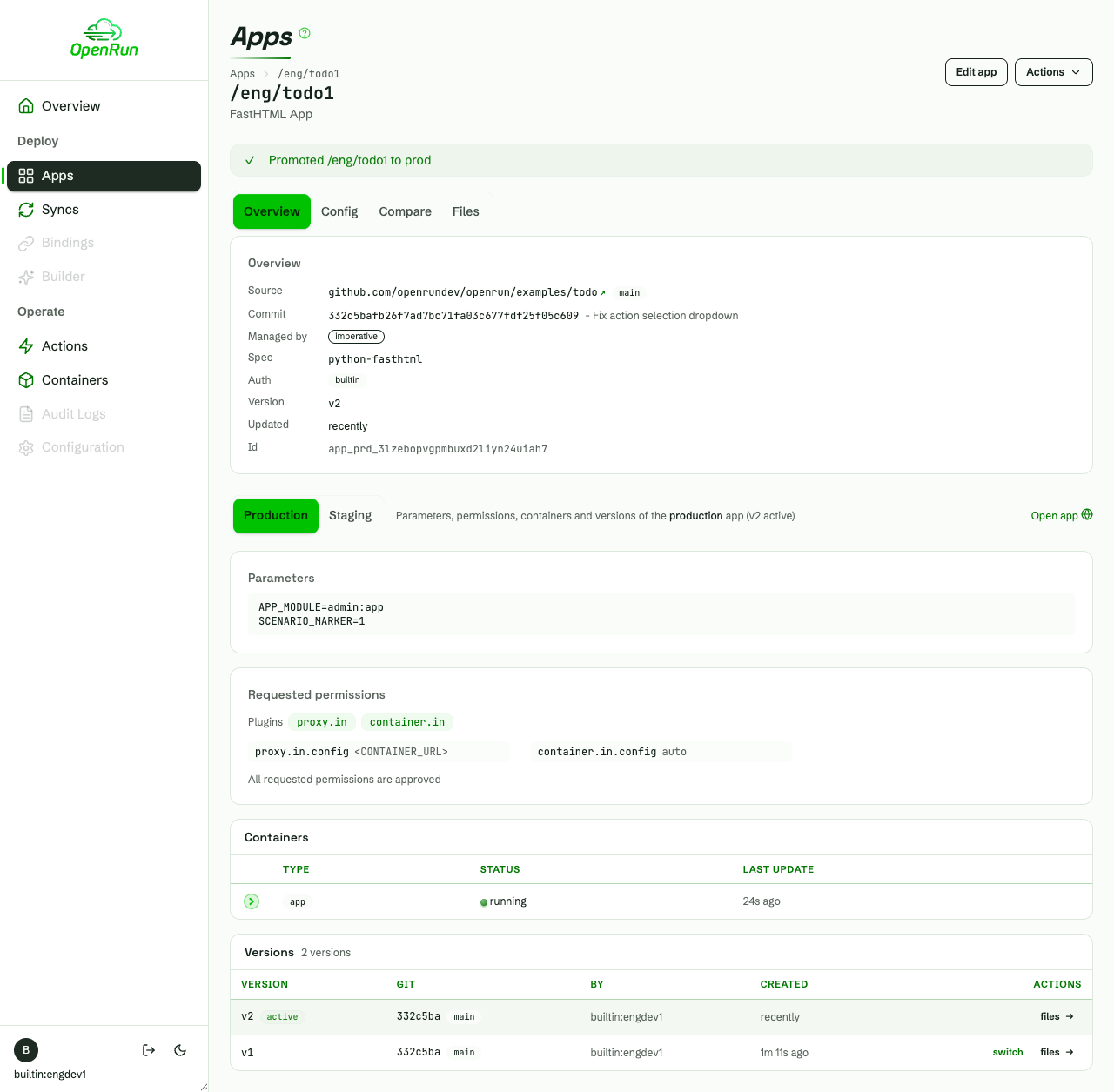
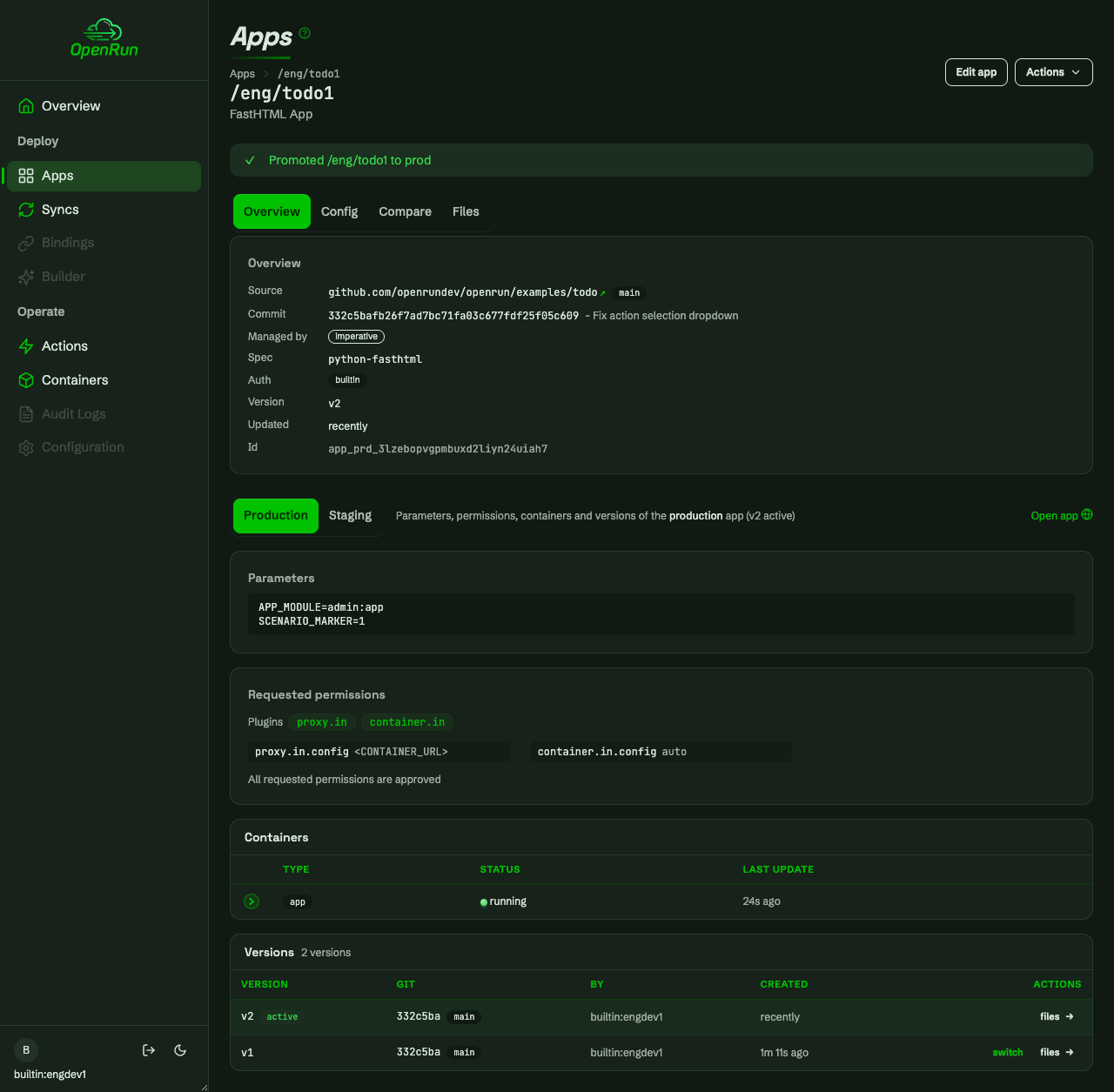
Updates always apply to staging first, and promoting to prod is a separate permission. The read-only user sees the pending promotion but a disabled Promote action.
Dynamic grant changes
Loan a developer
Grant changes publish without restarts. The operator loans the eng developer to finance.
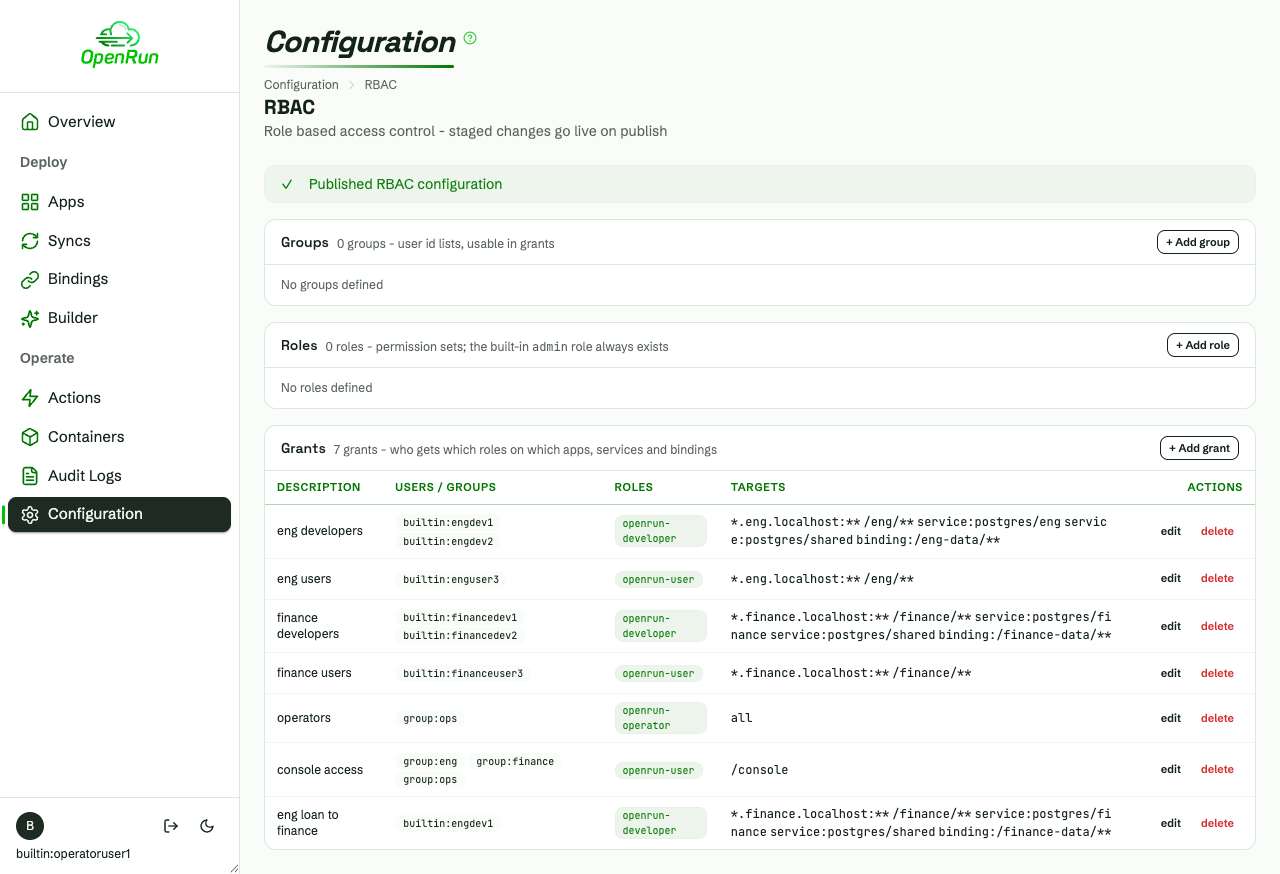
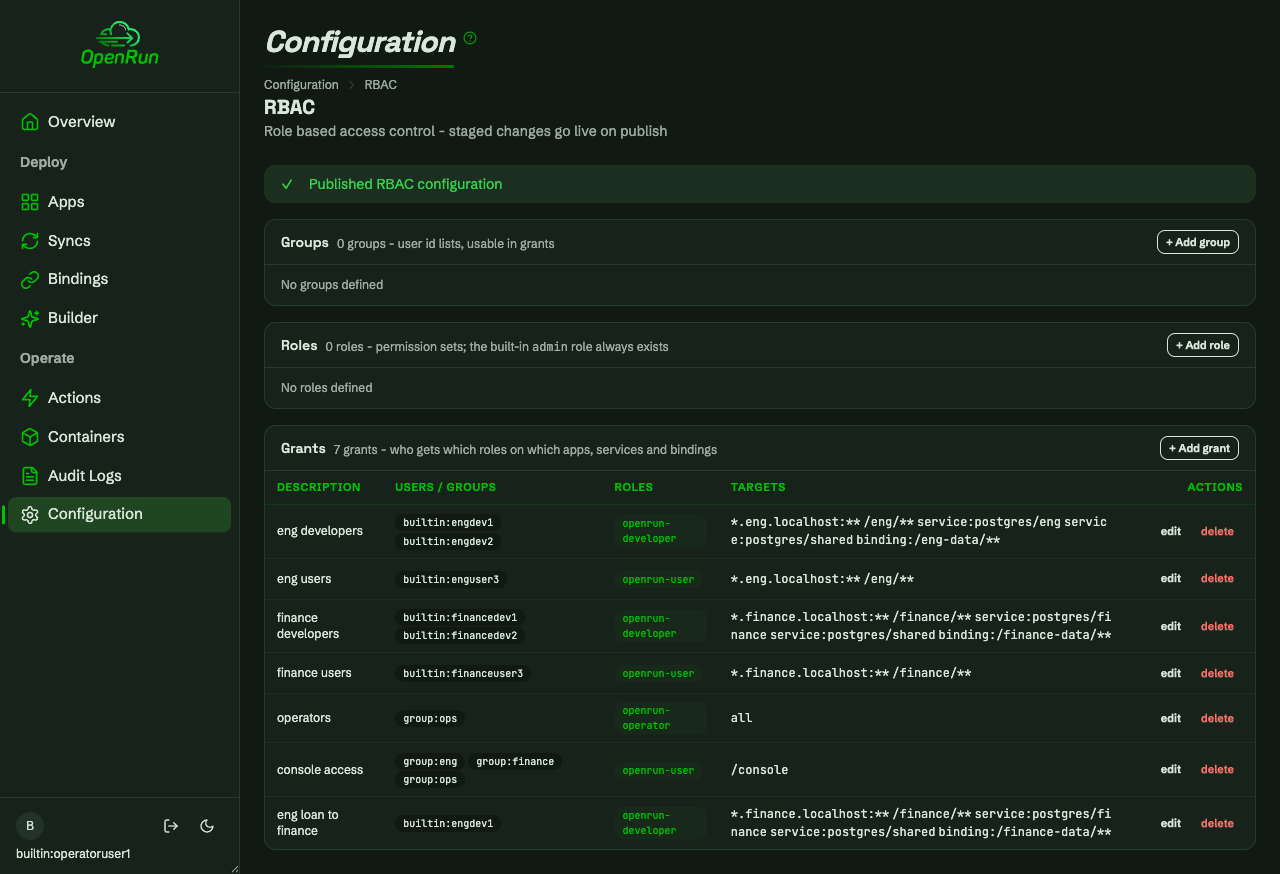
Access appears
The finance apps, service and bindings appear on the developer’s next request.
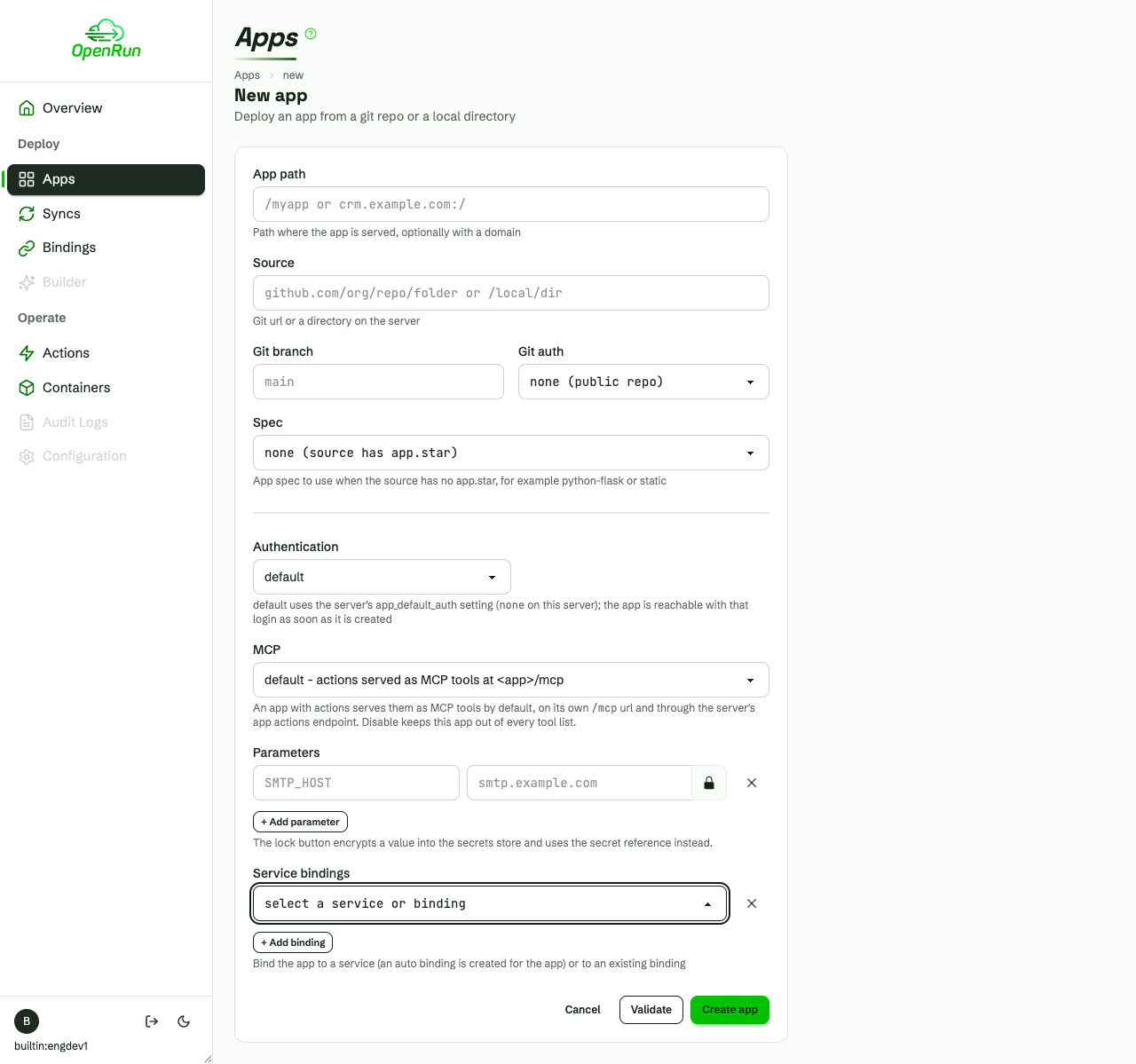
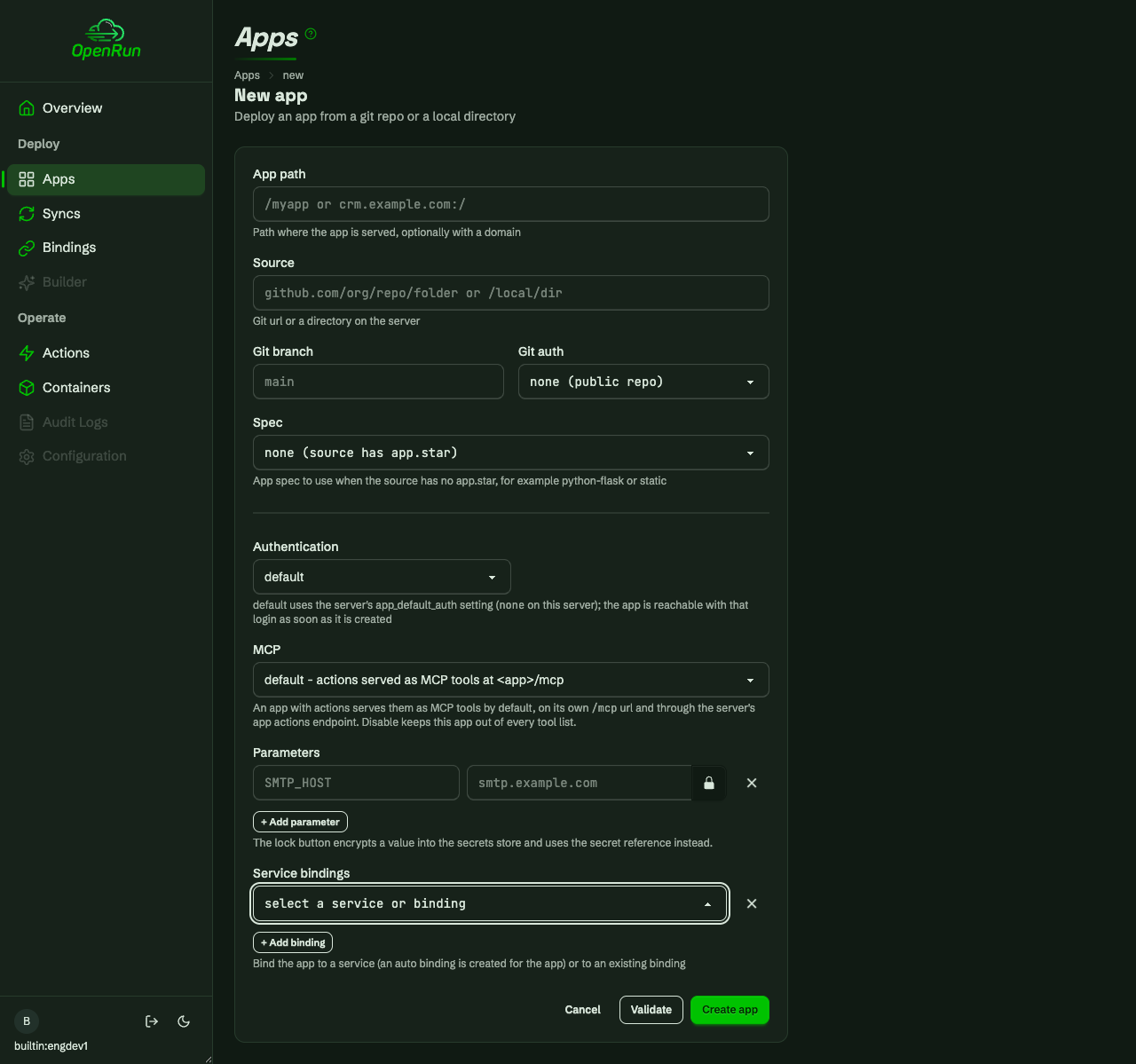
Access reverts
Deleting the loan grant reverts the access just as immediately. The finance apps drop out of the lists and their URLs return 403 again.
A live demo of the console is available. See console install for installing the console on your own server, or the walkthrough for a recorded run of a full demo workload.